manuals.online logo
Brands
  1. Home
  2. •
  3. Brands
  4. •
  5. Bpt
  6. •
  7. Intercom System
  8. •
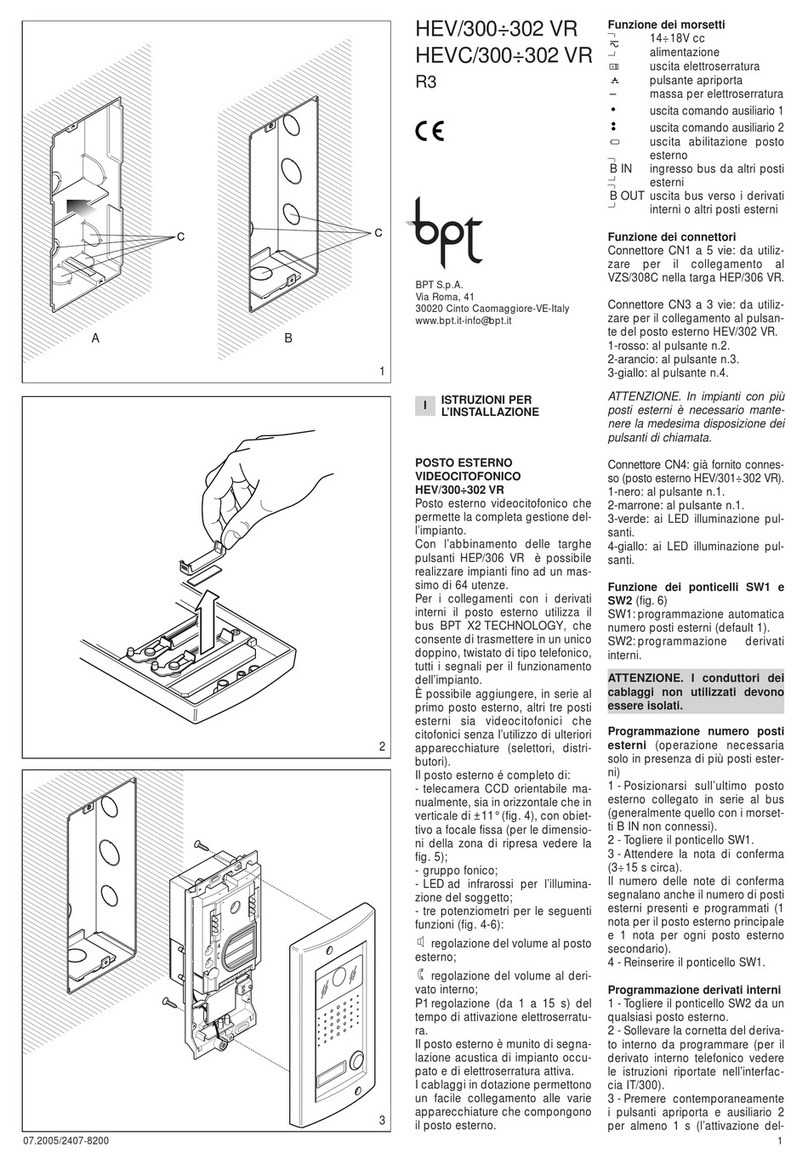
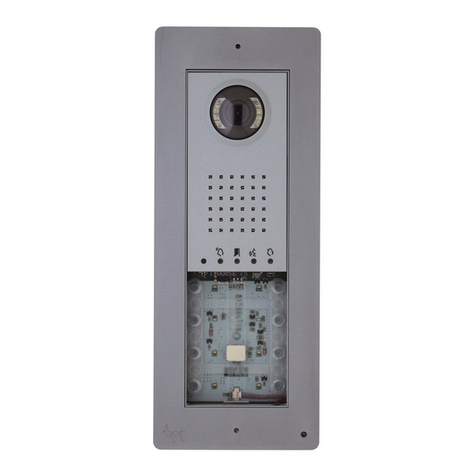
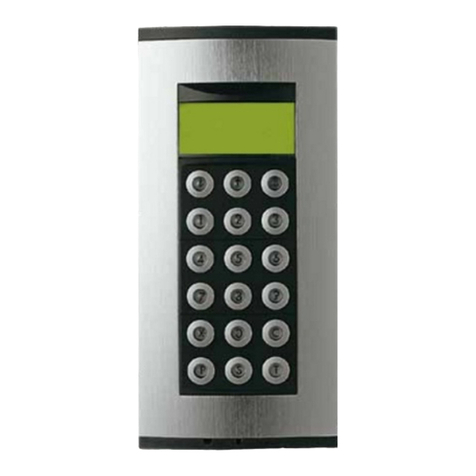
  9. Bpt DDVC/08 VR Owner's manual

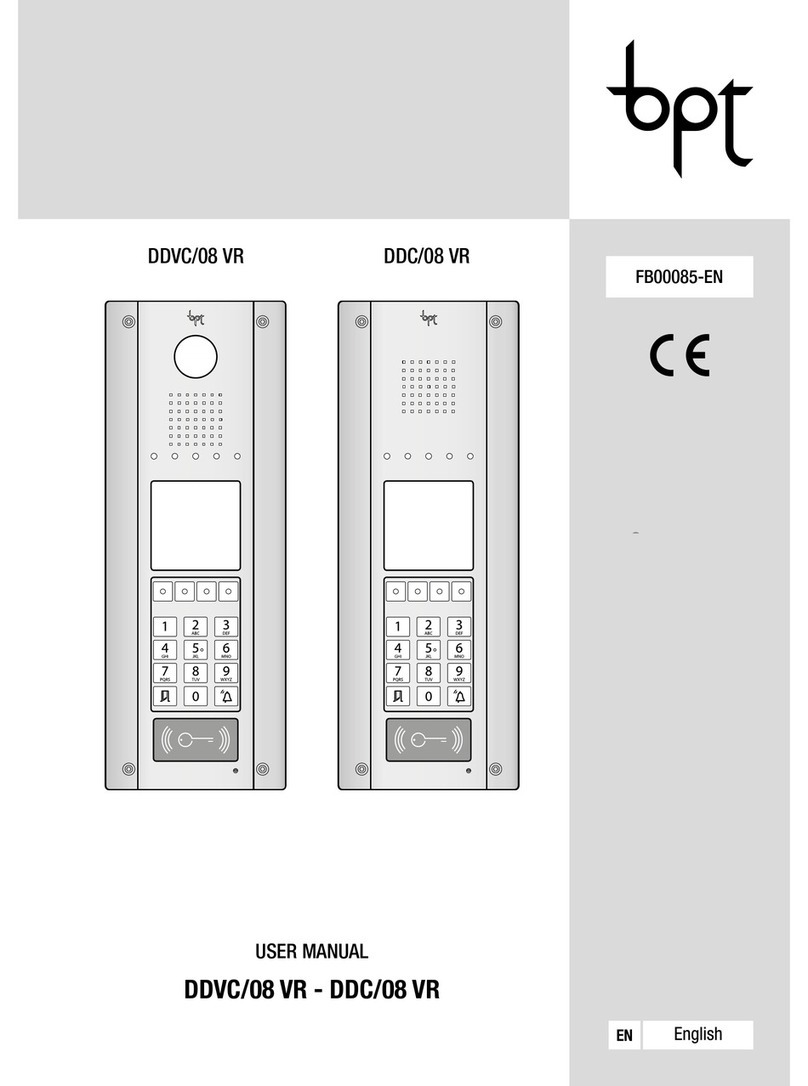
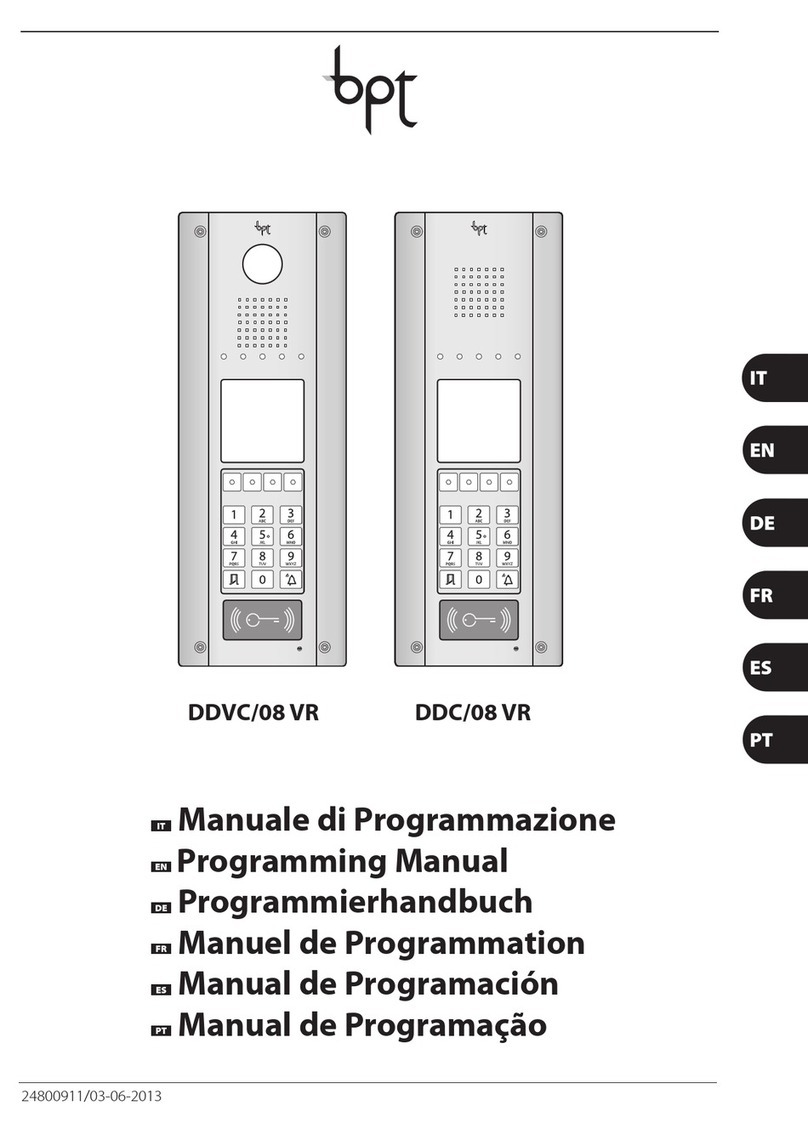
Bpt DDVC/08 VR Owner's manual

Other manuals for DDVC/08 VR

3

This manual suits for next models

1

Other Bpt Intercom System manuals

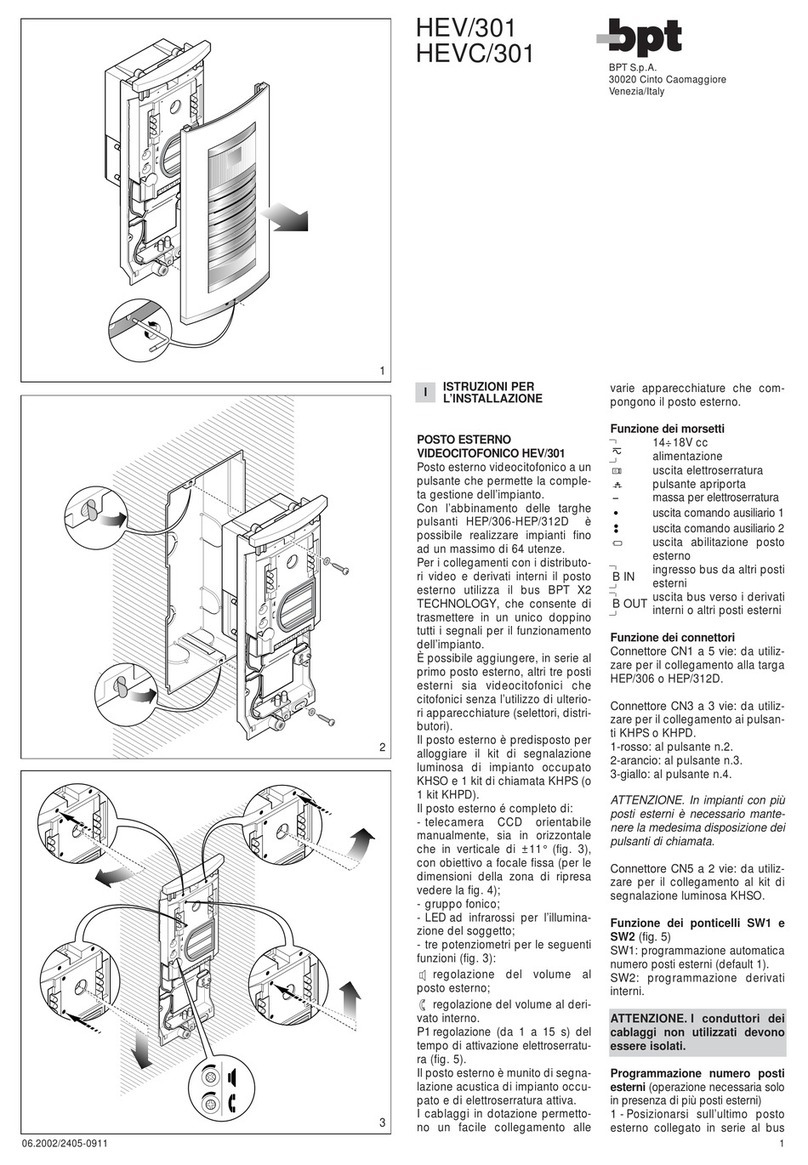
Bpt YKP/301+YV(YVC) User manual

Bpt

Bpt YKP/301+YV(YVC) User manual

Bpt YVL200 UK User manual

Bpt

Bpt YVL200 UK User manual

Bpt PEC/01 User manual

Bpt

Bpt PEC/01 User manual

Bpt Futura IP User manual

Bpt

Bpt Futura IP User manual

Bpt perla User manual

Bpt

Bpt perla User manual

Bpt NVMKIT/X1 User manual

Bpt

Bpt NVMKIT/X1 User manual

Bpt OPHERAKIT series Operation manual

Bpt

Bpt OPHERAKIT series Operation manual

Bpt HPV/0-2 VR User manual

Bpt

Bpt HPV/0-2 VR User manual

Bpt HEV/301 User manual

Bpt

Bpt HEV/301 User manual

Bpt XM/200 User manual

Bpt

Bpt XM/200 User manual

Bpt LYNEAKIT/02 Operation manual

Bpt

Bpt LYNEAKIT/02 Operation manual

Bpt HAVC/200 User manual

Bpt

Bpt HAVC/200 User manual

Bpt YC/300A Operation manual

Bpt

Bpt YC/300A Operation manual

Bpt Futura X2 User manual

Bpt

Bpt Futura X2 User manual

Bpt b-view VRS01 SA User manual

Bpt

Bpt b-view VRS01 SA User manual

Bpt Agata C 200 Guide

Bpt

Bpt Agata C 200 Guide

Bpt Agata VC User manual

Bpt

Bpt Agata VC User manual

Bpt AGATAKIT C 200 UK User manual

Bpt

Bpt AGATAKIT C 200 UK User manual

Bpt YP1 User manual

Bpt

Bpt YP1 User manual

Bpt Futura X2 User manual

Bpt

Bpt Futura X2 User manual

Bpt VPM/300U User manual

Bpt

Bpt VPM/300U User manual

Bpt XKP/200 User manual

Bpt

Bpt XKP/200 User manual

Bpt Agata C User manual

Bpt

Bpt Agata C User manual

Bpt OPALE WIDE User manual

Bpt

Bpt OPALE WIDE User manual

Popular Intercom System manuals by other brands

Bticino LINEA 3000 Installation

Bticino

Bticino LINEA 3000 Installation

MSI MSI-140 owner's manual

MSI

MSI MSI-140 owner's manual

golmar Stadio Plus instruction manual

golmar

golmar Stadio Plus instruction manual

CyberData 011211 series Installation quick reference

CyberData

CyberData 011211 series Installation quick reference

Vidos duo M1021 user manual

Vidos

Vidos duo M1021 user manual

Vimar ELVOX 7539/E Installation and operation manual

Vimar

Vimar ELVOX 7539/E Installation and operation manual

SSS Siedle BTSV 850-03 operating instructions

SSS Siedle

SSS Siedle BTSV 850-03 operating instructions

Dahua VTO Series quick start guide

Dahua

Dahua VTO Series quick start guide

Elvox 5651 Wiring instructions

Elvox

Elvox 5651 Wiring instructions

Videx VIDEOKIT Series owner's manual

Videx

Videx VIDEOKIT Series owner's manual

Safeguard Supply LRA-EX1000 user manual

Safeguard Supply

Safeguard Supply LRA-EX1000 user manual

SSS Siedle BFCV 850 Series operating instructions

SSS Siedle

SSS Siedle BFCV 850 Series operating instructions

GRD MAX V2 user manual

GRD

GRD MAX V2 user manual

Alecto ADI-250 user manual

Alecto

Alecto ADI-250 user manual

Aiphone IE-8MD Installation & operation manual

Aiphone

Aiphone IE-8MD Installation & operation manual

Perel EDB4 user manual

Perel

Perel EDB4 user manual

Bticino Classe 300 installation manual

Bticino

Bticino Classe 300 installation manual

LG L5142 Guide

LG

LG L5142 Guide

manuals.online logo
manuals.online logoBrands
  • About & Mission
  • Contact us
  • Privacy Policy
  • Terms and Conditions

Copyright 2025 Manuals.Online. All Rights Reserved.

DDVC/08 VR DDC/08 VR
PROGRAMMING MANUAL
DDVC/08 VR - DDC/08 VR
FB00084-EN
Page 2- Manual FB00084-EN - ver. 1- 07/2016- © Came S.p.A. - The contents of the manual are to be considered as subject to change at any time and without the need for any advance warning.
General precautions
• Read the instructions carefully before beginning the installation and carry out the actions as specified by the manufacturer.
• The installation, programming, commissioning and maintenance of the product must only be carried out by qualified technicians,
properly trained in compliance with the regulations in force, including health and safety measures and the disposal of packaging.
• The installer must ensure that the information for the user, where there is any, is provided and delivered.
• Before carrying out any cleaning or maintenance operation, disconnect the devices from the power supply.
• The equipment must only be used for the purpose for which it was expressly designed.
• The manufacturer declines all liability for any damage as a result of improper, incorrect or unreasonable use.
Decommissioning and disposal. Do not dispose of the packaging material and the device at the end of its life cycle in the
environment, but dispose of them in compliance with the laws in eect in the country in which the product is being used. The
recyclable components are marked with a symbol and the material's ID marker.
THESE INSTRUCTIONS MUST BE ATTACHED TO THE DEVICE, the data and information contained are to be considered as subject
to change at any time and without the need for any advance warning.
Programming menu structure
Language Tex t
Voice Messages
General Settings
Name
Product Version
Display
Keypad
Audio
Timer set
Password
Contrast
Keypad Tones
Door Opener
Backlight On
Busy Tone
Door Open Tone
Voice Messages
Page 9
0-90 (36)
2-15 (5)
1-10 seconds (1 second)
4-8 figures (1234)
By Touch-Always-
By Command
On
O
Italiano-English-Deutsch
Français-Español-Português
Page 3- Manual FB00084-EN - ver. 1- 07/2016- © Came S.p.A. - The contents of the manual are to be considered as subject to change at any time and without the need for any advance warning.
Date
Date and Time
Reset
On
O
Time
Show time
DST
Codes
Assign
Calls
Groups
Assign
Call Code
Keypad Code
Group Name
RFID Code
Status
Users
Delete
Groups Enabling
Users Enabling
Identify
Create
Group Codes
RFID Code
Change
Delete
User Codes
Page 13
Page 15
Page 17
Enabled
Disabled
All
Single User
Groups 1÷100
(20 enabled)
All-Keypad Code
RFID Code
All
Nobody
Names & Calls
A
A
D
V
M2
M1
1
ON 24
3
ABC
A Z Z A
A
B
A
A
D
V
M2
M1
1
ON 24
3
ABC
A Z Z A


A
A
D
V
M2
M1
1
ON 24
3
ABC
A Z Z A
C




VA/08
VA/08
VA/08
VA/08
L2
L1
DDVC/08 VR DDC/08 VR
Page 4- Manual FB00084-EN - ver. 1- 07/2016- © Came S.p.A. - The contents of the manual are to be considered as subject to change at any time and without the need for any advance warning.
Warning lights A
Red - Call in progress Yellow - Conversation in progress
Green - Door open Blue - System busy
Terminal Board B
+Power supply
14-18 VDC
–
AAudio
A
+
Data LineD
–
+
Video SignalV
–
Terminal Board B
Solenoid lock
12 V - 1 A max
–
Door lock release button (NA)
Door contact input (NC)
–Ground
System output (active to
ground)
–Ground
L1<200 m
200m<L1<500 m
L1>500 m
L2<200 m
200m<L2<500 m
L2>500 m
Functions
Adjustments C
Speaker audio
Microphone audio
CN4 Connector C
For future uses
Mini USB C
Programming connector
Dip-switch C
Adjustment of distance between power supply and entry panel.
M4M1
M2M5 M3
+12V
+D – +V1– +V2 –
A A +D – +V3– +V4 –
A A
A
A
D
V
M2
M1
VLS/101
1
2
1
2
M4M1
M2M5 M3
+12V
+D – +V1– +V2 –
A A +D – +V3– +V4 –
A A
M2
M1
A
A
D
VLS/101
1
2
1
2
D
DDVC/08 VR
DDC/08 VR
Page 5- Manual FB00084-EN - ver. 1- 07/2016- © Came S.p.A. - The contents of the manual are to be considered as subject to change at any time and without the need for any advance warning.
Connection examples D
A
WXYZ
PQRS TUV
JKL MNO
ABC DEF
GHI
Nome
Display
Versione
Lingua
Configurazione
ESC
WXYZ
PQRS TUV
JKL MNO
ABC DEF
GHI
Name
Display
Product Version
Language
General Settings
ESC
WXYZ
PQRS TUV
JKL MNO
ABC DEF
GHI
Name
Bildschirm
Ausführung
Sprache
Konfiguration
ESC
WXYZ
PQRS TUV
JKL MNO
ABC DEF
GHI
Nom
Afficheur
Version
Langue
Configuration
ESC
WXYZ
PQRS TUV
JKL MNO
ABC DEF
GHI
Nombre
Pantalla
Versión
Idioma
Configuración
ESC
WXYZ
PQRS TUV
JKL MNO
ABC DEF
GHI
Nome
Ecrã
Versão
Idioma
Configuração
ESC
WXYZ
PQRS TUV
JKL MNO
ABC DEF
GHI
Display
Audio
Nome
Lingua
Configurazione
ESC
WXYZ
PQRS TUV
JKL MNO
ABC DEF
GHI
Display
Audio
Nome
Lingua
Configurazione
ESC
WXYZ
PQRS TUV
JKL MNO
ABC DEF
GHI
Display
Audio
Nome
Lingua
Configurazione
ESC
WXYZ
PQRS TUV
JKL MNO
ABC DEF
GHI
_
Password
WXYZ
PQRS TUV
JKL MNO
ABC DEF
GHI
Display
Audio
Nome
Lingua
Configurazione
ESC
WXYZ
PQRS TUV
JKL MNO
ABC DEF
GHI
Display
Audio
Nome
Lingua
Configurazione
ESC
WXYZ
PQRS TUV
JKL MNO
ABC DEF
GHI
Display
Audio
Nome
Lingua
Configurazione
ESC
WXYZ
PQRS TUV
JKL MNO
ABC DEF
GHI
_
Password
WXYZ
PQRS TUV
JKL MNO
ABC DEF
GHI
Display
Audio
Nome
Lingua
Configurazione
ESC
WXYZ
PQRS TUV
JKL MNO
ABC DEF
GHI
Display
Audio
Nome
Lingua
Configurazione
ESC
WXYZ
PQRS TUV
JKL MNO
ABC DEF
GHI
Display
Audio
Nome
Lingua
Configurazione
ESC
WXYZ
PQRS TUV
JKL MNO
ABC DEF
GHI
_
Password
B C D
Page 6- Manual FB00084-EN - ver. 1- 07/2016- © Came S.p.A. - The contents of the manual are to be considered as subject to change at any time and without the need for any advance warning.
Technical features
Type
DDVC/08 VR
DDC/08 VR
DDVC/08 VR IP65
Power supply [V DC]
14-18
Current consumption [mA]
220
Consumption in stand-by mode [mA] 370 150
Dimensions of wall-mounted version [mm]
140x380x47
Dimensions of recessed version [mm]
140x380x2
Storage temperature [°C]
-25 /+70
Operating temperature [°C]
-30 /+50
-15 /+50
IP Rating
IP 54
IP 65
DDSI recessed box IP rating
IP 54
Video standard
PAL/NTSC
Resolution [pixel]
680x512
Minimum lighting [LUX]
1
Use of keys during programming
This part of the Programming Manual is useful for understanding how to use the function
keys.
The buttons available for navigating in each menu are as follows
Scroll arrows Enter selected window Back to previous window
Navigation examples
Function selection screens
ESC
ESC ESC
With the keys you can scroll (in turn) through the available functions; the
function selected is highlighted white on black.
Error messages
Press the [ESC] key to exit the error screens. It is also possible to exit by being
timed out (10 seconds).
ESC
Name
Display
Product Version
Language
General Settings
ERROR!
Password
ERROR!
Keypad Code
Assign Calls
Codes
Names & Calls
General Settings
Main Menu
✓
Page 7- Manual FB00084-EN - ver. 1- 07/2016- © Came S.p.A. - The contents of the manual are to be considered as subject to change at any time and without the need for any advance warning.
Setting values
4567_
ESC
(2-15)
5
ESC
ESC ESC
DIGITHA_
ESC
ESC
(2-15)
5
ESC
✓
ESC
✓
On all screens where alphanumeric characters have to be entered, the first
screen displays the current value with the cursor placed on the last character.
Using the key you can delete the values entered by placing the cursor on
the last character.
To confirm press . To exit press [ESC] or wait for the time to run out (10
seconds).
The values required can be increased, decreased or selected on the screen
with the keys.
To confirm press . To exit press [ESC] or wait for the time to run out (10
seconds).
The last selection made is marked with a tick (✓) on the left of one of the
possible choices.
Once the selection has been made, the setting chosen will be marked with a
tick (✓) in the top right of the screen.
Confirmation to carry out a function
From these screens you can continue/confirm with while it is possible to
exit by pressing [ESC].
Programming with PCS/XIP
If the entry panel has been programmed using PCS/XIP software, for safety reasons only some param-
eters can be changed.
In all other cases the symbol shown on the left will appear on the display.
ESC
Call Code
Keypad
to confirm
Press
Reset
to confirm
Press
Delete
Name
By command
✓ Always
By touch
Backlight On
Keypad
YYYY/MM/DD
YYYY/DD/MM
MM/DD/YYYY
Date format
✓DD/MM/YYYY
C
B
A
A Z Z A
Page 8- Manual FB00084-EN - ver. 1- 07/2016- © Came S.p.A. - The contents of the manual are to be considered as subject to change at any time and without the need for any advance warning.
Procedure to Enter/Exit programming
After the first switch-on, the menu to choose the desired lan-
guage for the entry panel will appear.
ESC
ESC
ESC
ESC
ESC
ESC ESC
To enter programming press the key (A) fol-
lowed by the protective password (B) (stored lo-
cally on the entry panel), which by default is 1234,
followed by the first function key on the left (C).
Any combination of 4 to 8 numerical characters is
permitted as the password.
These two menus can ONLY be
used with the entry panel connected
to the power supply used to create the
system, otherwise the related "warning"
window will appear, which can be exited
from by pressing the [ESC] key, or auto-
matically after a few seconds.
y If no manoeuvre is made, you exit from the
programming menu automatically after 30
minutes, and go back to the initial screen.
ABC
Assign Calls
Codes
Names & calls
General Settings
Main Menu
Assign Calls
Codes
Names & calls
General Settings
Main Menu
Assign Calls
Codes
Names & calls
General Settings
Main Menu
exit
to confirm
Press
Main Menu
Assign Calls
Codes
Names & calls
General Settings
Main Menu
Français
✓ Italiano
Español
English
Text
✓Voice Messages
Text
Language
WELCOME

ESC
Page 9- Manual FB00084-EN - ver. 1- 07/2016- © Came S.p.A. - The contents of the manual are to be considered as subject to change at any time and without the need for any advance warning.
General Settings
The parameters listed below can be set in the [General Settings] menu.
Language
Use this menu to choose the language you want
the entry panel to operate in.
Product Version
Via this menu you can check the entry panel version and its serial number.
Name
Use the alphanumeric keypad to enter the name (max. of 12 alphanumeric
characters) that will be shown on the entry panel’s start-up screen.
Display
Using this menu you can set the display contrast
and whether backlighting of the display should be
turned on (as well as the keypad lighting) as soon
as the keypad is actually in use [By Touch],[Al-
ways] or [By command], when its activation
should be commanded by a system input (set only
by tool).
Name
Display
Product Version
Language
General Settings
ESC
Name
Display
Product Version
Language
General Settings
ESC
DIGITHA_
Name
ESC
Voice Messages
Tex t
Language
Voice Messages
Tex t
Language
ESC
Name
Display
Product Version
Language
General Settings
ESC
0.00.0022
SN 40ABCD
1.06
Product Version
ESC
Deutsch
English
Português
✓Italiano
Text
ESC
Deutsch
English
Português
✓Italiano
Voice Messages
ESC
Name
Display
Product Version
Language
General Settings
ESC
Backlight On
Contrast
Display
ESC
36
(0-90)
Contrast
ESC
Backlight On
Contrast
Display
ESC
By command
✓Always
By touch
Backlight On
ESC
Page 10 - Manual FB00084-EN - ver. 1- 07/2016- © Came S.p.A. - The contents of the manual are to be considered as subject to change at any time and without the need for any advance warning.
ESC
(2-15)
5
ESC
ESC
Keypad
Using this menu you can set the sensitivity of the
keypad keys to the touch.
The degree of sensitivity can be increased or re-
duced using the arrows.
A value of 2 means that the keypad is very sen-
sitive; a value of 15 means that the keypad is not
very sensitive at all.
Once the value has been selected, press to
confirm and wait for the instructions on the screen
shown on the left, then continue with program-
ming.
Audio
ESC
ESC
ESC
ESC
ESC
ESC
ESC
ESC
ESC
ESC
ESC
ESC
Using this menu you can choose whether or not to
activate a beep in the event of:
- pressing keys [Keypad Tones]
- system busy [Busy Tone],
- activation of solenoid lock [Door Open Tone].
It is also possible to choose whether or not to acti-
vate voice messages.
The messages available are:
- “System busy”;
- “Door Open”,
- “Call forwarded”.
Timer set
Using the [Timer set] menu, you can set the dura-
tion of the door open command.
Display
Keypad
Name
Product Version
General Settings
Keypad
and
Hold on
the buttons
Release
Keypad
Door Open Tone
Voice Messages
Busy Tone
Keypad Tones
Audio
O
✓On
Busy Tone
Keypad
Audio
Display
Name
General Settings
Door Open Tone
Voice Messages
Busy Tone
Keypad Tones
Audio
O
✓On
Keypad Tones
Door Open Tone
Voice Messages
Busy Tone
Keypad Tones
Audio
O
✓On
Door Open Tone
Door Open Tone
Voice Messages
Busy Tone
Keypad Tones
Audio
O
✓On
Voice Messages
Audio
Timer set
Keypad
Display
General Settings
Door Opener
Timer set
Door Opener