manuals.online logo
Brands
  1. Home
  2. •
  3. Brands
  4. •
  5. Grandstream Networks
  6. •
  7. IP Phone
  8. •
  9. Grandstream Networks GXP2130 Series User manual

Grandstream Networks GXP2130 Series User manual

Other manuals for GXP2130 Series

28

This manual suits for next models

4

Other Grandstream Networks IP Phone manuals

Grandstream Networks GXP1625 Guide

Grandstream Networks

Grandstream Networks GXP1625 Guide

Grandstream Networks GXP2124 User manual
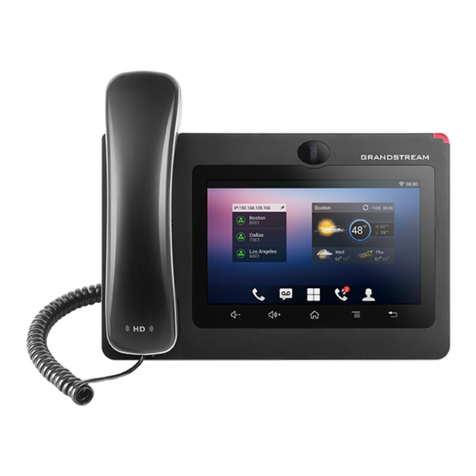
Grandstream Networks

Grandstream Networks GXP2124 User manual

Grandstream Networks GXV3275 User manual

Grandstream Networks

Grandstream Networks GXV3275 User manual

Grandstream Networks GXV-3140 User manual

Grandstream Networks

Grandstream Networks GXV-3140 User manual

Grandstream Networks GXP1610 User manual

Grandstream Networks

Grandstream Networks GXP1610 User manual

Grandstream Networks GXV3175 User manual

Grandstream Networks

Grandstream Networks GXV3175 User manual

Grandstream Networks GXV3275 User manual
Grandstream Networks

Grandstream Networks GXV3275 User manual

Grandstream Networks GXP2135 User manual

Grandstream Networks

Grandstream Networks GXP2135 User manual

Grandstream Networks GXP1610 User manual
Grandstream Networks

Grandstream Networks GXP1610 User manual

Grandstream Networks GRP2614 User manual

Grandstream Networks

Grandstream Networks GRP2614 User manual

Grandstream Networks GXP1620 User manual

Grandstream Networks

Grandstream Networks GXP1620 User manual

Grandstream Networks DP715 User manual

Grandstream Networks

Grandstream Networks DP715 User manual

Grandstream Networks UCM6 series User manual

Grandstream Networks

Grandstream Networks UCM6 series User manual

Grandstream Networks GXV3175 User manual

Grandstream Networks

Grandstream Networks GXV3175 User manual

Grandstream Networks GXV317X User manual

Grandstream Networks

Grandstream Networks GXV317X User manual

Grandstream Networks GRP2616 Owner's manual
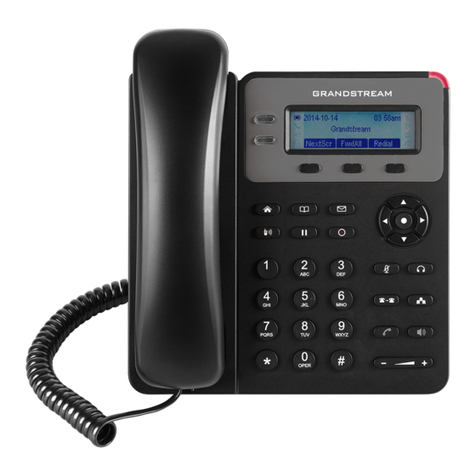
Grandstream Networks

Grandstream Networks GRP2616 Owner's manual

Grandstream Networks GXP1610 User manual

Grandstream Networks

Grandstream Networks GXP1610 User manual

Grandstream Networks GXV-3000 User manual
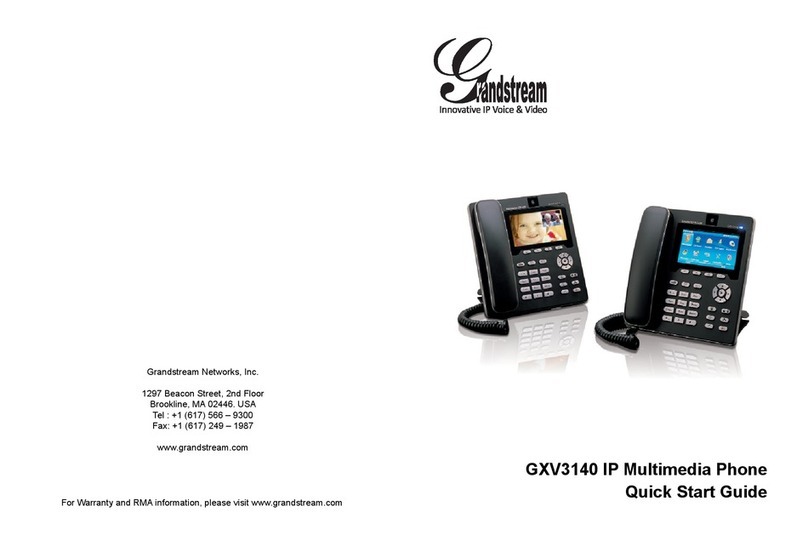
Grandstream Networks

Grandstream Networks GXV-3000 User manual

Grandstream Networks GXV-3140 User manual

Grandstream Networks

Grandstream Networks GXV-3140 User manual

Grandstream Networks GXV-3000 User manual

Grandstream Networks

Grandstream Networks GXV-3000 User manual

Grandstream Networks 100 Sereis User manual

Grandstream Networks

Grandstream Networks 100 Sereis User manual

Grandstream Networks GRP2612 User manual

Grandstream Networks

Grandstream Networks GRP2612 User manual

Grandstream Networks GXP17 Series User manual

Grandstream Networks

Grandstream Networks GXP17 Series User manual

Grandstream Networks GXP1620 User manual

Grandstream Networks

Grandstream Networks GXP1620 User manual

Popular IP Phone manuals by other brands

Alcatel 4028 manual

Alcatel

Alcatel 4028 manual

Polycom Polycom VVX 600 quick reference

Polycom

Polycom Polycom VVX 600 quick reference

Polycom SoundPoint IP 450 datasheet

Polycom

Polycom SoundPoint IP 450 datasheet

Cisco SPA-500 Series user guide

Cisco

Cisco SPA-500 Series user guide

Polycom SoundPoint IP 650 user guide

Polycom

Polycom SoundPoint IP 650 user guide

Proximus Maestro 3016 IP quick start guide

Proximus

Proximus Maestro 3016 IP quick start guide

Fanvil X4 user manual

Fanvil

Fanvil X4 user manual

Cisco 7962 user guide

Cisco

Cisco 7962 user guide

Snom 320 quick start guide

Snom

Snom 320 quick start guide

Yealink Yealink SIP-T46G Guide

Yealink

Yealink Yealink SIP-T46G Guide

Avaya 4625SW user guide

Avaya

Avaya 4625SW user guide

Yealink SIP-T52S quick start guide

Yealink

Yealink SIP-T52S quick start guide

Nortel 1140E Getting started

Nortel

Nortel 1140E Getting started

Nexotek NT-P500 user manual

Nexotek

Nexotek NT-P500 user manual

Avaya Integral 5 R3.0 user guide

Avaya

Avaya Integral 5 R3.0 user guide

GE 28320EE2 - Dect 6.0 InfoLink 2 user guide

GE

GE 28320EE2 - Dect 6.0 InfoLink 2 user guide

Avaya 4600 Series Administrator's guide

Avaya

Avaya 4600 Series Administrator's guide

Mitel MIVOICE OFFICE 400 6940 SIP user guide

Mitel

Mitel MIVOICE OFFICE 400 6940 SIP user guide

manuals.online logo
manuals.online logoBrands
  • About & Mission
  • Contact us
  • Privacy Policy
  • Terms and Conditions

Copyright 2025 Manuals.Online. All Rights Reserved.

Tel. 888.389.2899 | 7800 Woodley Ave., Van Nuys, CA 91406 USA vvww.airespring.com
GrandStream
IP Phones
GXP2130 / 2140 / 2160 / 2135 / 2170
Quick Start Guide
Tel. 888.389.2899 | 7800 Woodley Ave., Van Nuys, CA 91406 USA vvww.airespring.com
GrandStream IP Phones |2017 AireSpring
2
GXP 2130
GXP 2140
GXP 2135
GXP 2160
GXP 2170
Tel. 888.389.2899 | 7800 Woodley Ave., Van Nuys, CA 91406 USA vvww.airespring.com
GXP IP Phones Quick Start Guide |2017 AireSpring
3
USING THE HEADSET OR SPEAKER
1. Use the Speaker Button to turn speaker
ON/OFF.
2. Use the Headset button to use the headset
once it had been connected.
MAKING A CALL
1. Take Handset/Headset o-hook or press
Speaker button or an available LINE key
(activates speakerphone) .
2. The line will have dial tone and the corresponding
line’s LED will turn green.
3. If you wish, select another LINE key
(alternative SIP account).
4. Enter the phone number.
5. Press the SEND button or press the “DIAL”
soft key.
REDIAL
1. Take the phone o-hook.
2. Press the SEND button or press the “REDIAL”
soft key.
Note: The phone will redial using the same SIP account
as was used for the last call.
ANSWERING CALLS
Single Incoming Call:
1. Answer call by taking Handset/Headset o hook or
pressing SPEAKER or by pressing the corresponding
account LINE button.
Multiple Incoming Calls:
1. When there is a call waiting, users will hear a Call
Waiting tone .
2. The next available line will ash red.
3. Answer the incoming call by pressing its
corresponding LINE button.
4. The current call will be put on hold.
5. Toggle between the calls using the LINE button.
ENDING A CALL
End a call by pressing the “EndCall” soft key or hang up
the phone.
CALL HOLD/RESUME
1. Hold: Place a call on ‘hold’ by pressing .
2. Resume: Resume call by pressing the corresponding
blinking LINE.
CALL TRANSFER
Assuming that you are in a call and wish to transfer the
call to another party.
Blind Transfer:
1. Press transfer button .
2. Dial the number and press the send button to
complete transfer of active call.
Attended Transfer:
1. Press an idle line key to make a new call and the
active LINE will be placed on hold automatically.
2. Once the call is established, press transfer button
followed by the LINE button of the held line to
transfer the call.
3. After the call is transferred, phone will display
idle screen.
Auto -Attended Transfer:
1. Set “Auto-Attended Transfer” to “Yes” on Web GUI.
2. Establish one call rst.
3. Press transfer
key to bring up a new line, and
the rst call will be placed on hold automatically.
4. Dial the number and press SEND button to
make a second call.
5. Press transfer key again to make the transfer.
NOTE
For Auto -Attended Transfer, after dialing out the number for the second
call, a “Split” soft key will show.
If the second call is not established yet (ringing), pressing “Split” will hang
up the second call. If the second call is established (answered), pressing
“Split”
will resume the second call and keep the rst call on hold.
Tel. 888.389.2899 | 7800 Woodley Ave., Van Nuys, CA 91406 USA vvww.airespring.com
GrandStream IP Phones |2017 AireSpring
4
3-WAY CONFERENCE
Initiate a Conference Call:
Assuming that you are already in a conversation and
wish to bring a third party together in a 3-way
conference.
1. Press conference button to bring up
conference dialing screen.
2. Dial the third party number followed by SEND key.
3. When the call is established to the third party, press
the “ConfCall” soft key to initiate 3-way conference.
Cancel a Conference Call:
1. Press “Cancel” soft key in conference dialing screen to
resume the two -way conversation.
Hold The Conference:
1. Press hold button to hold the conference call
with all parties are on hold;
2. Press “ReConf” soft key to resume conference call; or
select the corresponding blinking LINE to speak with
an individual party.
End The Conference:
The conference will be terminated for all three parties if
the conference initiator hangs up or presses “EndCall”
soft key.
VOICEMAIL MESSAGE
A blinking red MWI (Message Waiting Indicator) indicates
a message is waiting.
1. Press the Message button to retrieve the message. An
IVR will prompt the user through the process of
message retrieval.
2. Press a specic LINE to retrieve messages for a
specic line account.
Note: Each account requires a voicemail portal number
to be congured in the “voicemail user id” eld.
MUTE/DELETE
1. Press the MUTE button to mute/unmute
the microphone.
2. The Mute icon indicates whether the microphone
is muted.
VOLUME ADJUSTMENTS
Use the volume button to adjust the
ring volume when the phone is idle.
Press the volume button during an active call to adjust
the call volume.
REV 01.05.2018