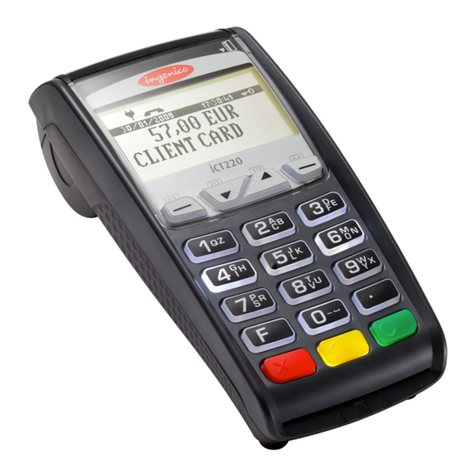
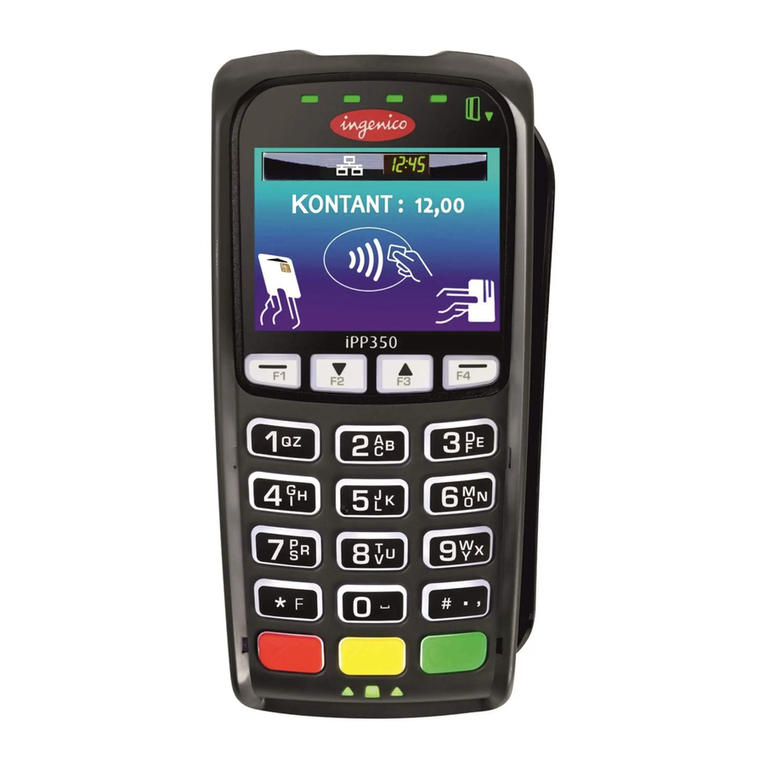
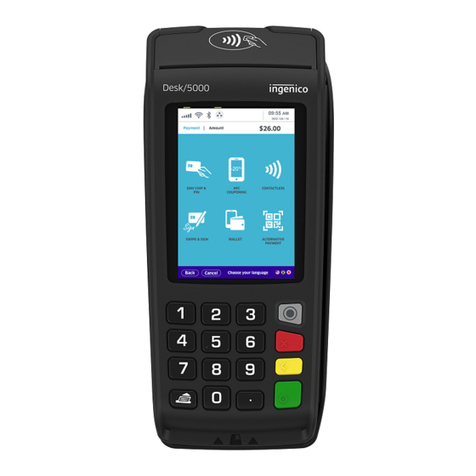
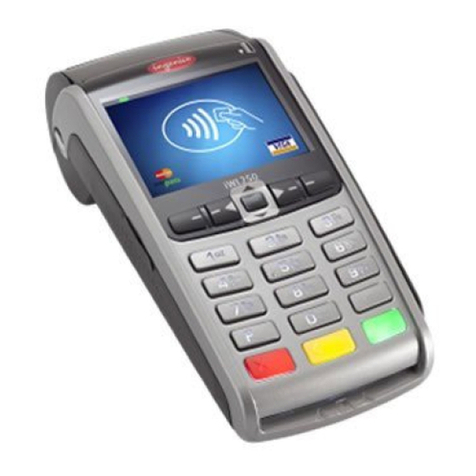
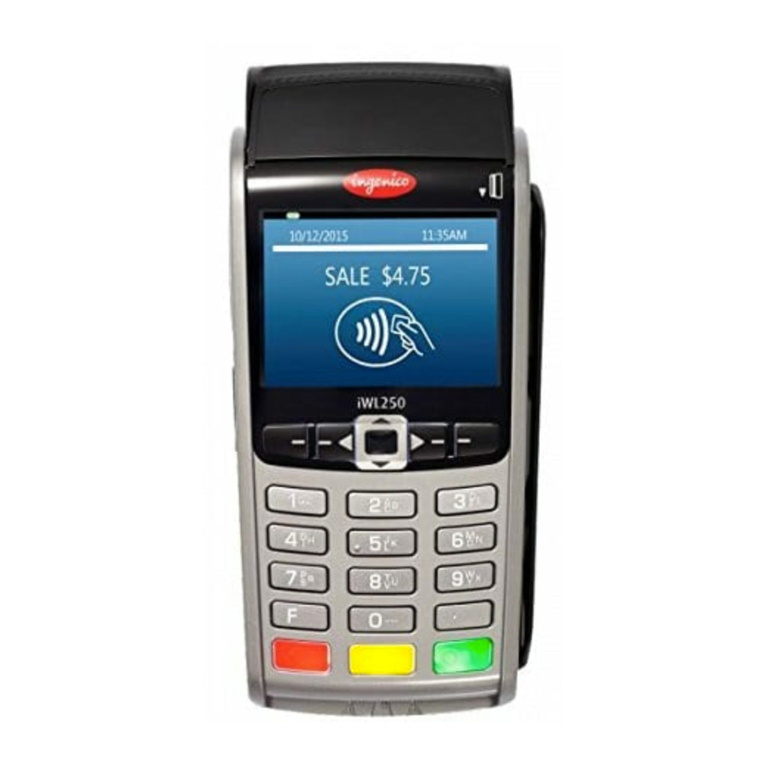
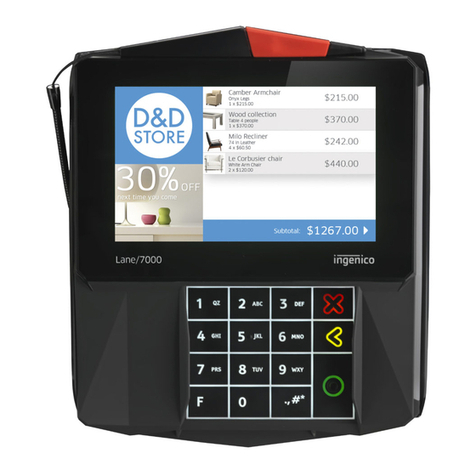
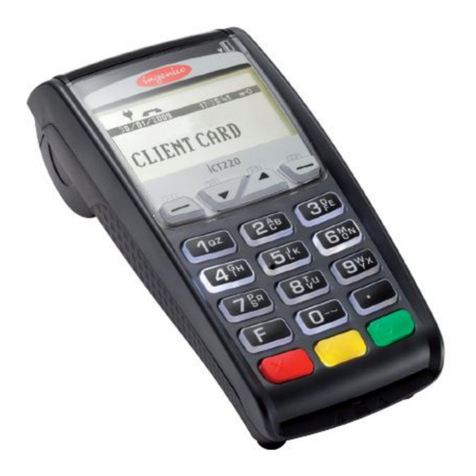
Credit Card Plus: Ingenico iPP320
© 2018 athenahealth, Inc. Rev 1.52 -Page 9
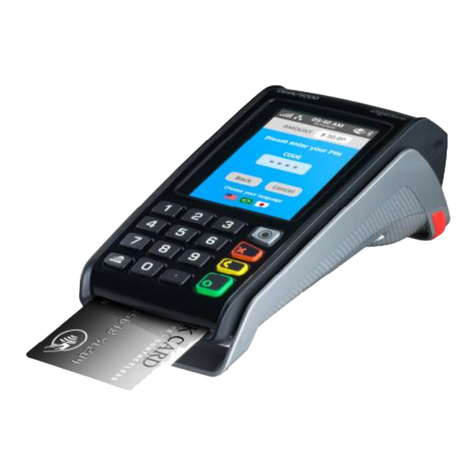
2. For "chip-and-PIN" cards, the terminal prompts the cardholder to enter their PIN. For "chip-and-signature"
cards, no special action is required.
oNote: There is no way to turn this PIN-entry “feature” off, it is a consequence of the new EMV
technology being pushed by the major card brands (VISA/MC/AMEX/DISC).
3. When the transaction is complete, the terminal prompts the cardholder to remove their card. If not
removed promptly, the terminal beeps to remind the user to remove their card. Only remove the card
after the message is displayed. Early removal of the card results in a failed transaction.
Notes:
•If you swipe an EMV card by mistake, the terminal will recognize the chip card and prompt the user to
insert the card instead of swiping.
•Most US cards will be "chip-and-signature" early on in the EMV transition.
Using contactless payments (includes mobile device payments)
Currently, the following contactless payment methods are known to work with the Ingenico devices and
athenaNet:
•Apple Pay
•Android Pay
•Samsung Pay
•Most NFC-capable credit cards
athenahealth does not officially support other contactless payment methods at this time. If a contactless
payment method fails, try again with a different payment method, such as chip-card insertion, swiping (for
non-EMV cards), or manually keying in the card number. The instructions below are for contactless credit
cards and generic mobile devices. Other services and cards may be slightly different, but will act in a similar
manner.
1. Begin the transaction normally in athenaNet. When prompted by the terminal, hold the customer
payment device (ex: phone) or credit card to the terminal's screen area. A successful tap may take
a moment to register with an audible tone.
2. Confirm the amount:
a. With NFC-capable credit cards, the terminal emits a series of tones, and then the Confirm
Amount screen appears.
b. With a mobile device, you might need to authorize the transaction ahead of time and re-tap
the device on the terminal to trigger the tones and the Confirm Amount screen.
Notes:
•Contactless transactions can be impaired if more than one contactless wireless credit card or device is
near the terminal. To ensure proper functioning, only one NFC- capable device or card should be within
range of the terminal.
•If a transaction is unsuccessful, "Bad Tap" displays on the terminal (see image below). Try again using the
same method or swipe/insert a card into the terminal.