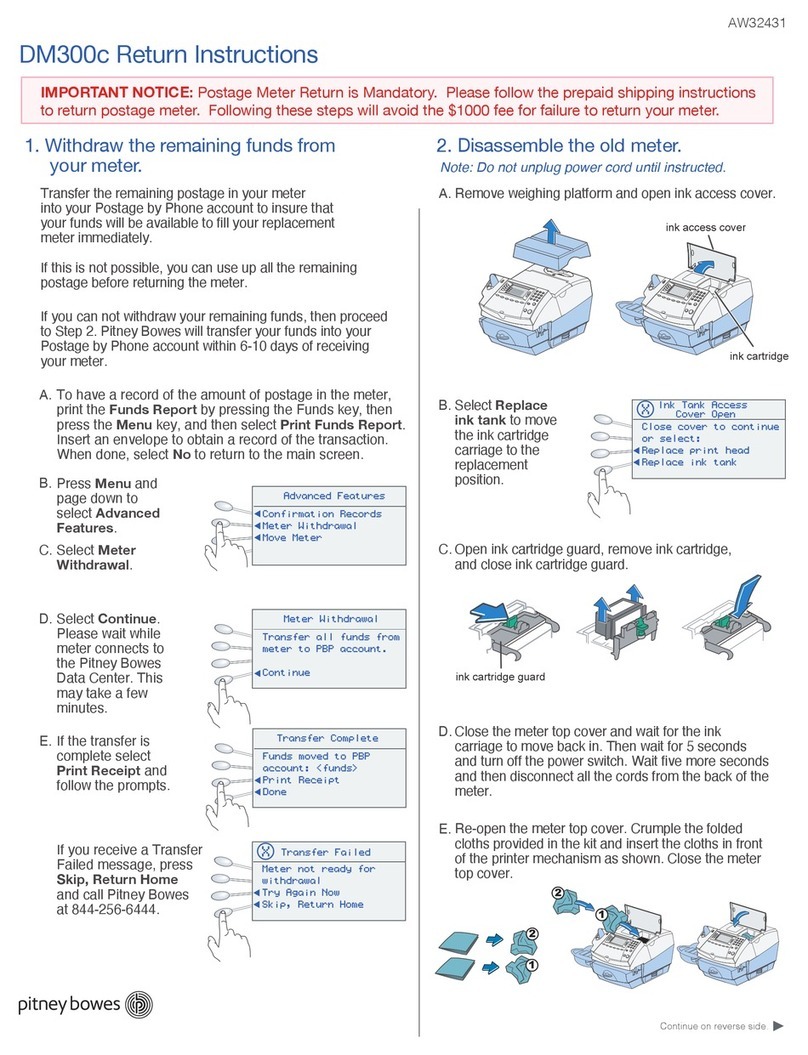
Using PC Meter Connect™ to download Canada Post Rates
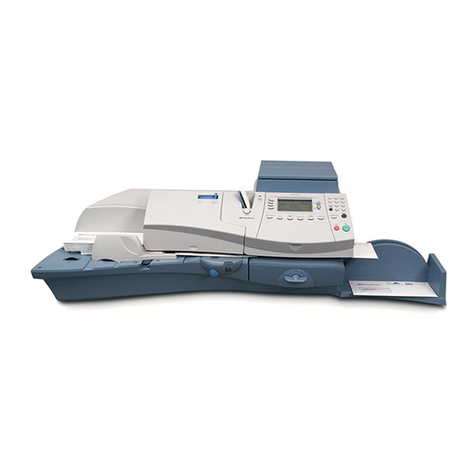
into your DM125i (PREC)
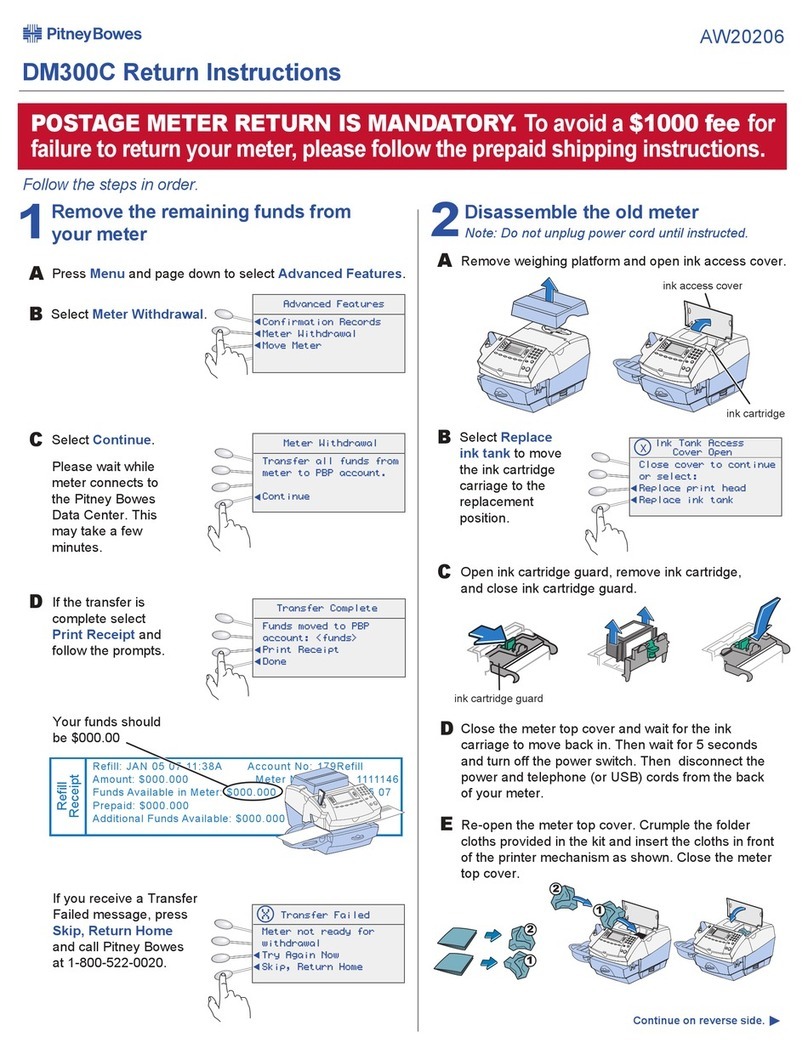
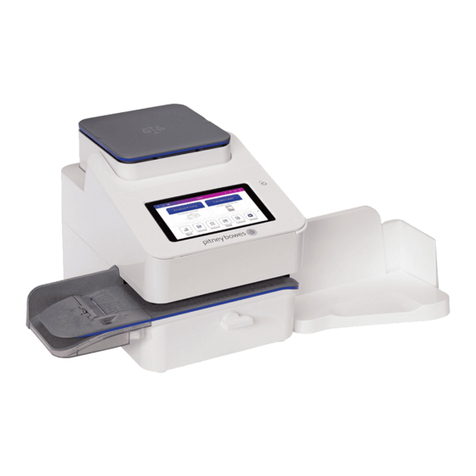
Connect meter via the USB cable to an internet-enabled PC with PC Meter Connect™ software.
Open the PC Meter Connect™ application on the PC “desktop”
The application will automatically connect to the Pitney Bowes Data Server and indicate the following steps:
• Connecting • Transferring Files
• Checking for Meter Updates • Storing Files
• Downloading Files
Application will show “Meter Update Successful”. You can either “Print Report” or “Skip”.
Meter will also show “Update Successful”. Follow the prompts on the meter screen to return to the Home screen
1
2
3
4
5
Weigh Mail Piece
Using Your Scale – a. Place empty envelope weighing less than 30 grams on scale
Note: If you do not have a scale press Weigh / Rate, select “Manual Weight” entry and input 20 grams.
Select Class
a. Select “Canpost” then select “Letter”.
b. Select “Dom Std $0.77” and then select Done.
Store Preset
a. Press Custom Presets.
b. Select “Define Normal Preset” and select “Yes: Store Preset”.
c. Select “Continue” and then press the Clear Back Arrow to return to the home screen.
Creating Additional Custom Presets
• Follow steps 1 – 3a above.
• Select “Define New Preset” and then select “Yes”.
• Create a name for your preset using the keypad (double-click for the desired letters).
• Select “Ok” to continue.
• Select “Continue” and then press the Clear Back Arrow to return to the home screen.
Accessing Normal Preset & Custom Presets
a. Normal Preset - Press Normal Preset. You can now process mail.
b. Custom Preset - Press Custom Preset , press “Select Preset”, and chose your desired Preset.
You can now process mail
Updating Your Presets and Process Mail Faster
Presets allow you to store and access frequently used mail transactions – eg: Domestic
Standard Lettermail - saving you time when processing mail. The steps below explain how to
program, store and access presets.
Programming Normal Preset For Domestic Standard Lettermail
1
2
3
4
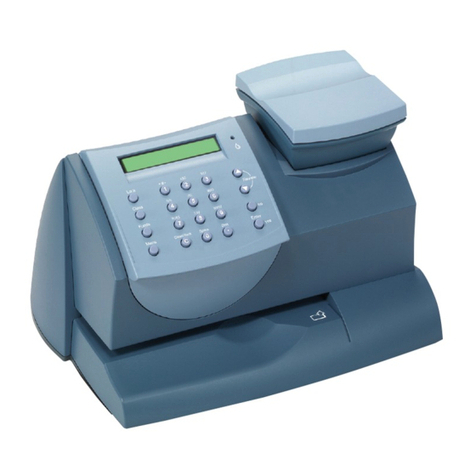
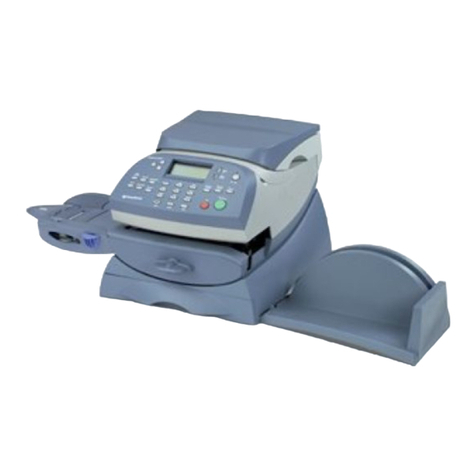
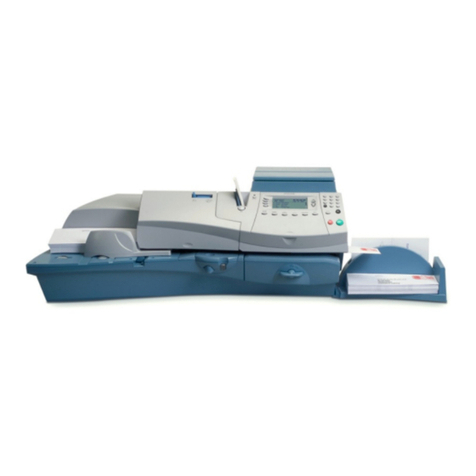
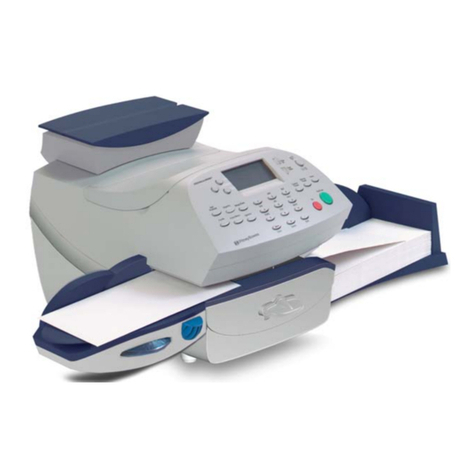
DM125i Meter Model: PREC
Issues Connecting to the Pitney Bowes Data Centre
Make sure you are connecting to the Pitney Bowes Data Centre using an analog phone line.
Most fax machines use analog phone lines.
If you are having problems connecting to the Pitney Bowes Data Centre, review your system’s dialing prefixes.
If you need to dial 9 to reach an outside line you may need to modify your dialing prefixes as follows:
a. Press the Options button, then press Page Down , select “Connect – Data Centre” and then select
“Phone Parameters”.
b. Select “Dialing Prefixes” and enter “9” or the appropriate dialing prefix and select “Continue”.
Note: To remove a dialing prefix use the Clear button to delete the existing prefix and then press Enter.
Quick Tips
1
2