manuals.online logo
Brands
  1. Home
  2. •
  3. Brands
  4. •
  5. Protech Systems
  6. •
  7. Touch Terminal
  8. •
  9. Protech Systems PA-3570 User manual

Protech Systems PA-3570 User manual

Other Protech Systems Touch Terminal manuals

Protech Systems PA-8225 User manual

Protech Systems

Protech Systems PA-8225 User manual

Protech Systems BC-0230 User manual

Protech Systems

Protech Systems BC-0230 User manual

Protech Systems PS-8851A User manual

Protech Systems

Protech Systems PS-8851A User manual

Protech Systems POS-6920 User manual

Protech Systems

Protech Systems POS-6920 User manual

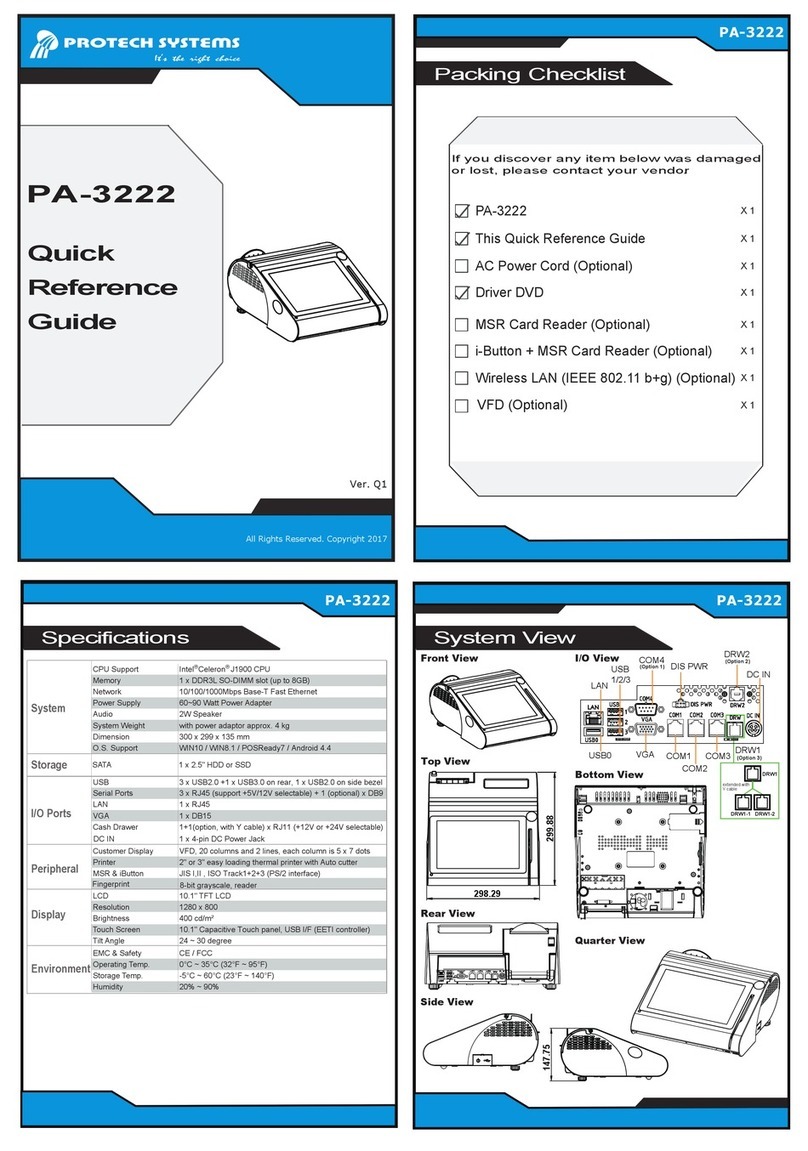
Protech Systems PA-3222 User manual

Protech Systems

Protech Systems PA-3222 User manual

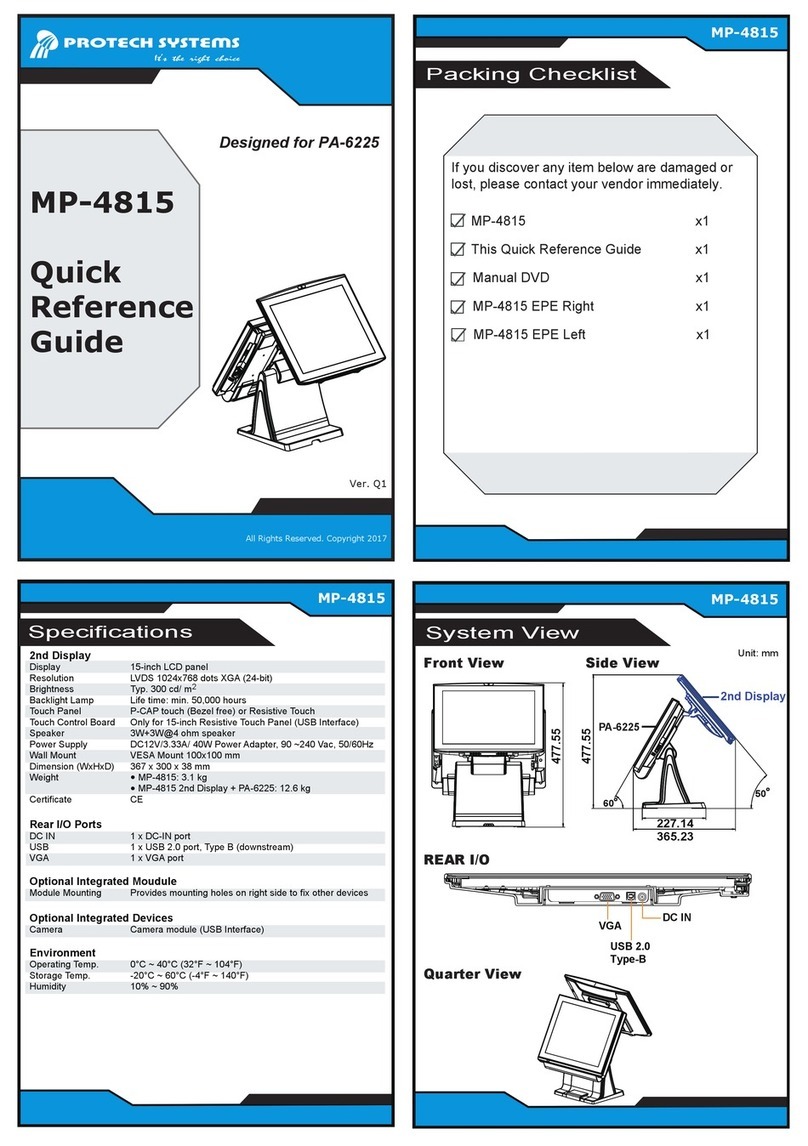
Protech Systems MP-4815 User manual

Protech Systems

Protech Systems MP-4815 User manual

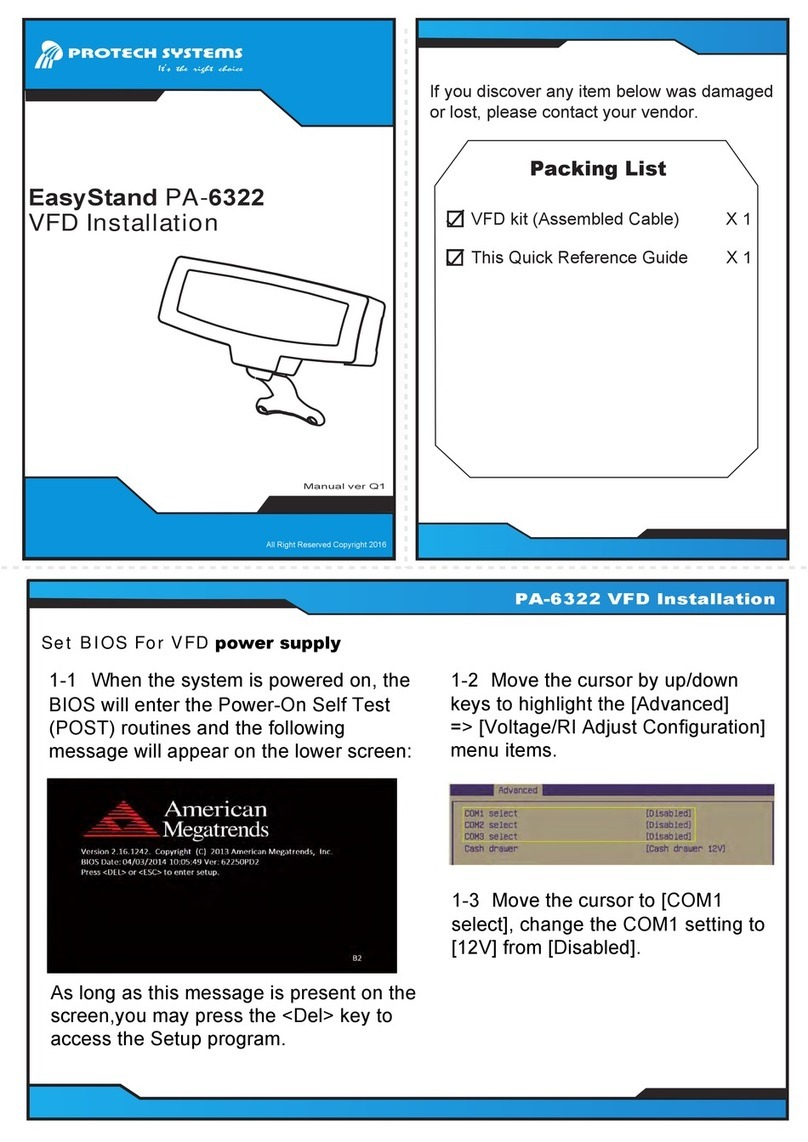
Protech Systems PA-6322 User manual

Protech Systems

Protech Systems PA-6322 User manual

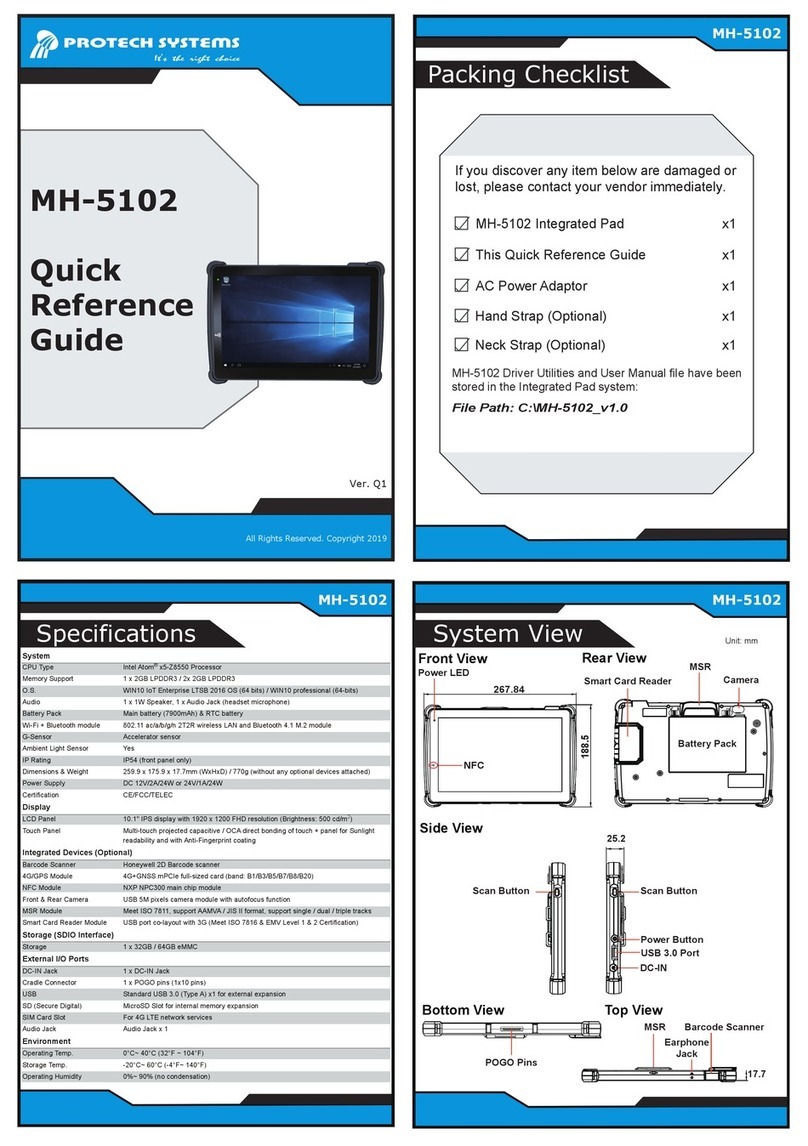
Protech Systems MH-5102 User manual

Protech Systems

Protech Systems MH-5102 User manual

Protech Systems PA-3522 User manual

Protech Systems

Protech Systems PA-3522 User manual

Protech Systems PS6508 User manual

Protech Systems

Protech Systems PS6508 User manual

Protech Systems PA-6622 User manual

Protech Systems

Protech Systems PA-6622 User manual

Protech Systems PA-3122 User manual

Protech Systems

Protech Systems PA-3122 User manual

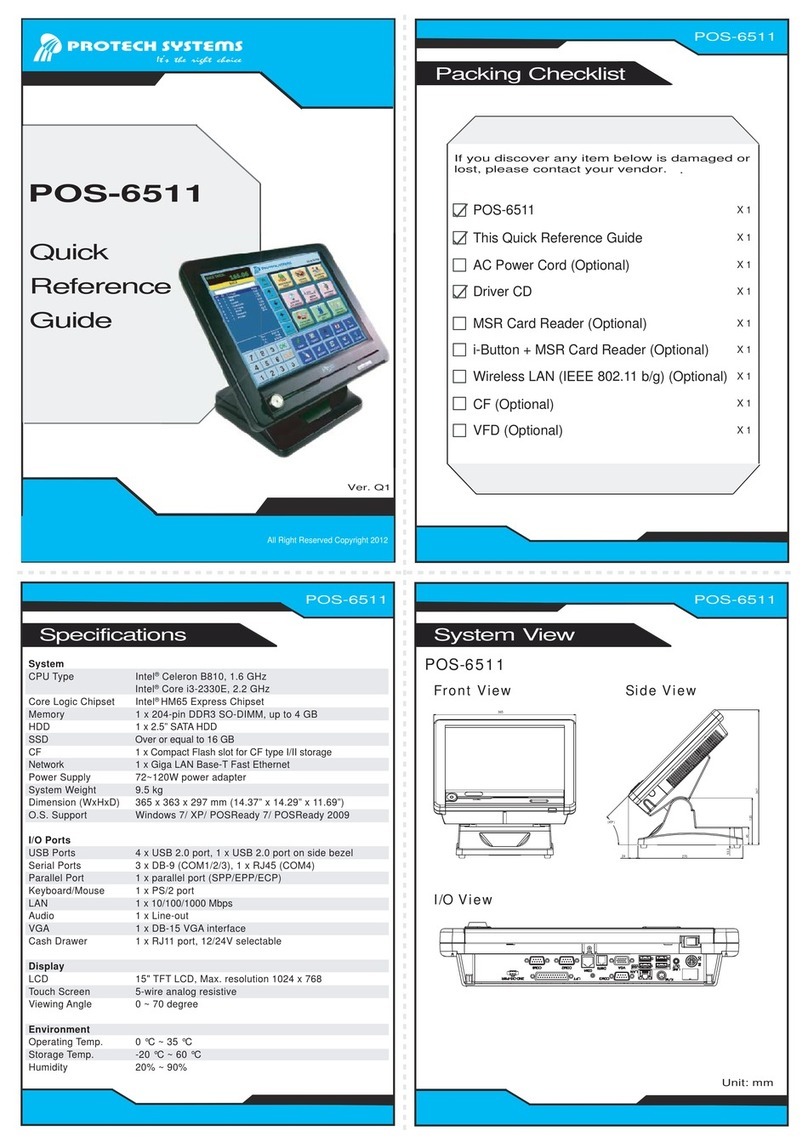
Protech Systems POS-6511 User manual

Protech Systems

Protech Systems POS-6511 User manual

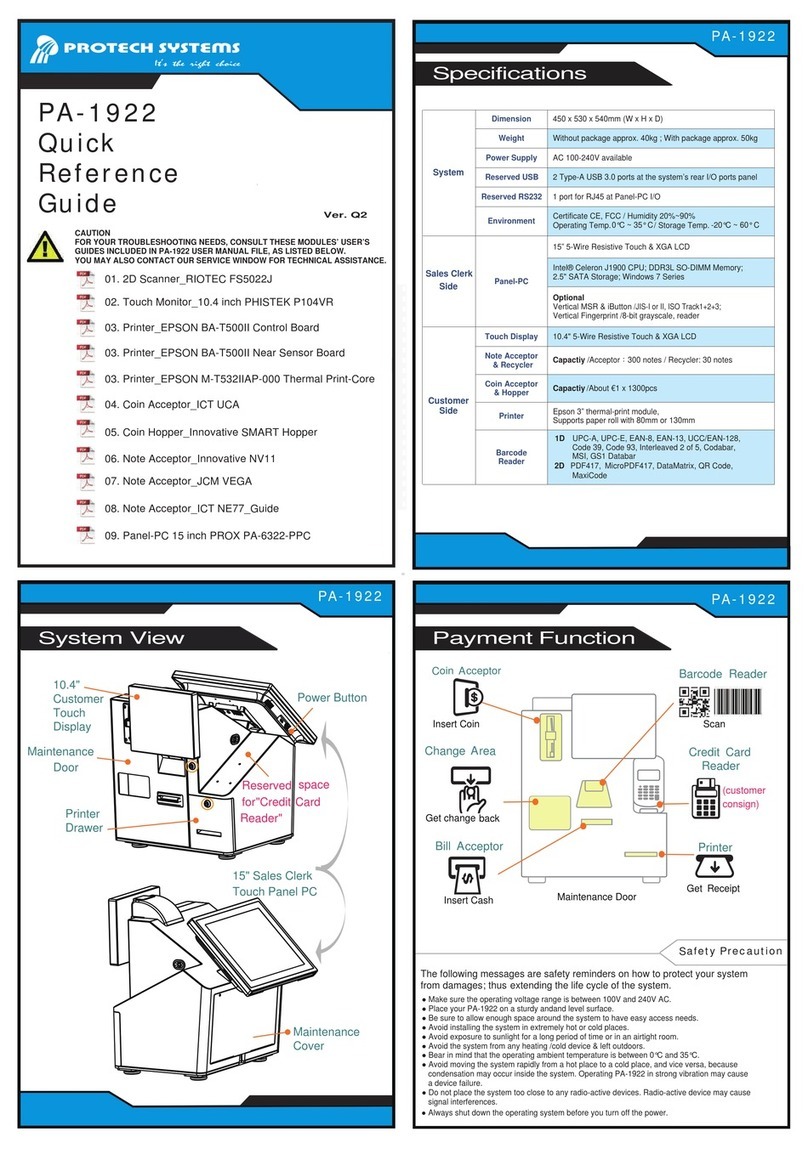
Protech Systems PA-1922 User manual

Protech Systems

Protech Systems PA-1922 User manual

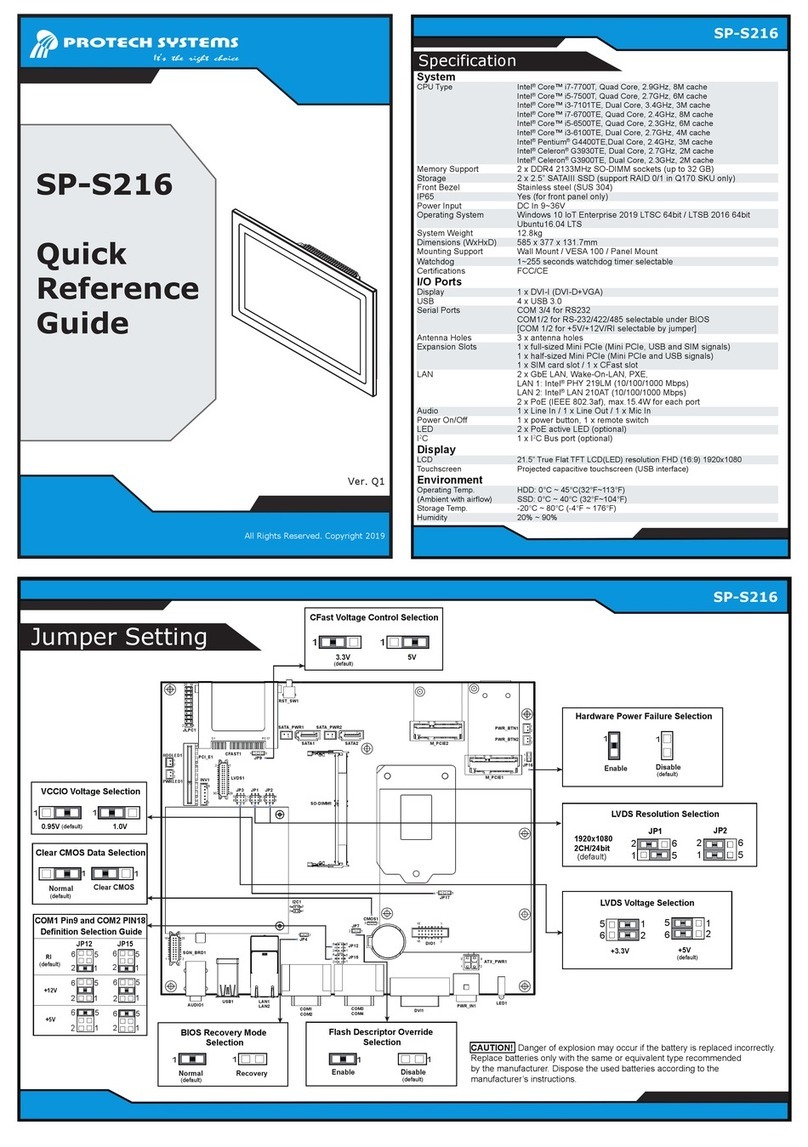
Protech Systems SP-S216 User manual

Protech Systems

Protech Systems SP-S216 User manual

Protech Systems PA-6322 User manual

Protech Systems

Protech Systems PA-6322 User manual

Protech Systems PA-3350 User manual

Protech Systems

Protech Systems PA-3350 User manual

Protech Systems PA-3222 User manual

Protech Systems

Protech Systems PA-3222 User manual

Protech Systems PS3100 User manual

Protech Systems

Protech Systems PS3100 User manual

Protech Systems PA-6822 User manual

Protech Systems

Protech Systems PA-6822 User manual

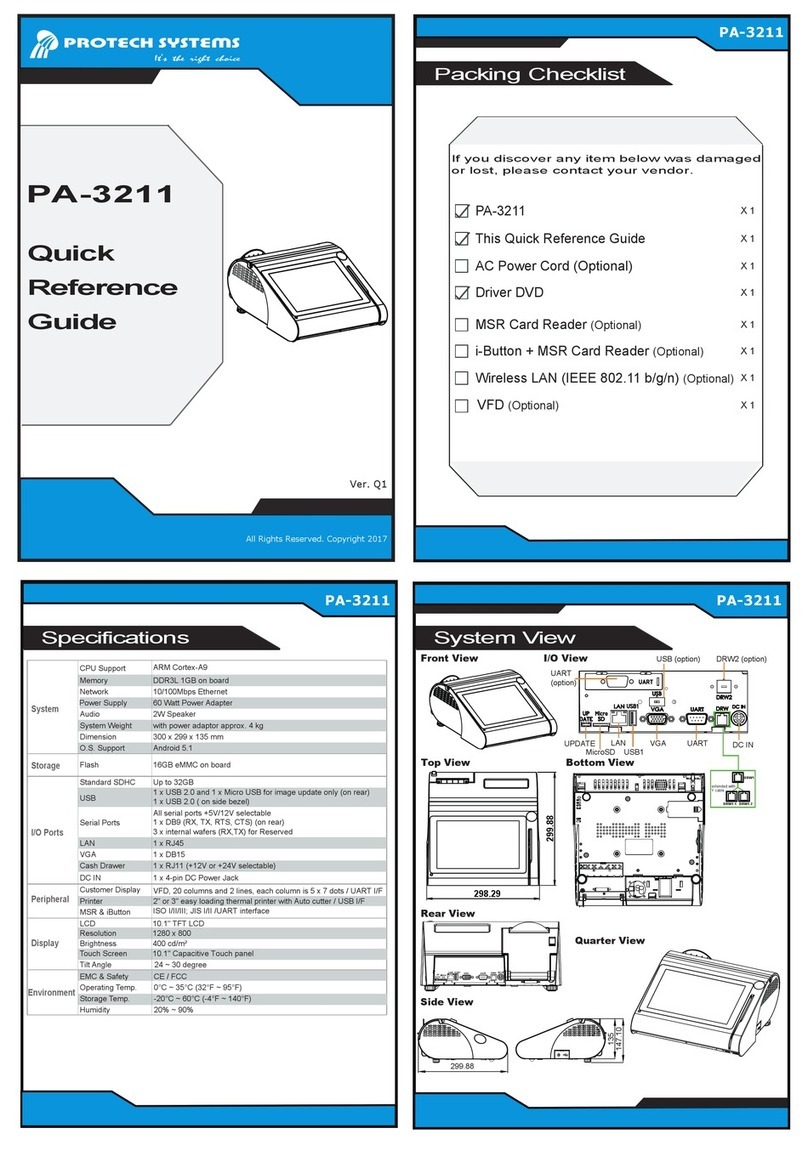
Protech Systems PA-3211 User manual

Protech Systems

Protech Systems PA-3211 User manual

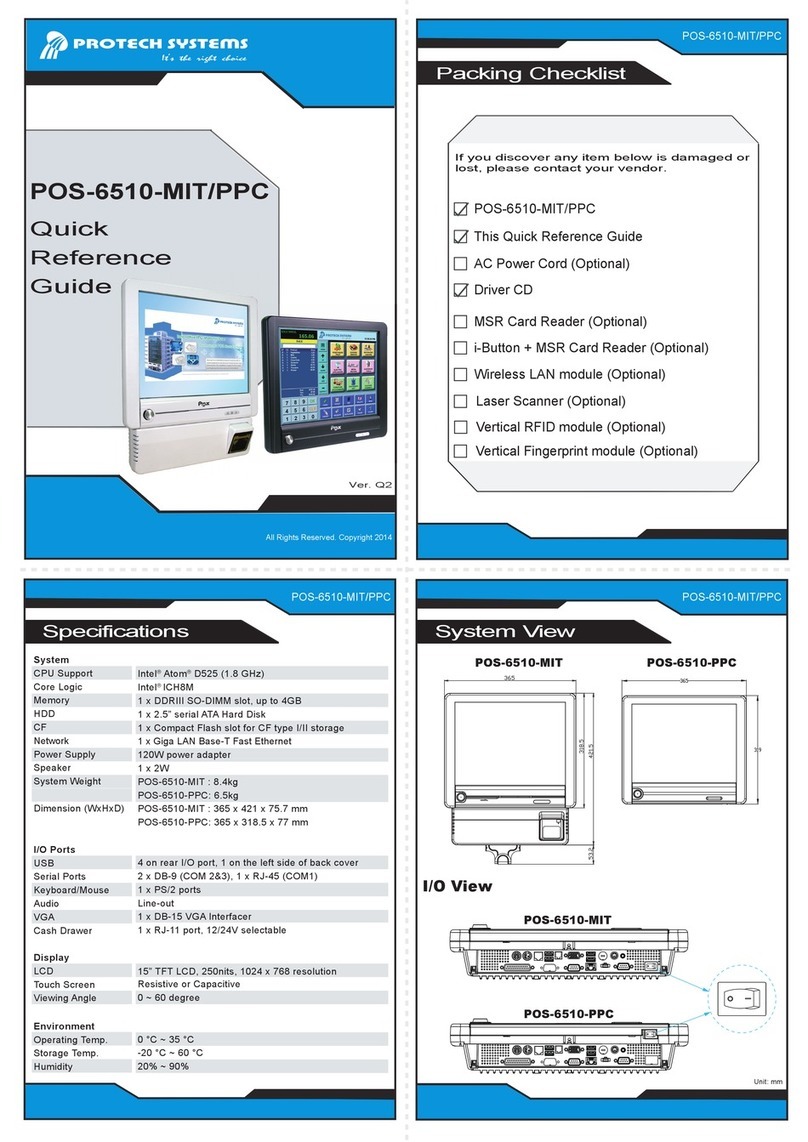
Protech Systems POS-6510-MIT User manual

Protech Systems

Protech Systems POS-6510-MIT User manual

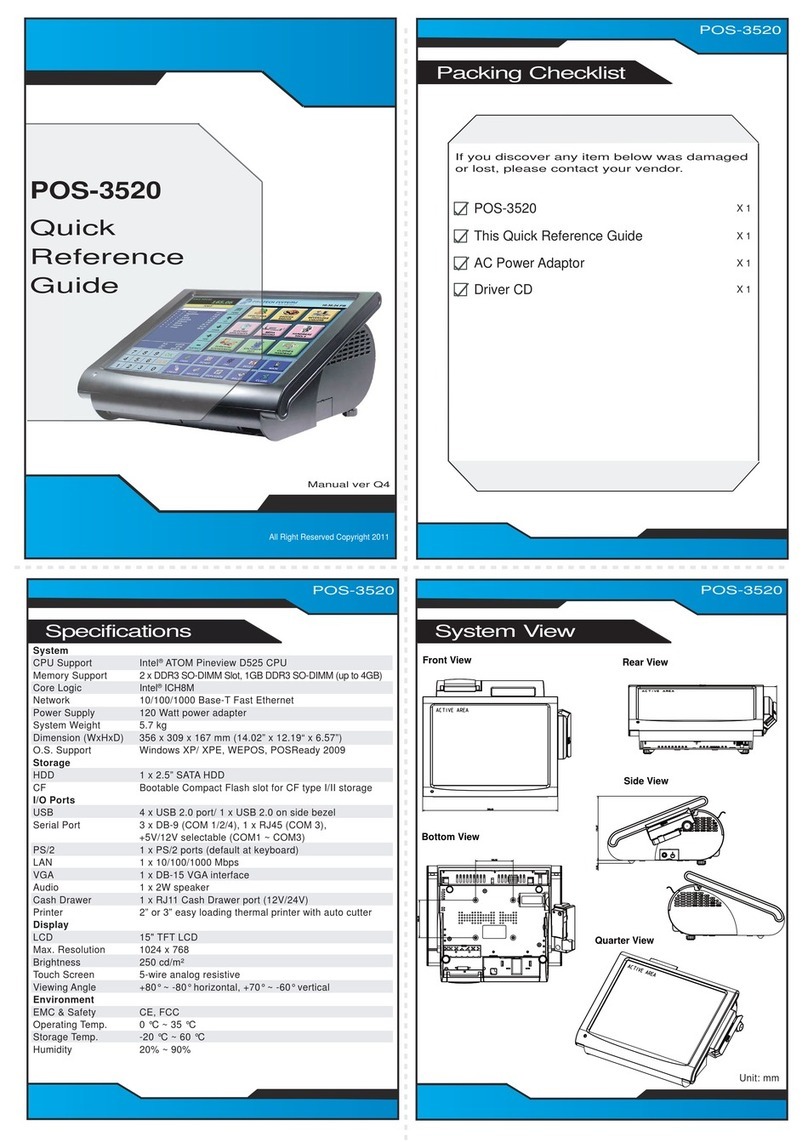
Protech Systems POS-3520 User manual

Protech Systems

Protech Systems POS-3520 User manual

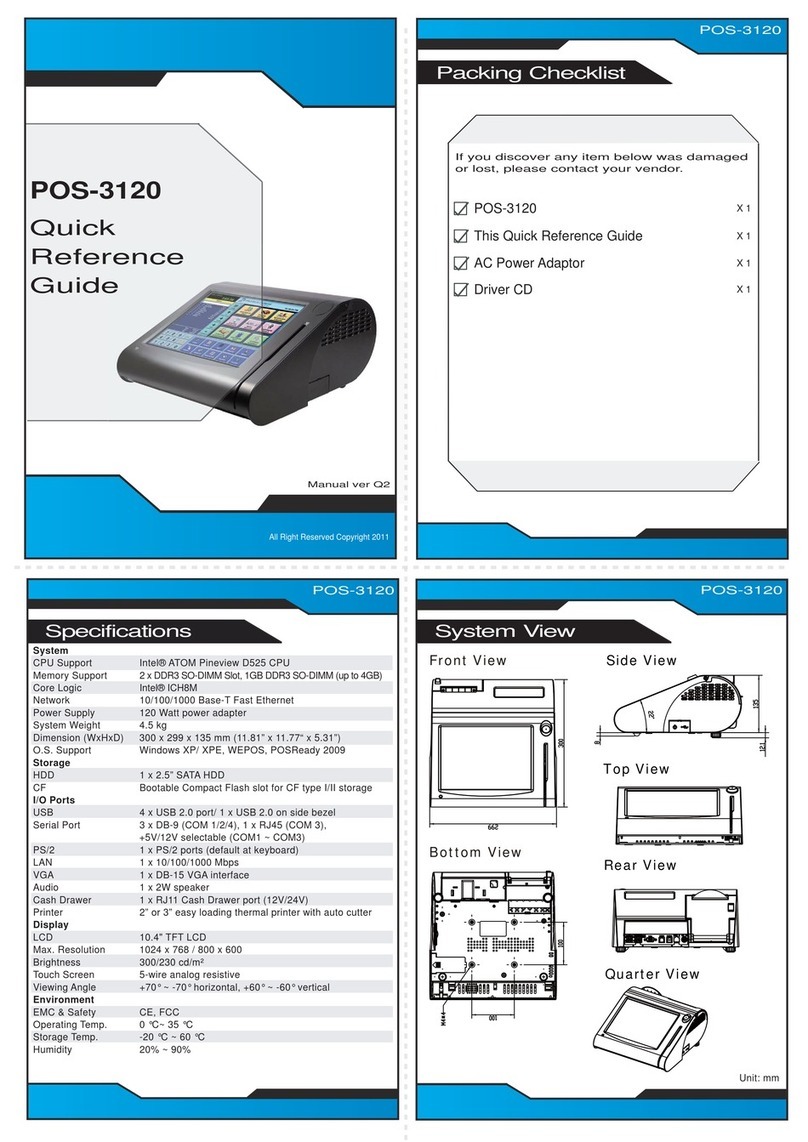
Protech Systems POS-3120 User manual

Protech Systems

Protech Systems POS-3120 User manual

Popular Touch Terminal manuals by other brands

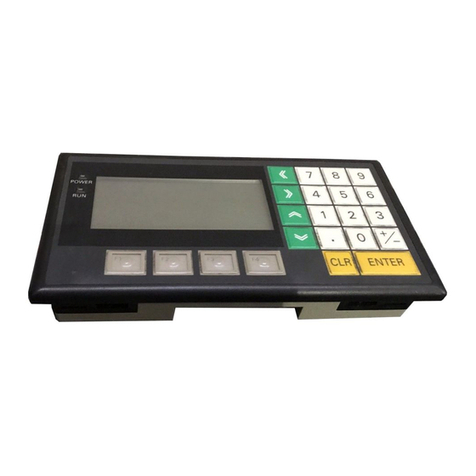
Omron NT11S Operation manual

Omron

Omron NT11S Operation manual

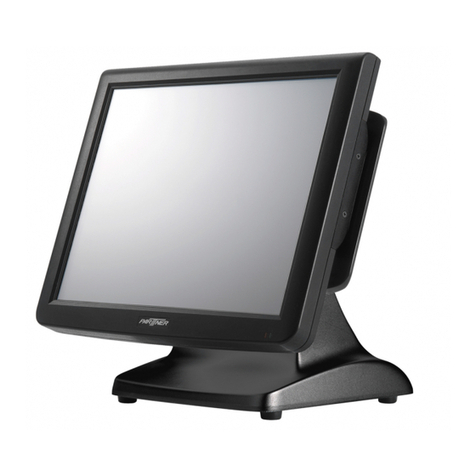
Partner SP-820 user manual

Partner

Partner SP-820 user manual

BBPOS WisePad 2 instruction manual

BBPOS

BBPOS WisePad 2 instruction manual

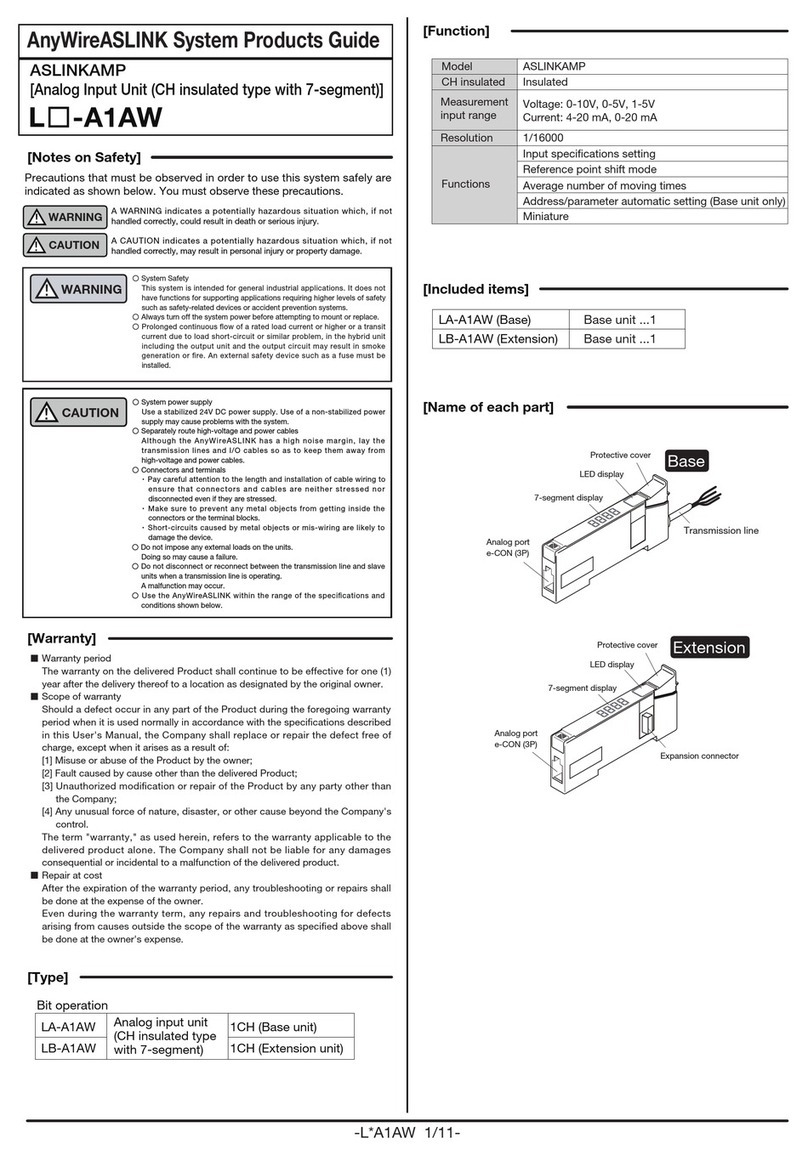
Anywire ASLINKAMP L-A1AW Series Product guide

Anywire

Anywire ASLINKAMP L-A1AW Series Product guide

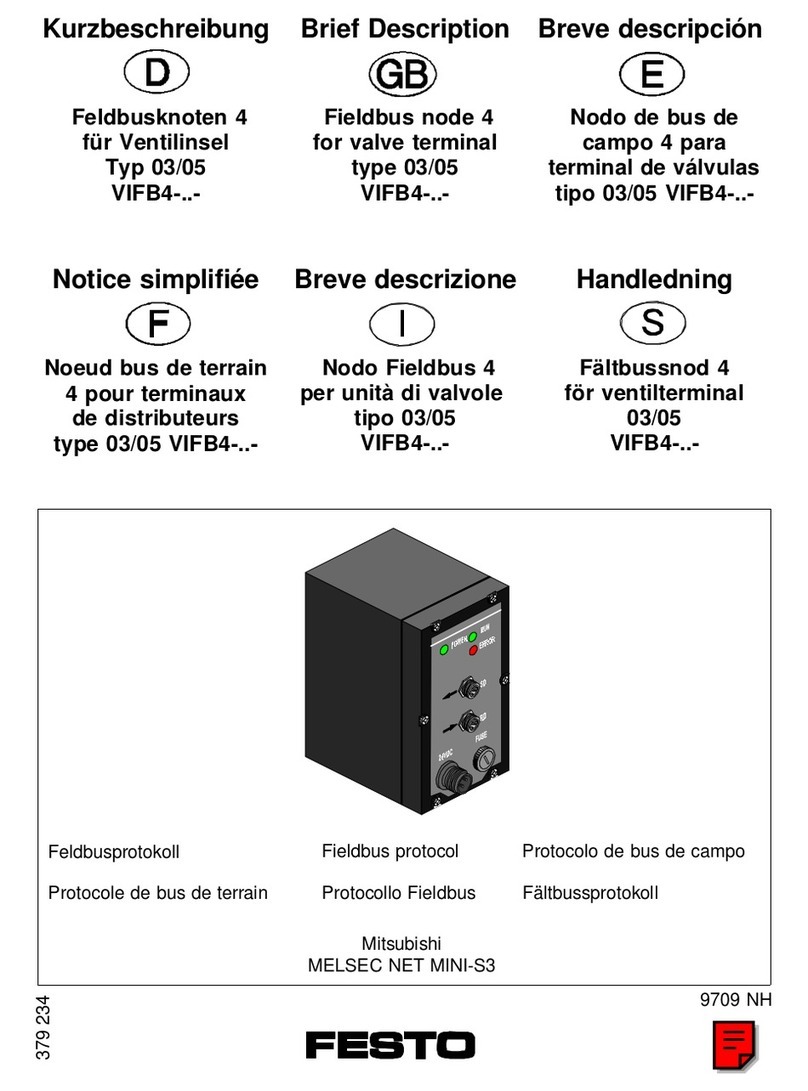
Festo VIFB4 Series Brief description

Festo

Festo VIFB4 Series Brief description

Linksz CMDA FWT-8828 user manual

Linksz

Linksz CMDA FWT-8828 user manual

Heisei Electronics Q-POS 815 user guide

Heisei Electronics

Heisei Electronics Q-POS 815 user guide

ANUBIS POS50 Series quick guide

ANUBIS

ANUBIS POS50 Series quick guide

Amano MTX-15 installation guide

Amano

Amano MTX-15 installation guide

FLOWBIRD CWT Compact Touch manual

FLOWBIRD

FLOWBIRD CWT Compact Touch manual

Demco SP7 installation guide

Demco

Demco SP7 installation guide

Lathem PC600 Series user guide

Lathem

Lathem PC600 Series user guide

Partner MF-2352 user manual

Partner

Partner MF-2352 user manual

NCR RealPOS 7460-2 supplementary guide

NCR

NCR RealPOS 7460-2 supplementary guide

Simrad MS50 Manual guide

Simrad

Simrad MS50 Manual guide

Unitech MR350 MKII Software guide

Unitech

Unitech MR350 MKII Software guide

Jungheinrich WMT 210 Service manual

Jungheinrich

Jungheinrich WMT 210 Service manual

Motorola MTP850 user guide

Motorola

Motorola MTP850 user guide

manuals.online logo
manuals.online logoBrands
  • About & Mission
  • Contact us
  • Privacy Policy
  • Terms and Conditions

Copyright 2025 Manuals.Online. All Rights Reserved.

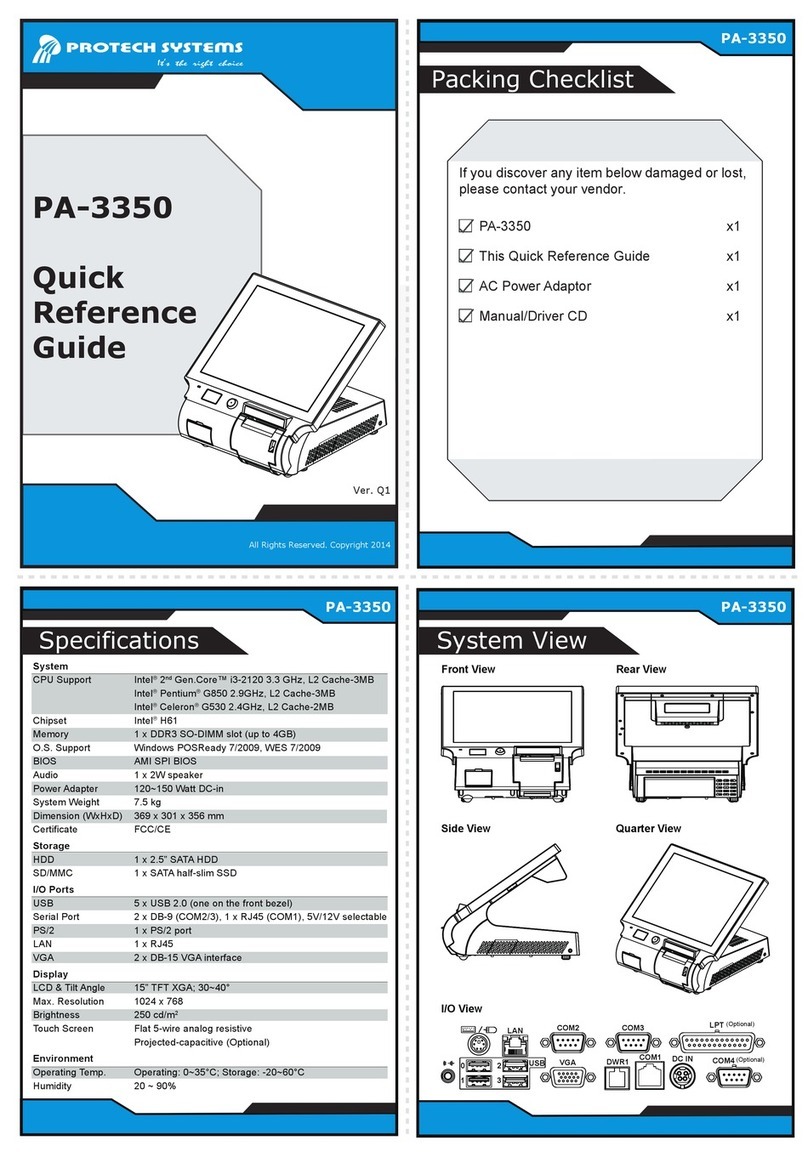
Ver. Q1
All Rights Reserved. Copyright 2013
Packing Checklist
PA-3570
PA-3570 PA-3570
Specifications System View
Ve
Q
1
Top View Bottom View
Rear View Side View
Quarter ViewI/O View
DWR2
COM3
LAN
USB
DWR1
COM1
DC IN
0
1
2
3
VGA
COM2
System
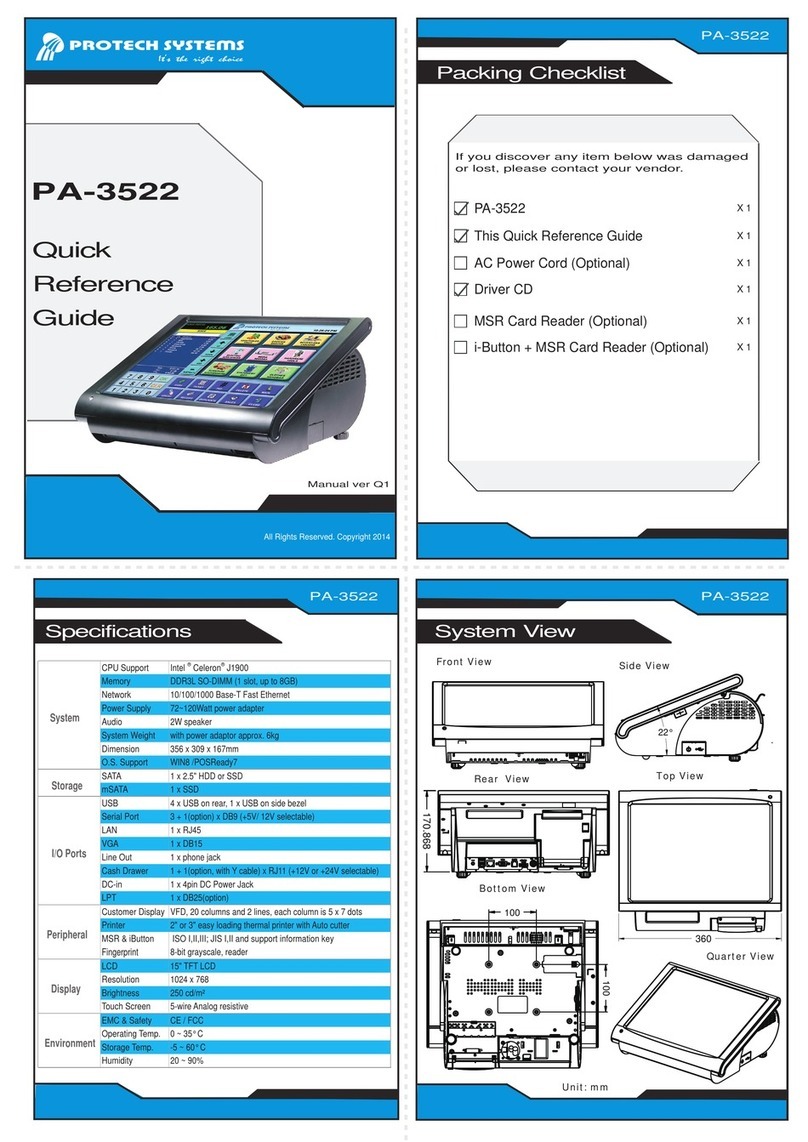
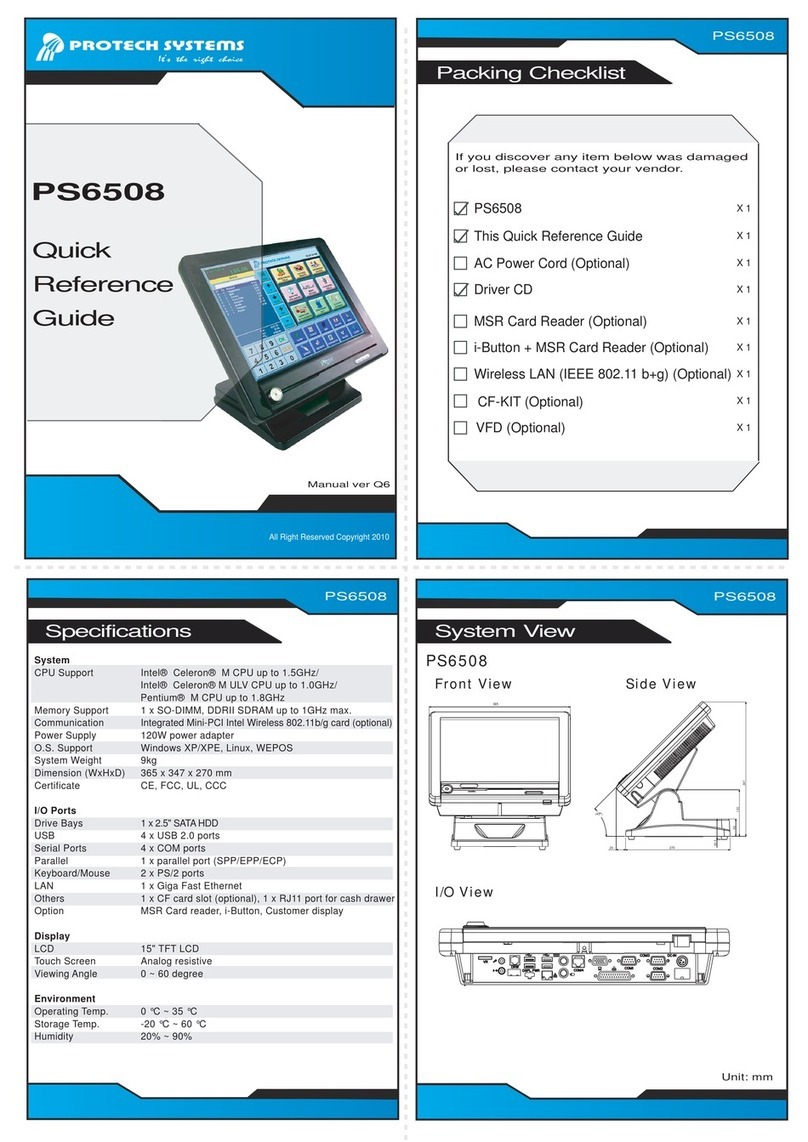
CPU Support Intel®Core™ i3-2120 3.3 GHz, L2 Cache-3MB
Intel®Pentium®G850 2.9 GHz, L2 Cache-3MB
Intel®Celeron®G530 2.4 GHz, L2 Cache-2MB
Memory 1 x DDR3 SO-DIMM Slot (up to 8GB)
Chipset Intel®H61
Network 10/100/1000 Base-T Fast Ethernet
Power Supply 120~150 Watt DC IN power adapter
System Weight 5.7 kg
Dimension (WxHxD) 356 x 309 x 167 mm
O.S. Support Windows WES7/2009, POSReady 7/2009
Certificate CE/FCC
Storage
HDD 1 x 2.5” SATA HDD
SD/MMC 1 x SATA half-slim type SSD
I/O Ports
USB 4 x USB 2.0 / 1 x USB 2.0 on side bezel
Serial Port 2 x DB-9 (COM 2/3), 1 x RJ45 (COM 1)
+5V/12V selectable
PS/2 1 x PS/2 port (default at keyboard)
LAN 1 x 1RJ-45
VGA 1 x DB-15 VGA interface
Cash Drawer 1 x RJ11 (12V/24V selectable, default at 12V.)
Printer 2” or 3” easy loading thermal printer with auto cutter
Display
LCD 15" TFT LCD
Max. Resolution 1024 x 768
Brightness 250 cd/m²
Touch Screen 5-wire analog resistive
Tile Angle 24 ~ 30°
Environment
Temperature Operating: 0 ~ 35°C; Storage: -20°C ~ 60°C
Humidity 20% ~ 90%
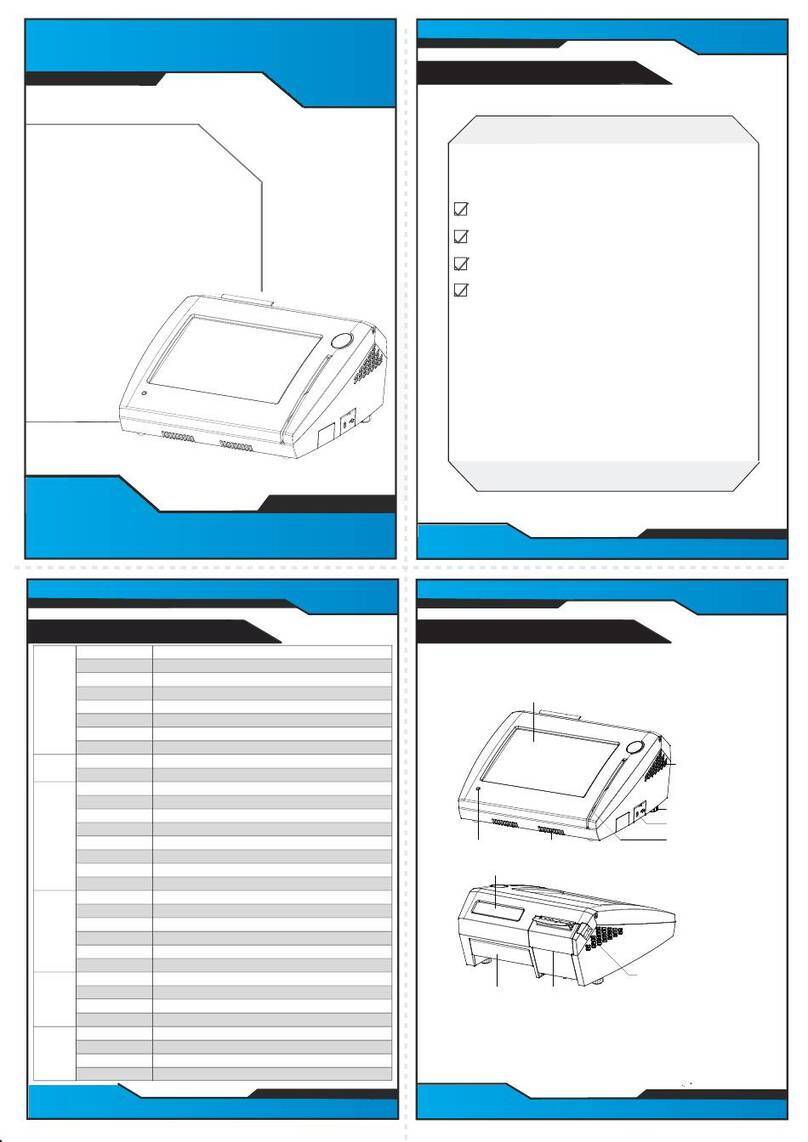
If you discover any item below damaged or lost,
please contact your vendor.
PA-3570 x1
This Quick Reference Guide x1
AC Power Adaptor x1
Manual/Driver CD x1
PA-3570
Quick
Reference
Guide
Easy Maintenance
PA-3570
All Rights Reserved. Copyright 2013
Jumper Setting
Safety Precaution
The One-of-a-kind Highly Intergrated 15” POS Terminal
Do not cover the HDD breather hole.
Step 3
Step 4
Step 1
Step 2
REMOVE
Intel
Sandy Bridge
CPU Socket
203
73
2
7271
74
1
204
DIMM1
203
73
2
7271
74
1
204
DIMM2
1
1
2
JLED1-1
JINVDRV1 JINV2
17
JLED2
14
1
2
29
30
LVDS1
1
2
6
5
JP7
JP21 15
TOUCH1
12
SW2-1
SP1
FAN2
14
61
PS2_1
12
8
7
JP6
COM4-2
210
1
JI_BUTTON1
TOUCH2
15
USB5
1 5
JINV1
1 4
CF1
12
SPK1
Intel
H61
Battery
1
2
3
4SW1
6 1
PS2_2
61
JINV3
1
2
3
4
5
LINE-OUT1
1
2SW2-2
12SPK2
1
1
4
4
USB10-1
USB10-2
61
JLED1-2
1
2
9
10
A1
A4
B1
B4
JRJ45USB23
24
21
16
20
5
10
15
1
6
11
JVGACOM2
1
JPS2USB01
4
9
13 14
12
8
5
4
3
PWR_IN1
PWR_IN2
2
1
1234
1
210
91
2
5
6
DRW1
COM1
1
2
6
5
JP_COM4
COM4-1
2
1
USB9
15
LPT1
26
13
14
1
J1
1
1 4
PRT_PWR1 FAN1
1 4
SIO
USB8
1
5
10 9
1
2
J_LPC1
1 7
SATA2
1 2
2
65
JP_COM1 1
JP13
1 2
65
JP_COM2
1
JP14
JP15
JP16
6
5
JP_COM3
COM3-1
9
10
JPWR_4P2
4
1
1
1
2
8
7
1
JP4
JP2
1
7
SATA1
J3GPWR1
JPWR_4P1
1
4
1
2
RI
(default)
12V 5V
5 6
21
5 6
21
5 6
2
1
2
15
62
15
62
15
6
5
6 2
1 5
6 2
1 5
6 2
1
COM Port RI & Voltage
Selection
(default)
1
3
+24V
1
3
+12V
Cash Drawer Power
Selection
(default)
1
Normal
1
Clear
CMOS
Data
Clear CMOS Data
Selection
(default)
1
3
COM3
1
3
i-Button
i-Button Function
Selection
(default)
3.3V 5V
LVDS Voltage
Selection
2
15
62
15
6
• Don’t allow foreign objects to fall into this product.
• If water or other liquid spills into this product, unplug the power cord immediately.
4. Good Care
• When the outside of the case is stained, remove the stain with a neutral washing agent with a dry
cloth.
• Never use strong agents such as benzene and thinner to clean the system.
If heavy stains are present, moisten a cloth with diluted neutral washing agent or with alcohol and
then wipe thoroughly with a dry cloth.
• If dust has been accumulated on the outside, remove it by using a special made vacuum cleaner
for computers.
• Don’t contact the surface of capacitive touch before entering your operation system, or capacitive
touch may have position problems for electrostatics interface.
• Don't exchange the M/B battery by yourself or serious damage may incur.
The following messages are reminders for safety on how to protect your systems from damages and to
extend a long life of the system.
1. Check the Cable Voltage
• Make sure the range of operating voltage between DC 120~150V. Otherwise, the system could be
damaged.
2. Environmental Conditions
• Place your PA-3570 on a sturdy, level surface. Be sure to allow enough space to have easy access
around the system.
• Avoid extremely hot or cold place to install the system.
• Avoid exposure to sunlight for a long period of time or in an airtight space.
• Avoid the system from any heating device or using it outdoors in a cold winter day.
• Bear in mind that the operating ambient temperature is from 0~35°C (32~95°F).
• Avoid moving the system rapidly from a hot place to a cold place and vice versa because
condensation may come from inside of the system.
• Place PA-3570 in strong vibration(s) may cause hard disk failure.
• Don’t place the system close to any radio active device in case of signal interference.
3. Handling
• If the system isn’t fully in DOS mode, adjust BIOS setting as the instruction:
Advanced Chipset Feature => Boot display => choose “LFP”.
• Avoid putting heavy objects on top of the system.
• Don’t turn the system upside down. This may cause the hard drive to malfunction.
CAUTION! Danger of explosion if battery is incorrectly replaced. Replace only with the same or equivalent
type recommended by the manufacturer. Dispose of used batteries according to the manufacturer’s
instructions.
WARNING! Some internal parts of the system may have high electrical voltage. And therefore we strongly
recommend that qualified engineers can open and disassemble the system. The LCD and Touchscreen are
easily breakable, please handle them with extra care.