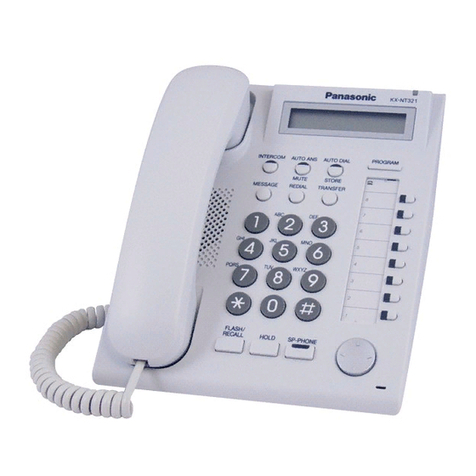
Snom 220 Phone Configuration for Quadro3.0.x Images
If your current version of the firmware is newer than 2.04i you will need to press any key and
the phone will reboot a second time. Afterwards the phone will automatically download the
image and configuration. Please do not turn off the power while updating the image.
If your firmware version is older than 2.04i, after the reboot “SW” will appear on the display
text, then you have to press the “F1” button, find “SW UPDATE” in the menu and press “ENTER”.
The phone will reboot and will ask on its LCD screen if you want to upgrade. Press “ENTER” and
the phone will download the new image and configuration.
It is desirable to have the DHCP server, phone and HTTP server in the same subnet.
5. The configuration provided by Epygi contains changes in the dial plan and the default SIP proxy
address is set to 172.30.0.1.
These were the required measures for the distributors.
2.2 Manual Configuration of Snom220 Phone using a DHCP Server
(for testing purposes or for users who purchased the phone from a 3d party).
1. By factory default DHCP is enabled. In this case it is necessary to have a DHCP server available
that will provide the IP address for the phone.
2. Connect the phone to the network and power on (if you need to reset the phone to factory
defaults it is necessary to press the “MENU” button, select “SETTINGS”, select “Reset Values”,
enter the Administrator password - it is set by default to “0”,”0”,”0”,”0” - press “Enter” and then
press the “OK” (F4) button to reboot).
3. The phone will get an IP address assigned and the user needs to know that address. Usually
during start-up the phone displays its IP address for some short time. IP address can also be
seen by pressing “Menu”, then find “About” and press “Select”. In the second row of the LCD
screen you will see the version.
4. If you want to update the firmware version of your phone you should go to the embedded HTTP
web server, select “Software Update” (or “Settings”->”Updates” depending on the phone
firmware version), set the new image location (full http path) to “Firmware” field and press
“Load”. (You can find the images on ”http://www.snom.com/support_dl_en.php” or for 3.x
versions on “http://www.snom.com/download/share/“). After pressing “Load” the phone will
reboot and upgrade the firmware.
5. Use the HTTP web browser to connect to the “Snom220” IP address.
6. Go to the link “Line1” (or “Settings”->”SIP”->”Lines”, depending on the phone firmware
version), then enter the LAN IP address of the Quadro board (SIP Proxy) in the “Registrar” field.
This should be set “172.30.0.1” by default.
7. Set the “Dial-Plan String” field in the same page (or go to “Settings”->”SIP”->”Stack”,
depending on the phone firmware version) as “ |^\*([0-6]{1})|sip:*\1@\d|d |^\*([7-
9]{1}[0-9]{1})|sip:*\1@\d|d |([^#]+)#|sip:\1@\d|d |asterisk|sip:*0@\d|d ”.
8. Set the "Proposed Expiry" field on the same page (or go to “Settings”->”SIP”->”Stack”,
depending on the phone firmware version) as "1min".
9. Press the “Save” button on the same page.
Copyright © 2004 Epygi Technologies, Ltd. All rights reserved.
4