Confidential: VerifoneVxRange_Version01_22062021 Page | 8
▪If successful, the terminal will prompt the merchant to pass
the terminal to the customer
▪The terminal will then display the account balance on the
screen before returning to the ready screen
oPurchase and Cash transaction
▪Swipe or insert card to start transaction
▪Select correct account type
▪If Cash is allowed by the card issuer, the transaction Purchase
and Cash can be selected
▪Enter the Purchase Amount when prompted
▪Enter the Cash Back Amount when prompted
▪Confirm the total amount when prompted
▪If the terminal prompts for a pin, pass the terminal to the
customer
▪Customer will enter his pin
▪Transaction will proceed as normal
oCash Withdrawal transaction
▪Swipe or insert card to start transaction
▪Select correct account type
▪If Cash is allowed by the card issuer, the transaction Cash
Withdrawal can be selected
▪Enter the Cash Amount when prompted
▪Confirm the total amount when prompted
▪If the terminal prompts for a pin, pass the terminal to the
customer
▪Customer will enter his pin
▪Transaction will proceed as normal
oReprint of Batch Report
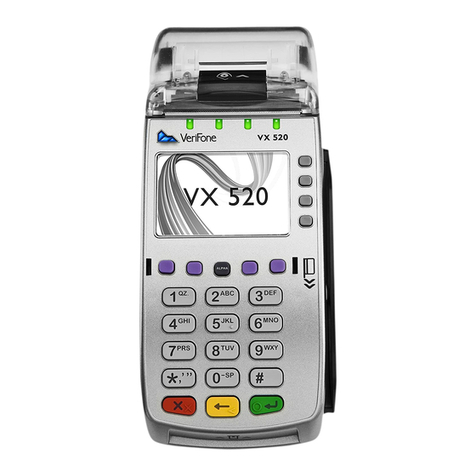
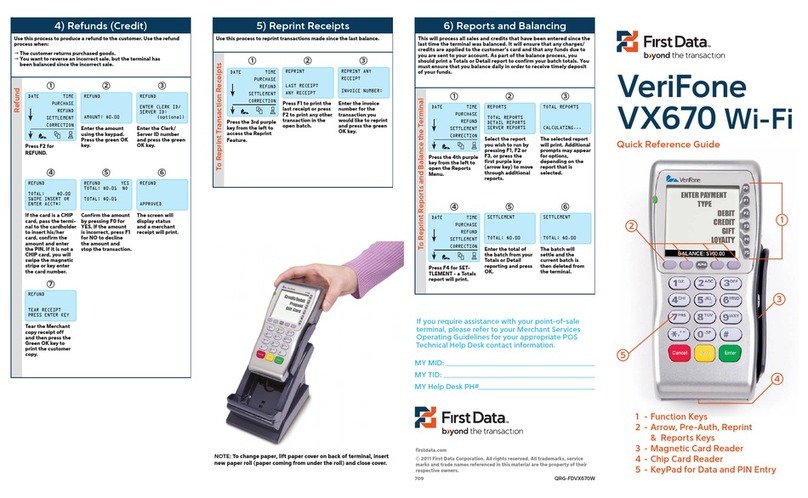
▪Press * (Vx675 / Vx680) or F4 (Vx520) for MENU
▪Select 2 –CARD PROCESSING
▪Select 2 –REPORTS
▪Select 1 –BATCH
▪To print the current batch, select 1 –CURRENT BATCH
▪To print the previous batch, select 2 –PREVIOUS BATCH
▪You can now choose to print either the full batch report, or just
the batch totals
oReprint of Transaction Receipt
▪In some instances, the merchant wants to reprint a receipt, for
instance when the paper roll finished during a transaction. To
reprint the receipt, please do the following steps:
•Press * (Vx675 / Vx680) or F4 (Vx520) for MENU
•Select 2 –CARD PROCESSING
•Select 1 –OPERATOR
•Select 2 –REPRINT RECEIPT
•The POS device will prompt for Supervisor details
•When asked, supply Supervisor ID and PIN
•The merchant can now select to reprint either the last
receipt, or a specific receipt.