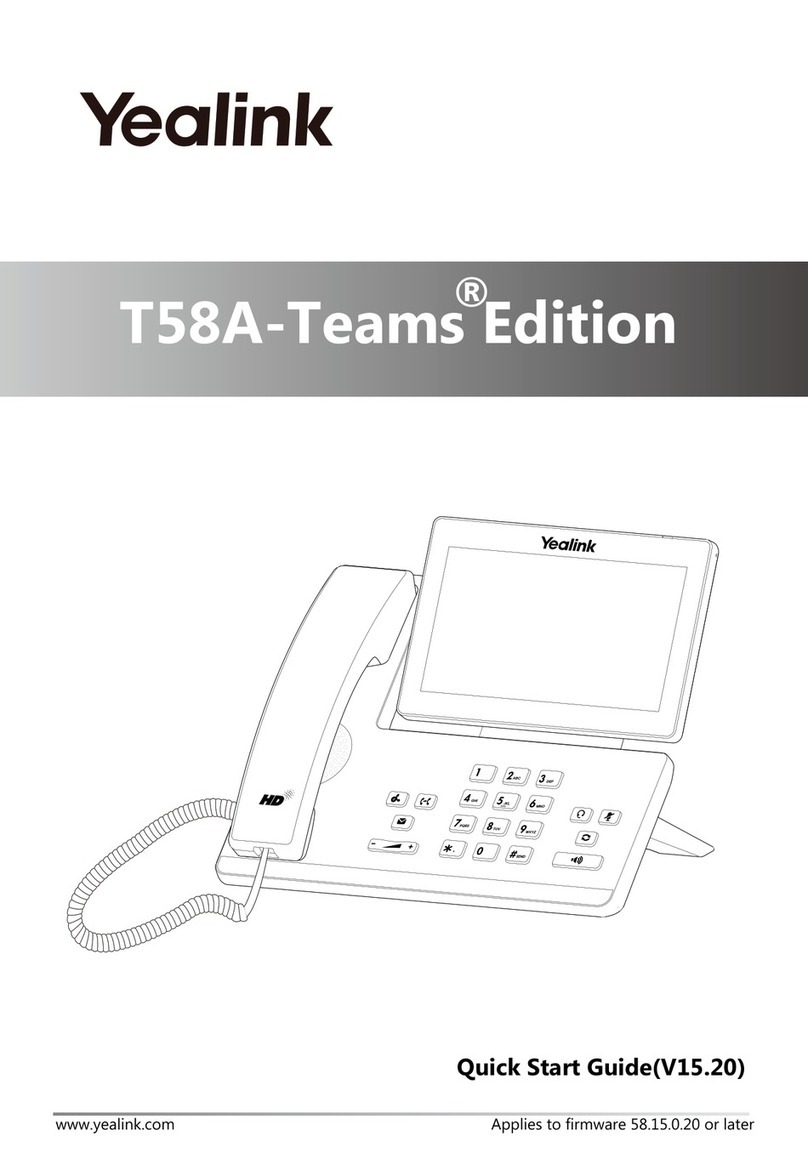
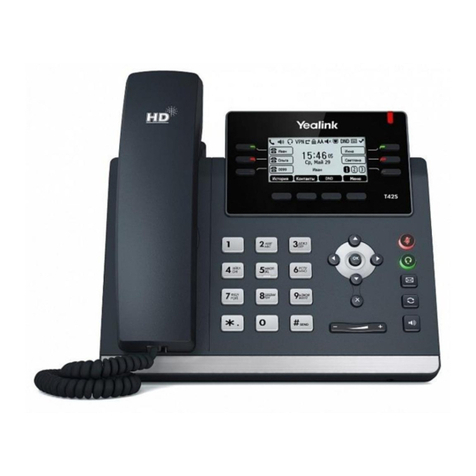
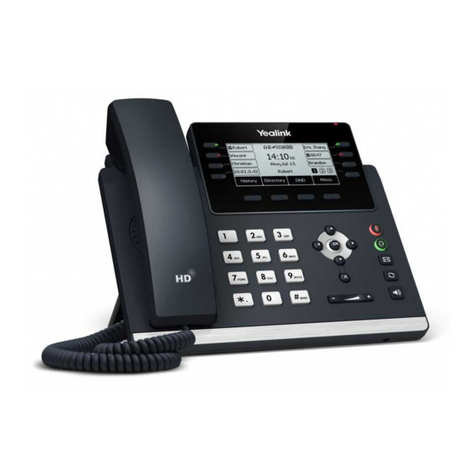
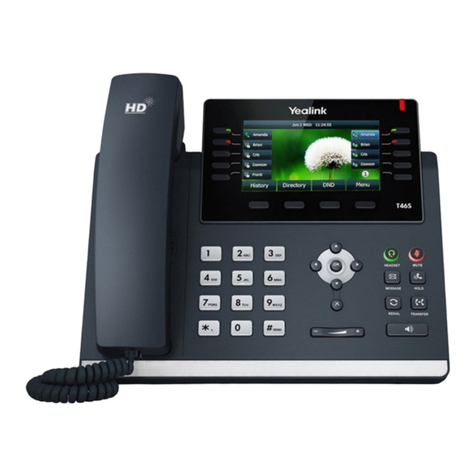
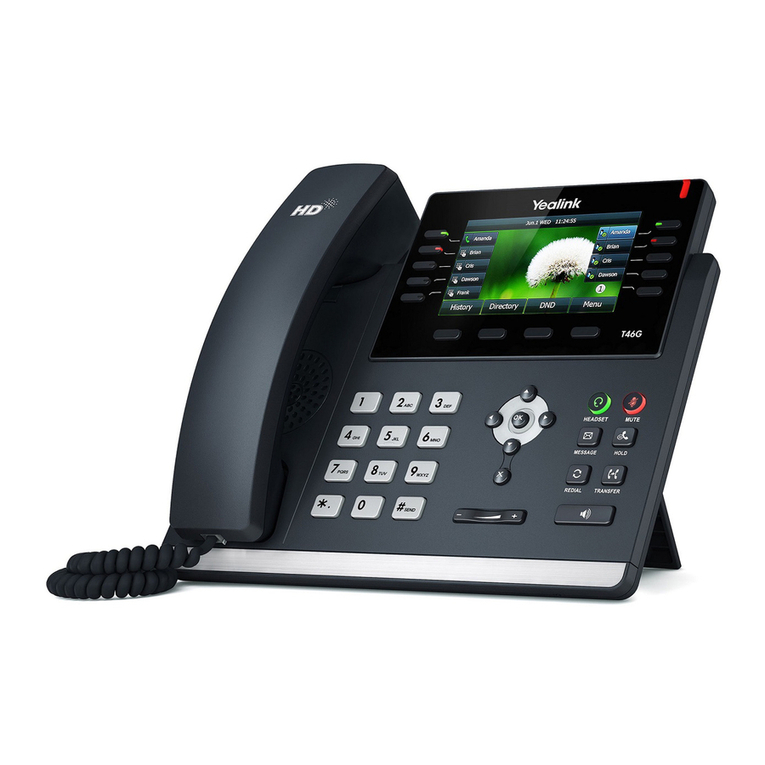
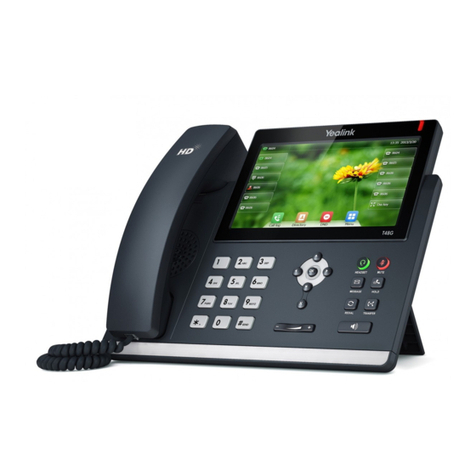
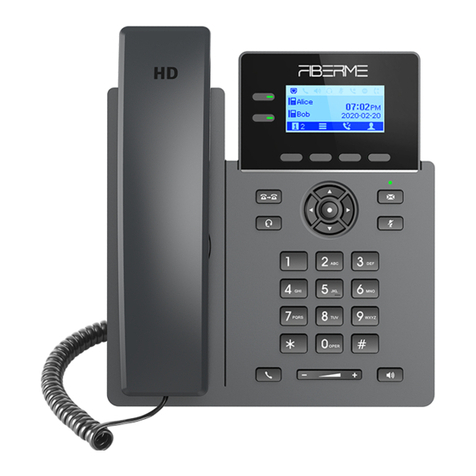
Yealink T58V
Yealink T48G Phone QRG 7 20/05/19
To view History:
1. Tap the History icon
(The touch screen displays all call records).
2. Tap or , to turn pages
3. You can tap Missed, Placed, Received or Forwarded to view entries in each call list.
4. Tap after the desired entry, to see more information like date and time relating to the call,
then you can
5. Tap Send to call back.
6. Tap Add to add the entry to the Directory.
7. Tap Edit to edit the entry.
8. Tap Blacklist to blacklist the entry.
9. Tap Delete to delete the entry,
Directory
Directory is not currently supported on the Yealink phones with Optus Loop.
Voicemail
To Setup Voicemail:
1. Press on your phone or tap Menu >Message.
2. When prompted enter your 4digit Voicemail password.
(This will be emailed to you from Optus).
For first time login
3. Change the password to your four digit password and confirm.
4. Record your name.
5. You can then setup 2 greetings, your No Answer and/or Busy greeting. Follow the prompts to
setup greetings.
6. Press 1to access your mailbox.
7. Press 2to change your Busy greeting, OR.
8. Press 3to change your No Answer greeting.
9. Press 1to record your new Busy or No Answer greeting
To listen to Voicemails:
1. When the phone screen displays you have a new voicemail and the power indicator LED slow
flashes red, press the Message button to access voicemail
2. Enter your Voicemail password.
3. Press 1to access your Voicemail box.
4. Press 1to listen to your messages.
5. Press #to save the message; 2to repeat the message; 7to Delete the message.
To access your Voicemail Remotely
1. Dial your phone number, when you hear your mailbox greeting being played, press *.
2. Enter your 4digit Voicemail password.