manuals.online logo
Brands
  1. Home
  2. •
  3. Brands
  4. •
  5. Alcatel
  6. •
  7. IP Phone
  8. •
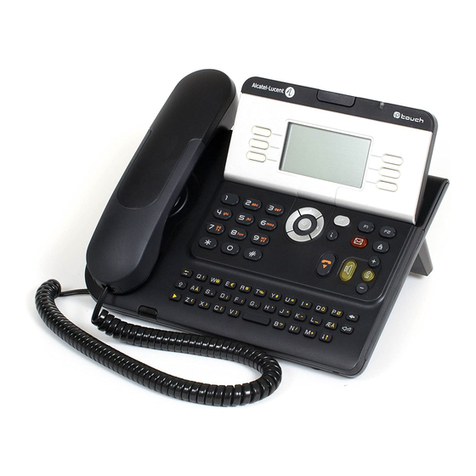
  9. Alcatel IP Touch 4008 User manual

Alcatel IP Touch 4008 User manual

This manual suits for next models

1

Other Alcatel IP Phone manuals

Alcatel Omni Enterprise 8028 User manual

Alcatel

Alcatel Omni Enterprise 8028 User manual

Alcatel IP15 User manual

Alcatel

Alcatel IP15 User manual

Alcatel OmniPCX Enterprise 4039 User manual

Alcatel

Alcatel OmniPCX Enterprise 4039 User manual

Alcatel 4028 User manual

Alcatel

Alcatel 4028 User manual

Alcatel Temporis IP901G User manual

Alcatel

Alcatel Temporis IP901G User manual

Alcatel Temporis IP901G User manual

Alcatel

Alcatel Temporis IP901G User manual

Alcatel Temporis IP150 User manual

Alcatel

Alcatel Temporis IP150 User manual

Alcatel Temporis IP251G User manual

Alcatel

Alcatel Temporis IP251G User manual

Alcatel IP30 User manual

Alcatel

Alcatel IP30 User manual

Alcatel IP1020P Service manual

Alcatel

Alcatel IP1020P Service manual

Alcatel TEMPORIS IP 200 User manual

Alcatel

Alcatel TEMPORIS IP 200 User manual

Alcatel OmniPCX Enterprise 4039 User manual

Alcatel

Alcatel OmniPCX Enterprise 4039 User manual

Alcatel Temporis 06 User manual

Alcatel

Alcatel Temporis 06 User manual

Alcatel Alcatel 8 Series IPTouch 4068 User manual

Alcatel

Alcatel Alcatel 8 Series IPTouch 4068 User manual

Alcatel IPTOUCH 600 User manual

Alcatel

Alcatel IPTOUCH 600 User manual

Alcatel ALE-30h Instruction manual

Alcatel

Alcatel ALE-30h Instruction manual

Alcatel Advanced Reflexes User manual

Alcatel

Alcatel Advanced Reflexes User manual

Alcatel Omni Enterprise 4068 User manual

Alcatel

Alcatel Omni Enterprise 4068 User manual

Alcatel 8038 Instruction manual

Alcatel

Alcatel 8038 Instruction manual

Alcatel Omni Office Instruction manual

Alcatel

Alcatel Omni Office Instruction manual

Alcatel Conference IP1850 User manual

Alcatel

Alcatel Conference IP1850 User manual

Alcatel First Reflexes User manual

Alcatel

Alcatel First Reflexes User manual

Alcatel 4029 User manual

Alcatel

Alcatel 4029 User manual

Alcatel TEMPORIS IP 200 Service manual

Alcatel

Alcatel TEMPORIS IP 200 Service manual

Popular IP Phone manuals by other brands

Cortelco C62 VoIP Phone user guide

Cortelco

Cortelco C62 VoIP Phone user guide

VanillaIP Polycom IP300 user manual

VanillaIP

VanillaIP Polycom IP300 user manual

Yealink Yealink SIP-T22P Quick installation guide

Yealink

Yealink Yealink SIP-T22P Quick installation guide

Viking SR-IP product manual

Viking

Viking SR-IP product manual

Yealink VP59 Teams user guide

Yealink

Yealink VP59 Teams user guide

Panasonic KX-UT133-B Administrator's guide

Panasonic

Panasonic KX-UT133-B Administrator's guide

Avaya one-X 9600 Series overview

Avaya

Avaya one-X 9600 Series overview

AVA Enterprises B179 Installation and administration guide

AVA Enterprises

AVA Enterprises B179 Installation and administration guide

Cisco Unified 7900 Series System guide

Cisco

Cisco Unified 7900 Series System guide

Polycom SoundPoint IP 450 datasheet

Polycom

Polycom SoundPoint IP 450 datasheet

Cisco SPA-500 Series user guide

Cisco

Cisco SPA-500 Series user guide

IPitomy IP290 user manual

IPitomy

IPitomy IP290 user manual

Polycom SoundPoint IP 650 user guide

Polycom

Polycom SoundPoint IP 650 user guide

Proximus Maestro 3016 IP quick start guide

Proximus

Proximus Maestro 3016 IP quick start guide

Polycom IP 450 user guide

Polycom

Polycom IP 450 user guide

Fanvil X4 user manual

Fanvil

Fanvil X4 user manual

Snom 320 quick start guide

Snom

Snom 320 quick start guide

Avaya Integral 5 R3.0 user guide

Avaya

Avaya Integral 5 R3.0 user guide

manuals.online logo
manuals.online logoBrands
  • About & Mission
  • Contact us
  • Privacy Policy
  • Terms and Conditions

Copyright 2025 Manuals.Online. All Rights Reserved.

All Rights Reserved © Alcatel
-
Lucent 2010
Alcatel
-
Lucent
August, 2010
IP Touch 4008/4018
Extended Edition
SIP Phone Installation Guide
8AL90824AAAA ed02
All Rights Reserved © Alcatel-Lucent 2010
Page
2
1. Overview...........................................................................................3
2. Connecting the Alcatel-Lucent P Touch 4008/4018 Extended Edition phone...........3
2.1. Connecting the P Touch 40x8 EE phone to the LAN ...................................4
2.2. Connecting power supply ..................................................................4
2.3. Plugging a PC to an P Touch 4018 EE phone............................................4
3. S P stand-alone mode ............................................................................4
3.1. Firmware version identification ..........................................................4
3.2. Switching From NOE To S P Mode.........................................................5
3.3. nitializing an P Touch 40x8 EE phone...................................................7
3.3.1. S P configuration files.................................................................7
3.3.2. S P binary files .........................................................................7
3.3.3. Selecting the downloading mode....................................................8
3.3.4. TFTP .....................................................................................8
3.3.5. HTTP(S) ............................................................................... 10
3.4. S P registration ............................................................................ 14
3.5. Updating S P binaries ..................................................................... 14
3.6. S P configuration files description ...................................................... 15
3.7. Third-party certificate management................................................... 21
3.8. Phone features ............................................................................ 22
3.8.1. Direct key management ............................................................ 22
3.8.2. Multiline............................................................................... 22
3.8.3. Three-party conference ............................................................ 22
3.8.4. Speed dialing keys ................................................................... 23
3.8.5. Voice mail ............................................................................ 23
4. Troubleshooting................................................................................. 24
4.1. Overview ................................................................................... 24
4.2. Error and information messages ........................................................ 24
4.3. Ethernet link............................................................................... 26
4.4. Net log...................................................................................... 27
All Rights Reserved © Alcatel-Lucent 2010
Page
3
1. O er iew
The Alcatel-Lucent IP Touch 4008/4018 Extended Edition phones ( P Touch 40x8 EE) are part of
the Alcatel-Lucent P Touch 8-series Extended Edition phone range.
The following chapters in this document describe S P stand-alone operations. From firmware
version identification to switching from NOE to S P stand-alone mode, S P mode initialization
(configuration & binary), S P registration, files update, phone features introduction and
troubleshooting.
2. Connecting the Alcatel-Lucent IP Touch
4008/4018 Extended Edition phone
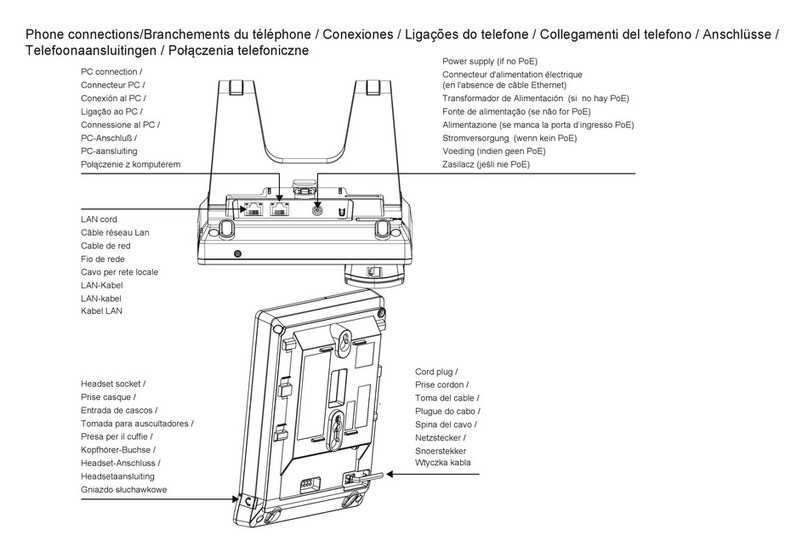
The following figure illustrates the Alcatel-Lucent P Touch 4018 EE phone connectors. The
Alcatel-Lucent P Touch 4008 EE phone connectors are identical except for the PC connector.
All Rights Reserved © Alcatel-Lucent 2010
Page
4
2.1.
Connecting the IP Touch 40x8 EE phone to the LAN
To connect the set to the LAN:
1. Turn the set over
2. Plug the RJ45 cable into the set LAN connector
3. Connect the RJ45 cable to the LAN itself
2.2.
Connecting power supply
The following procedure does not apply when power supply is provided via Power over Ethernet
(PoE).
To supply power via an AC/DC external adapter:
1. Plug the appropriate cable into the set power supply connector
2. Connect the plug to the power supply. nitialization starts.
2.3.
Plugging a PC to an IP Touch 4018 EE phone
Only one additional equipment can be connected to the set connector labeled PC on an P Touch
4018 EE phone.
Note 1: reminder, the Alcatel-Lucent P Touch 4008 EE phone set has no PC connector.
Note 2: if 802.1x authentication is used, the PC port cannot be used until the P Touch 418 EE
phone authentication is completed.
3. SIP stand-alone mode
3.1.
Fir ware version identification
n addition to existing call processing support for the Alcatel-Lucent OmniPCX™ Communication
Servers (NOE signaling protocol), the Alcatel-Lucent P Touch 40x8EE phone can also be
configured as Session nitiation Protocol (S P) endpoints and, therefore, operate in a standard S P
environment. The Alcatel-Lucent P Touch 40x8 EE phone may also switch to S P survival mode in
S P standalone mode.
Firmware version identification – phone out of the box.
n this context, the phone is natively configured in NOE mode
1- Power on the phone.
2- At the phase 2/5 network setup, press the "i" key and just after press the "#" key.
3- ‘0 - MAC address’ menu appears.
4- Scroll down to ‘2 - Soft infos’.
5- Press the OK key.
6- The version is displayed : ‘Version NOE 4.xx.xx’. f the version is at least 4.xx.xx, S P boot
mode is possible.
All Rights Reserved © Alcatel-Lucent 2010
Page
5
Firmware version identification – phone already installed.
1- Power on the phone.
2- At the phase 2/5 network setup, press the "i" key and just after the "#" key.
3- ‘0 - MAC address’ menu appears.
4- Scroll down to ‘2 - Soft infos’.
5- Press the OK key.
6- Scroll down to ‘Run mode’:
- if NOE is displayed, it means that the NOE signaling protocol is running,
- if S P is displayed, it means that the S P signaling protocol mode is running.
3.2.
Switching Fro NOE To SIP Mode
There are two methods.
Method 1 - Manual
1- Power on the phone.
2- At the phase 2/5 network setup, press the "i" key and just after the "#" key.
3- ‘0 - MAC address’ menu appears.
4- Scroll down to ‘2 - Soft infos’.
5- Press OK.
6- ‘Version NOE x.xx.xx’ is displayed.
7- Scroll down to ‘Run mode’, ‘Set Mode: NOE’ is displayed.
8- Press OK to switch from NOE to S P mode.
9- Press ‘#’ to save the new configuration.
10- Press the Hang Up key to reset the device to take into account the new configuration.
For checking S P status, follow ‘Firmware version identification already installed’ section.
All Rights Reserved © Alcatel-Lucent 2010
Page
6
Method 2 - Automatic
‘lanpbx.cfg’ file template: use a text editor to create a very simple file with this contents:
APPL CAT ON_TYPE=APPL_S P
This file must be reachable from root location of the TFTP Server.
The P Touch 40x8EE phone is compatible with any DHCP server that correctly supports the
BOOTP server P address - siaddr (also called ‘next-server’) field. See standard RFC 951 for
further information.
All Rights Reserved © Alcatel-Lucent 2010
Page
7
3.3.
Initializing an IP Touch 40x8 EE phone
3.3.1.
SIP configuration files
There are two configuration files.
The first file, named “sipconfig.txt”, is the global configuration file and it should contain
parameters applying to all phones found on the system (proxy P address, Registrar server P
address, preferred codecs, SNTP server P address …). Again, this file is downloaded only if the
download server address is provisioned, using the download protocol indicated in the
corresponding parameter (HTTP(S) or TFTP).
This file is optional since all parameters may be configured in the specific configuration file. t is
optional from an administrator point of view: in other words, the phone always tries to download
this file. f the file does not exist at server side, the phone receives a “file not found” error and
continues with the next file seamlessly.
The second file, named “sipconfig-MacAddress.txt”, is specific to each phone found on the
system and as such, should only contain parameters dedicated to a phone (user name…).
However, this rule is not enforced.
The name of this file is constructed by inserting the physical address of the phone (in
hexadecimal without columns) before the “.txt” extension. As an example, if the phone physical
address is “00:80:9F:56:07:AE”, the specific file name will be “sipconfig-00809F5607AE.txt”.
This file is mandatory since it contains configuration parameters specific to each phone. Again, it
is mandatory from an administrator point of view: the phone always tries to download this file,
but if it does not exist at server side and if the phone has already some parameters stored in
FLASH memory (see below), it continues its initialization with these flashed parameters.
The parameters, provisioned using the global configuration file, are overwritten by specific
configuration file parameters if both exist.
For more information on the structure of the sip configuration files, see: § S P Configuration Files
Description.
3.3.2.
SIP binary files
The S P binary files must be set into the server at the same location as the sipconfig.txt and
sipconfig-MacAddress.txt configuration files.
For P Touch 4008EE phone, the available binary files are:
– noesip4008 (application)
– datsip4008 (resources including the ringing melodies)

All Rights Reserved © Alcatel-Lucent 2010
Page
8
For P Touch 4018EE phone, the available binary files are:
– noesip4018 (application)
– datsip4018 (resources including the ringing melodies)
These binary files are downloaded from the server whose P address is either retrieved from a
DHCP server (dynamic configuration) or defined in the set itself (static configuration).

3.3.3.
Selecting the downloading mode
Binary (noesip40x8 and datsip40x8) and Configuration files (sipconfig.txt and
sipconfig-MacAddress.txt) are downloaded from the server defined via DHCP or the set
itself.
They can be downloaded via 3 methods ( MPORTANT, the used method is under customer T
Management policy):
– Either TFTP
– or HTTP
– or HTTPS. HTTPS guarantees the authentication, based on TLS client authentication
mechanism, and the confidentiality of the files. This download requires certificates.
When downloading fails, the parameters stored in flash memory of the set are used.
3.3.4.
TFTP
Method 1 - Manual
1- Power on the phone.
2- At the phase 2/5 network setup, press the "i" key and just after the "#" key.
3- ‘MAC address’ menu appears.
4- Scroll down to ‘ P parameters’.
5- Press OK.
6- Set following parameters (press OK to select or to change value).
IP Mode: Static
IP @: @ you want to give to your S P phone
Subnet: Subnet mask
Router: Default gateway of your subnet
DL scheme (download scheme): TFTP
Use default port: Yes
DL @: TFTP Server @
DL port: 69
7- Press OK to save.
Warning: no administrator action within 30 seconds in the configuration menu will automatically
lead to quit this menu.
All Rights Reserved © Alcatel-Lucent 2010
Page
9
Method 2 - Automatic
The P Touch 40x8EE phone is compatible with any DHCP server that correctly supports
the BOOTP server P address - siaddr (also called ‘next-server’) field. See standard RFC
951 for further information.
The syntax for the ‘Option’ 43 P is as follows:
<opcode> <length> < P>
<opcode> = 0x40 (64 decimal)
<length> = 0x04 (4 decimal)
< P> = P Address in hexadecimal – e.g. for 192.168.1.30 content should be (0xC0 A8 01 1E)
All Rights Reserved © Alcatel-Lucent 2010
Page
10
3.3.5.
HTTP(S)
Method 1 – Manual
1- Power on the phone.
2- At the phase 2/5 network setup, press the "i" key and just after the "#" key.
3- ‘MAC address’ menu is displayed.
4- Scroll down to ‘ P parameters’.
5- Press OK.
6- Set following parameters (OK to select or change value).
IP Mode: Static
IP @: @ you want to give to your S P phone
Subnet: Subnet mask
Router: Default gateway of your subnet
DL scheme (download scheme): HTTP or HTTPS
Use default port: Yes
DL @: HTTP(S) Server @
DL port: 80 (443)
DL Path: The path to the directory where Configuration and Binaries are located
7- Press OK to save.
Warning: no administrator action within 30 seconds in the configuration menu will automatically
lead to quit this menu.