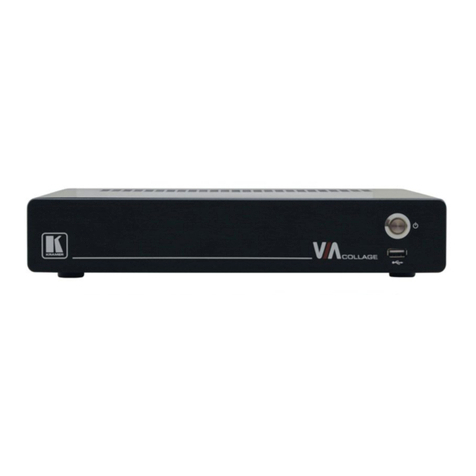
Kramer VIA Campus2 User manual
Other Kramer Projector Accessories manuals
Kramer
Kramer VIA Connect2 User manual
Kramer
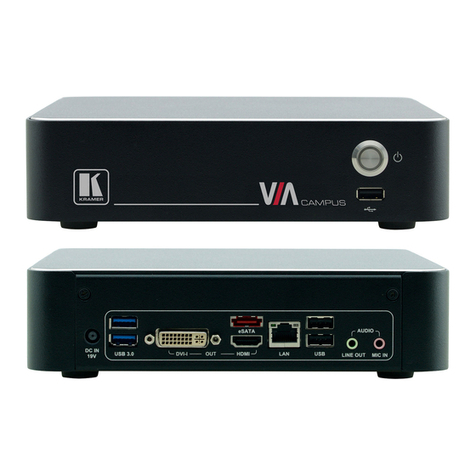
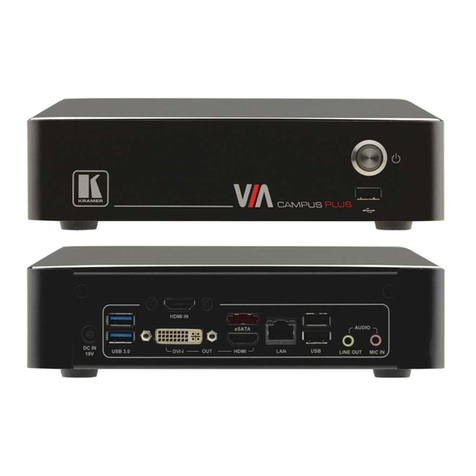
Kramer VIA Campus User manual
Kramer
Kramer VIA Campus PLUS User manual
Kramer
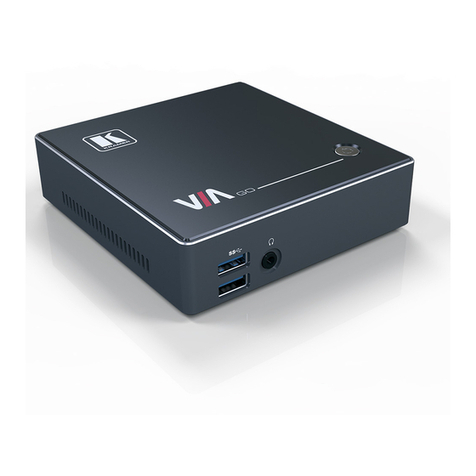
Kramer VIA GO User manual

Kramer
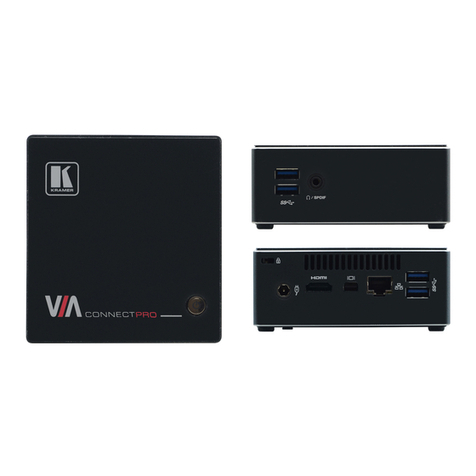
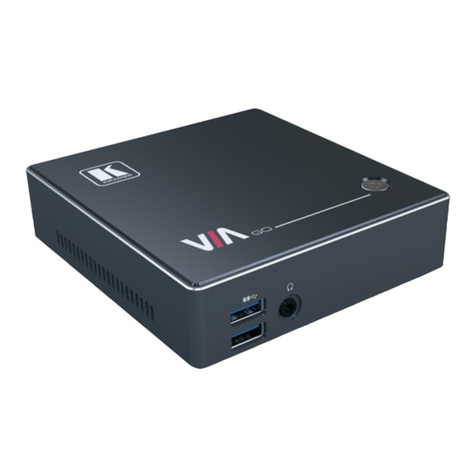
Kramer VIA CONNECT PRO User manual
Kramer
Kramer VIA GO User manual

Kramer
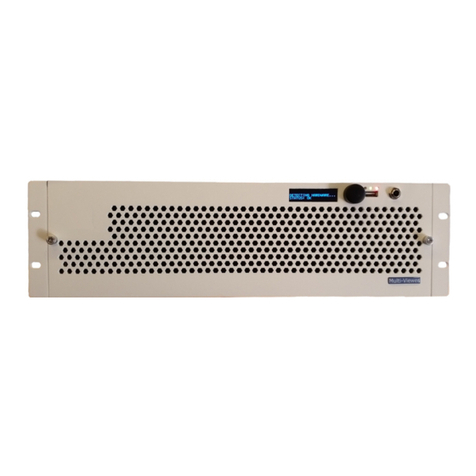
Kramer VP-796 User manual
Kramer
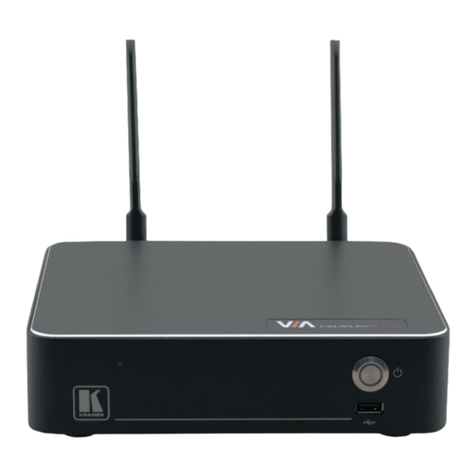
Kramer SMP Series Parts list manual
Kramer
Kramer VIA Campus 2 User manual

Kramer
Kramer VP-554X User manual
Kramer
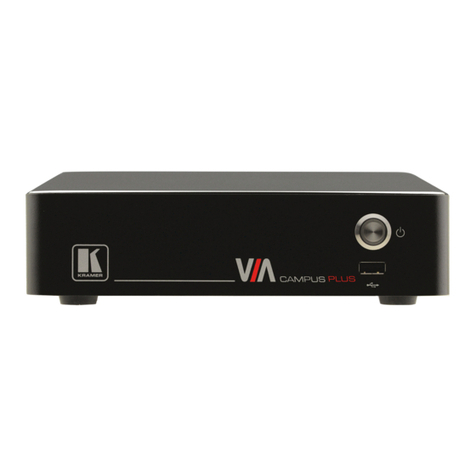
Kramer VIA Campus2 PLUS User manual
Kramer
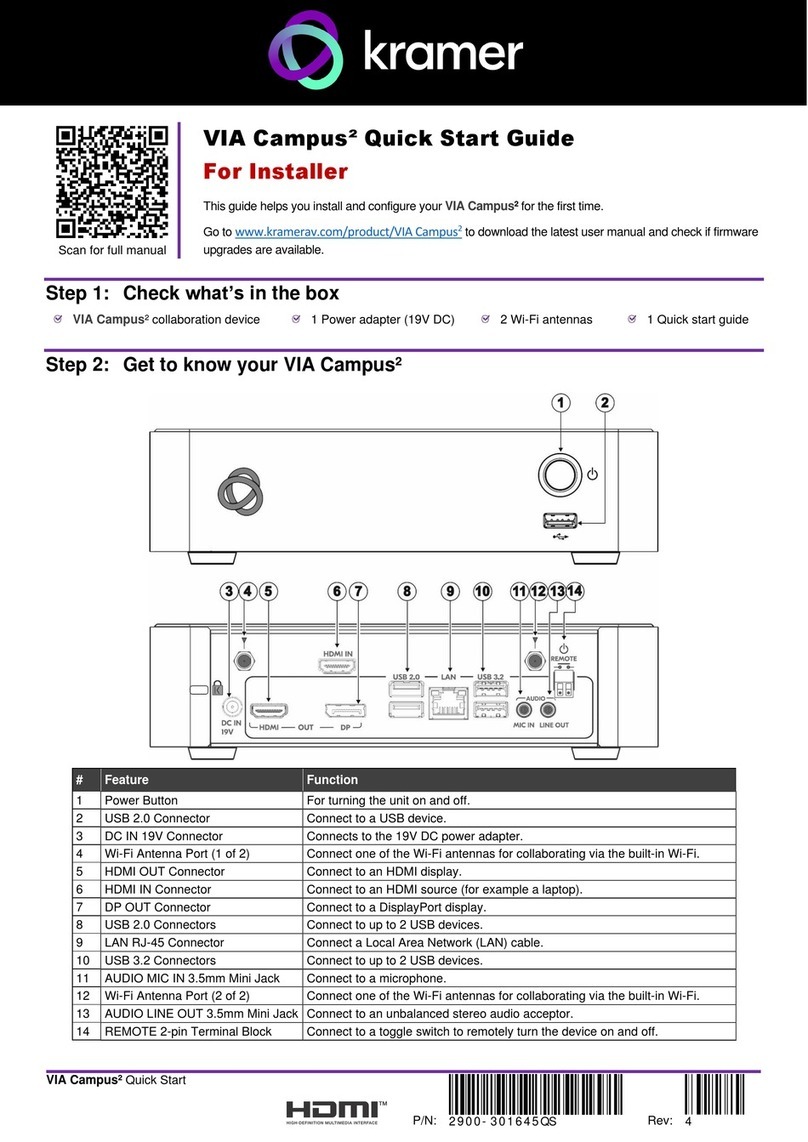
Kramer VIA Campus2 User manual
Kramer
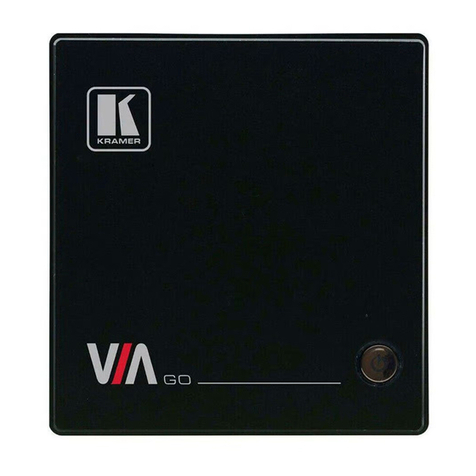
Kramer VIA-GO User manual
Kramer
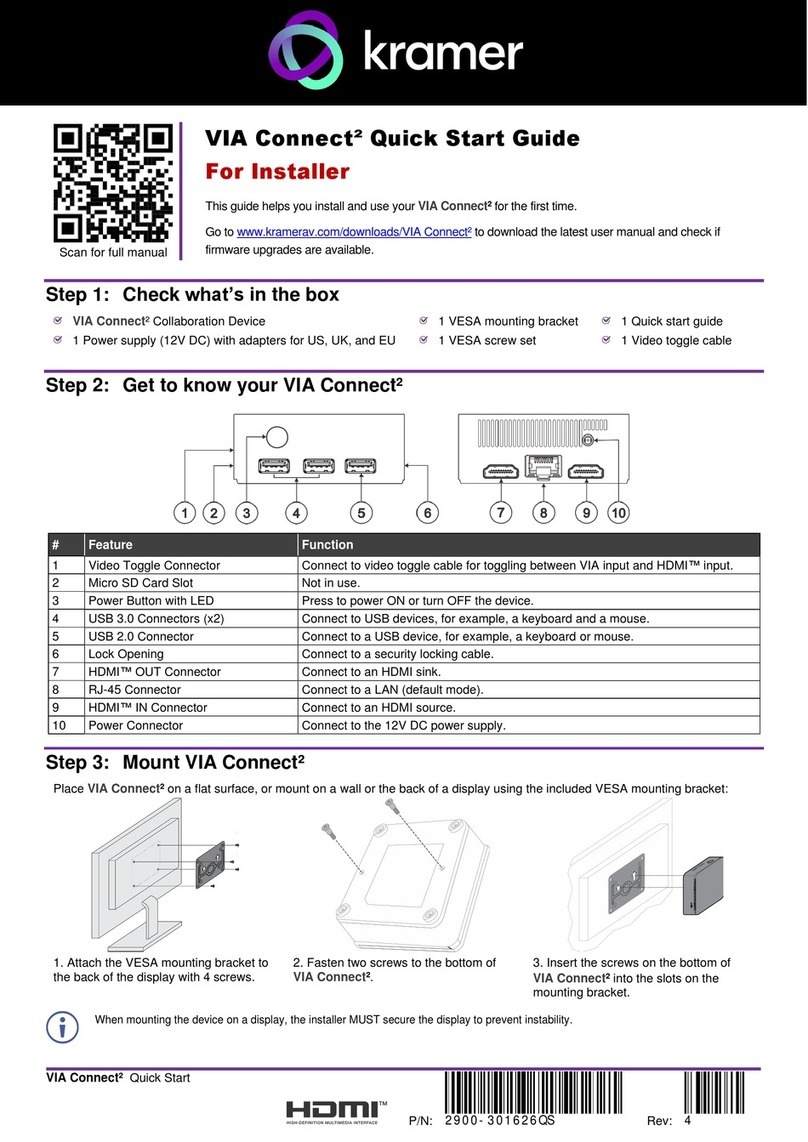
Kramer VIA Connect2 User manual
Kramer
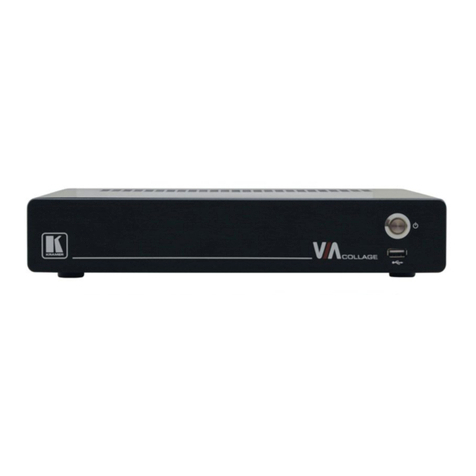
Kramer VIA Collage User manual

Kramer
Kramer VP-770 User manual
Kramer
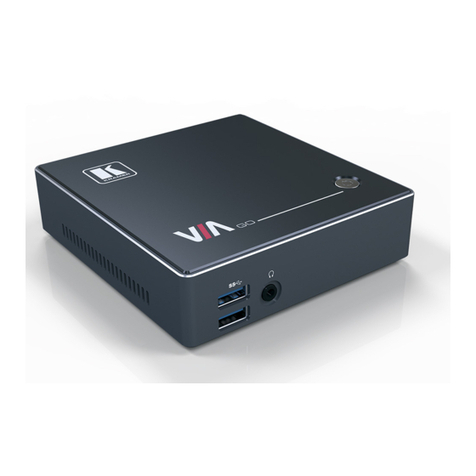
Kramer VIA GO User manual
Kramer
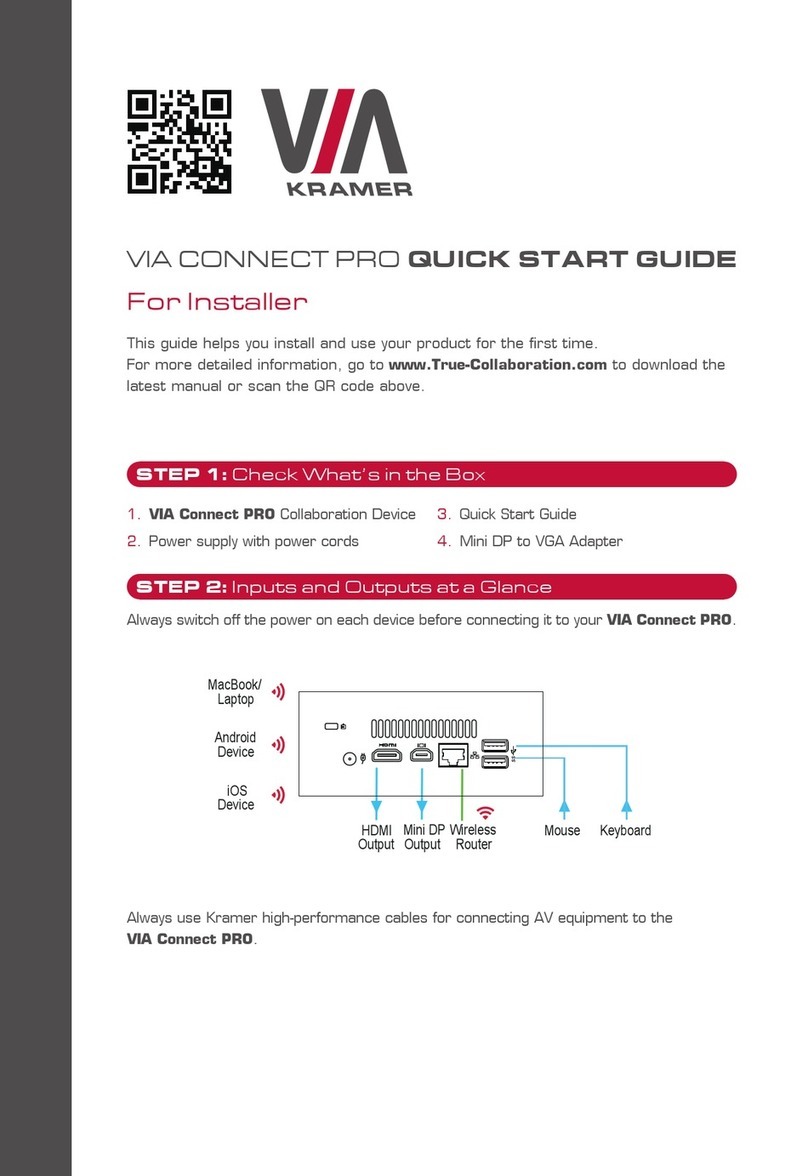
Kramer VIA CONNECT PRO User manual

Kramer
Kramer VIA GO2 User manual

Kramer
Kramer K-Bar User manual