manuals.online logo
Brands
  1. Home
  2. •
  3. Brands
  4. •
  5. Sony
  6. •
  7. Printer
  8. •
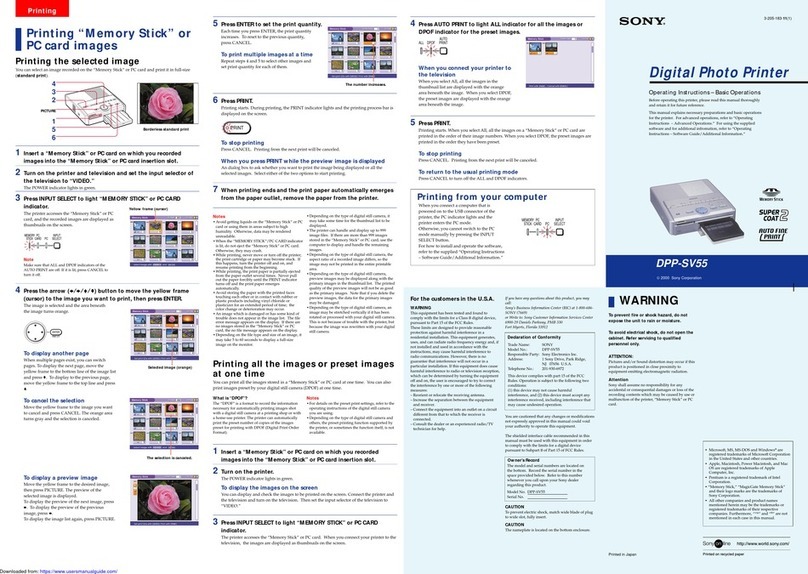
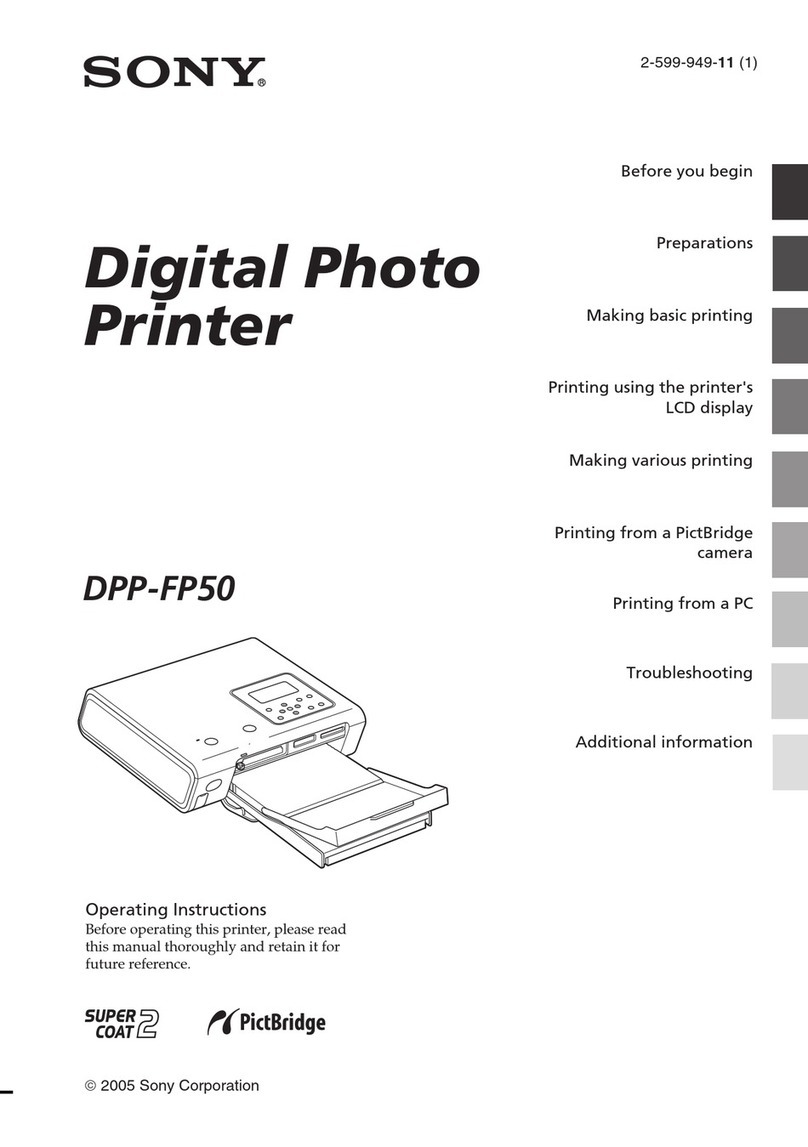
  9. Sony DPP-SV55 User manual

Sony DPP-SV55 User manual

Other manuals for DPP-SV55

9

Other Sony Printer manuals

Sony UP-GR700 User manual

Sony

Sony UP-GR700 User manual

Sony UPX-C100 User manual

Sony

Sony UPX-C100 User manual

Sony SNAPLAB UP-CR20L Instruction manual

Sony

Sony SNAPLAB UP-CR20L Instruction manual

Sony OEP-4 User manual

Sony

Sony OEP-4 User manual

Sony UP-21MD User manual

Sony

Sony UP-21MD User manual

Sony DPP-SV88 User manual

Sony

Sony DPP-SV88 User manual

Sony UP-GR700 Guide

Sony

Sony UP-GR700 Guide

Sony UPX-C300 User manual

Sony

Sony UPX-C300 User manual

Sony UP-27MD User manual

Sony

Sony UP-27MD User manual

Sony UP-CX2 User manual

Sony

Sony UP-CX2 User manual

Sony UP-D75MD User manual

Sony

Sony UP-D75MD User manual

Sony UP-DF500 User manual

Sony

Sony UP-DF500 User manual

Sony UP-DR80MD User manual

Sony

Sony UP-DR80MD User manual

Sony DPP-MS300 Marketing User manual

Sony

Sony DPP-MS300 Marketing User manual

Sony DPP--SV77 User manual

Sony

Sony DPP--SV77 User manual

Sony SNAPLAB UP-CR20L Assembly instructions

Sony

Sony SNAPLAB UP-CR20L Assembly instructions

Sony UP-D77MD User manual

Sony

Sony UP-D77MD User manual

Sony DPP-FP97 User manual

Sony

Sony DPP-FP97 User manual

Sony UPX-C200 User manual

Sony

Sony UPX-C200 User manual

Sony DPP-F700 - Digital Photo Printer/frame Manual

Sony

Sony DPP-F700 - Digital Photo Printer/frame Manual

Sony UP-D70 User manual

Sony

Sony UP-D70 User manual

Sony DPP-SV88 User manual

Sony

Sony DPP-SV88 User manual

Sony UP-DR100 User manual

Sony

Sony UP-DR100 User manual

Sony UP-D71XR User manual

Sony

Sony UP-D71XR User manual

Popular Printer manuals by other brands

Evolis Elypso user guide

Evolis

Evolis Elypso user guide

Lexmark 522n - C Color Laser Printer Service manual

Lexmark

Lexmark 522n - C Color Laser Printer Service manual

Panduit COUGAR LS9Q Operator's manual

Panduit

Panduit COUGAR LS9Q Operator's manual

Olivetti PG L2140 Operation guide

Olivetti

Olivetti PG L2140 Operation guide

Samsung SL-M2820DW user manual

Samsung

Samsung SL-M2820DW user manual

Kyocera FS-9530DN specification

Kyocera

Kyocera FS-9530DN specification

Canon LASER SHOT LBP-1210 Specifications

Canon

Canon LASER SHOT LBP-1210 Specifications

Canon PIXMA PRO-1 Series Getting started

Canon

Canon PIXMA PRO-1 Series Getting started

Canon LBP113w Getting started

Canon

Canon LBP113w Getting started

Lexmark Infoprint 1332 user manual

Lexmark

Lexmark Infoprint 1332 user manual

Epson M1120 user guide

Epson

Epson M1120 user guide

TransAct POSJET 1500 Spare parts

TransAct

TransAct POSJET 1500 Spare parts

Telpar MTP-1500 user manual

Telpar

Telpar MTP-1500 user manual

Star DP8340 SERIES user manual

Star

Star DP8340 SERIES user manual

MGI JETVARNISH 3DS user manual

MGI

MGI JETVARNISH 3DS user manual

Kyocera TASKalfa PA4500ci Operation guide

Kyocera

Kyocera TASKalfa PA4500ci Operation guide

Emaar EP-360 user manual

Emaar

Emaar EP-360 user manual

Fujitsu DL7400 user manual

Fujitsu

Fujitsu DL7400 user manual

manuals.online logo
manuals.online logoBrands
  • About & Mission
  • Contact us
  • Privacy Policy
  • Terms and Conditions

Copyright 2025 Manuals.Online. All Rights Reserved.

DIGITAL PHOTO PRINTER
DPP-SV55
SERVICE MANUAL
Volume 1 1st Edition
DPP-SV55 V1 (UC, CE)
!WARNING
This manual is intended for qualified service personnel only.
To reduce the risk of electric shock, fire or injury, do not perform any servicing other than that
contained in the operating instructions unless you are qualified to do so.Refer all servicing to
qualified service personnel.
!WARNUNG
Die Anleitung ist nur für qualifiziertes Fachpersonal bestimmt.
Alle Wartungsarbeiten dürfen nur von qualifiziertem Fachpersonal ausgeführt werden.Um die
Gefahr eines elektrischen Schlages, Feuergefahr und Verletzungen zu vermeiden, sind bei
Wartungsarbeiten strikt die Angaben in der Anleitung zu befolgen. Andere als die angegeben
Wartungsarbeiten dürfen nur von Personen ausgeführt werden, die eine spezielle Befähigung
dazu besitzen.
!AVERTISSEMENT
Ce manual est destiné uniquement aux personnes compétentes en charge de l’entretien.Afin
de réduire les risques de décharge électrique, d’incendie ou de blessure n’effectuer que les
réparations indiquées dans le mode d’emploi à moins d’être qualifié pour en effectuer d’autres.
Pour toute réparation faire appel à une personne compétente uniquement.
1
DPP-SV55 V1 (UC, CE)
Table of Contents
Manual Structure
Purpose of this manual .............................................................................................. 3
Related manuals......................................................................................................... 3
1. Operating Instructions
1-1. Software Guide............................................................................................1-1
1-2. Basic Operations .........................................................................................1-6
1-3. Advanced Operations ................................................................................1-12
2. Service Information
2-1. Main Parts Location ....................................................................................2-1
2-1-1. Main Block Location..................................................................2-1
2-1-2. Board Location...........................................................................2-1
2-2. Cabinet Removal/Reattachment..................................................................2-1
2-3. Sensor Arrangement and Functional Description .......................................2-2
3. Replacement of Main Parts
3-1. Replacement of Board.................................................................................3-1
3-1-1. DK-41 Board ..............................................................................3-1
3-1-2. VS-41 Board...............................................................................3-1
3-1-3. MD-41 Board .............................................................................3-2
3-1-4. JD-41 Board ...............................................................................3-2
3-1-5. PE-41 Board ...............................................................................3-2
3-1-6. RM-41 Board .............................................................................3-3
3-2. DC Fan ........................................................................................................3-3
3-3. Switching Regulator....................................................................................3-4
3-4. PCMCIA Ejector .........................................................................................3-4
3-5. Thermal Head..............................................................................................3-5
3-6. Paper Feed Frame Assembly.......................................................................3-5
3-7. Chassis Assembly........................................................................................3-6
2DPP-SV55 V1 (UC, CE)
4. Service Mode
4-1. Confirmation and Adjustment of Video Output Level ...............................4-1
4-2. Density Adjustment During Thermal Head Replacement ..........................4-1
5. Troubleshooting
5-1. Electrical Troubleshooting ..........................................................................5-1
5-2. Error Display ...............................................................................................5-2
5-3. Mechanical Troubleshooting.......................................................................5-6
5-4. Upgrade .......................................................................................................5-7
3
DPP-SV55 V1 (UC, CE)
Purpose of this manual This manual is the service manual Vol. 1 of Digital Photo Printer DPP-SV55.
This manual describes the information on maintenance and the service information
such as parts replacement and service mode.
Related manuals In addition to this “Service Manual Vol. 1”, this unit is provided with the manual
below.
..
..
.Service Manual Vol. 2 (Not supplied for products.)
Part No.: 9-955-258-21
This manual describes the semiconductors, spare parts, block diagrams, schematic
diagrams, and board layouts of this unit.
..
..
.Operating Instruction (Supplied for products.)
Part No.: 3-205-182-11 (Software Guide)
Part No.: 3-205-183-11 (Basic Operations)
Part No.: 3-205-184-11 (Advanced Operations)
These manuals describe the information required for the actual management and
operation of this unit.
n
For details on parts number and others, refer to the DPP-SV55 service manual
Vol.2 “7-5. Packing Materials and Supplied Accessories”.
..
..
.“Semiconductor Pin Assignments” CD-ROM (Available on request)
This “Semiconductor Pin Assignments” CD-ROM allows you to search for
semiconductors used in Communication System Solutions Network Company
equipment.
Semiconductors that cannot be searched for on this CD-ROM are listed in the
service manual for the corresponding unit. The service manual contains a com-
plete list of all semiconductors and their ID Nos., and thus should be used together
with the CD-ROM.
Part number: 9-968-546-XX
Manual Structure
1-1
DPP-SV55 V1 (UC, CE)
3-205-182-11(1)
Digital Photo Printer
Operating Instructions – Software Guide/Additional
Information
This manual describes the additional information and the installation
and basic operations of the software supplied with the Sony Digital
Photo Printer DPP-SV55. First read “Operating instructions – Basic
Operations” and then read this manual and retain it for future
reference.
For advanced operation of the printer, also refer to “Operating
Instructions – Advanced Operations.”
DPP-SV55
2000 Sony Corporation
Section 1
Operating Instructions Reprinted from the
operating instructions
1-1. Software Guide
1-2 DPP-SV55 V1 (UC, CE)
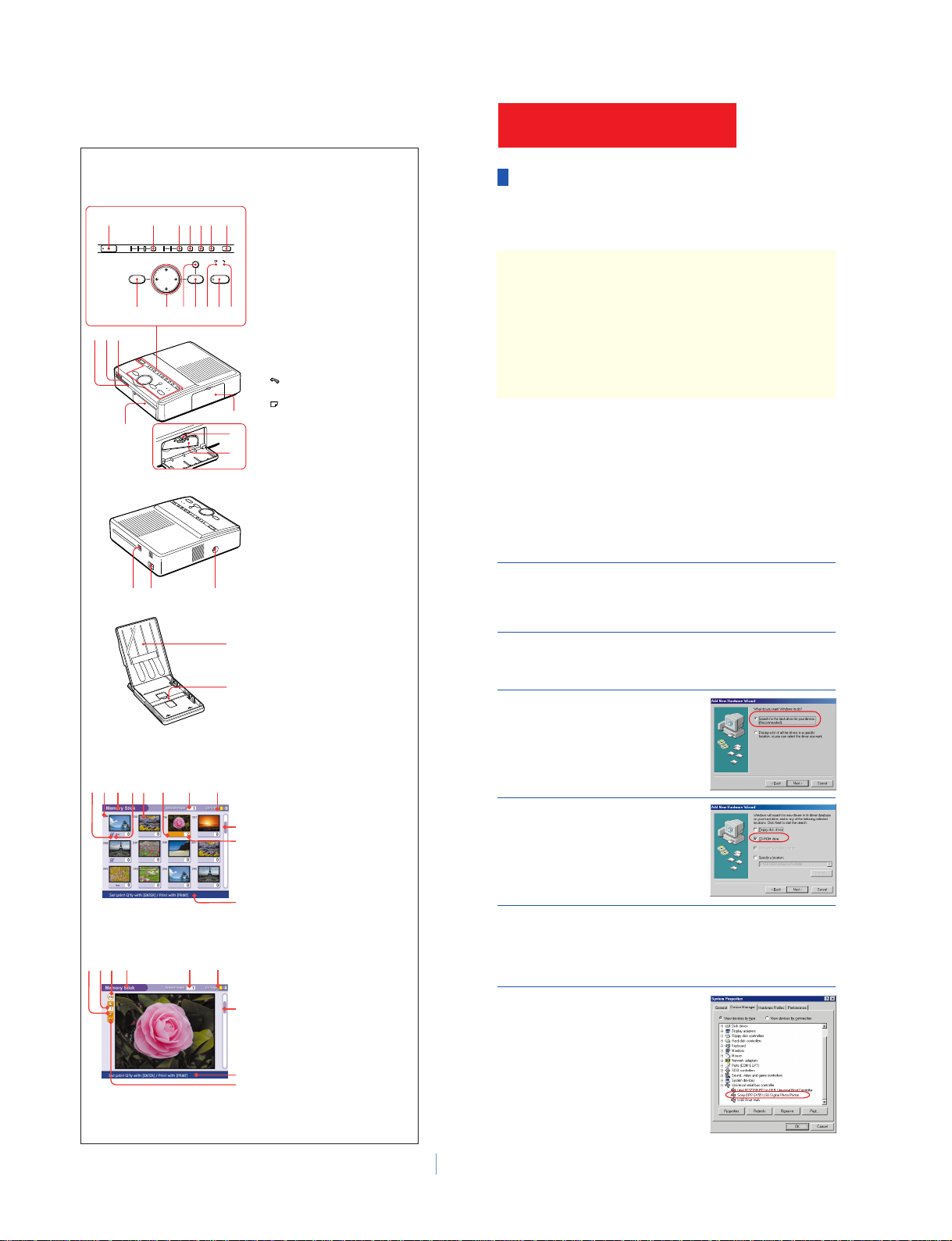
Identifying the parts
Printer Front
1POWERswitch
2INPUTSELECTbutton
Switches the input among “MEMORY
STICK,” “PC CARD,” or “PC.” (The selected
indicator lights.)
3AUTO PRINT button
Selects the automatic printing of “ALL”
images or “DPOF” images. (The selected
printing indicator lights.)
4MENU button
Displays the menu to change printer settings.
5EFFECTbutton
Displays the menu to add effects to the
pictures.
6CREATIVEPRINTbutton
Displays the menu to make creative prints.
7SAVE button
Saves an image on a “Memory Stick” or PC
card.

8Cartridge error indicator
9PRINT button
0Paper error indicator
qa ENTER/PRINTQTYbutton
qs CANCELbutton
qd Arrow (B/b/V/v) button
qf PICTUREbutton
Switches the thumbnail list and preview
image.

qg PC card eject button
qh PCCARDinsertionslot
qj “MEMORY STICK”insertion slot
qk Cartridge compartment lid
ql Paper tray compartment lid
w; Print cartridge eject lever
wa Print cartridge
Rear
1USBconnector
2AC IN connector
3VIDEOOUTconnector
Paper tray
1lid
2Partition
POWER
CANCEL
PRINT QTY
ENTER
PICTURE
PRINT
STICK
MEMORY SELECT
INPUT PRINT
AUTO CREATIVE
CARD PC DPOF EFFECTALL MENU SAVEPRINT
PC
qg qh qj
ql
wa
w;
qk
12 3456 7
qf qs qa q; 9 8qd
1 32
2
1
123 4 5 67
qa
q;
9
8
qa
9
8
7
3
21q;
4
Screen
Thumbnail list
Preview image
1Print preset (DPOF) indication
Indicates the image is DPOF preset for
printing by a digital still camera.
2Image number
3“Memory Stick”/PC Card indication
Indicates the type of current media.
4Protect indication
Indicates the image is protected by a digital
still camera.
5Cursor (yellow frame)
Indicates the image with the cursor.
6Selection (orange)
Indicates the image is selected.
7Image quantity indication
Displays the quantity of all the images inside
the card when no image is selected.
Displays the quantity of the selected images
when an image is/images are selected.
8Print cartridge indication
Indicates the type of print cartridge currently
loaded (S: Small Size).
9Scrollbar
Indicates the position of the image currently
displayed or selected in the total number of
images.
0Print quantity indication
Indicates the print quantity specified by
pressing ENTER button.
qa Guidemessage
Displays the simplified instructions for the
next step.
Notes
•We cannot guarantee the printer operations when
a hub is used or when two or more USB devices
are connected to your computer.
•When two or more DPP-SV55 printers are
connected to your computer, you cannot operate
the printer.
• You cannot operate the printer from another USB
device being used simultaneously.
Printing from Your Computer
Using the printer with Windows
The supplied software enables you to print an image of your computer’s hard disk with the
Digital Photo Printer DPP-SV55. You can also view, copy, or transfer the images stored in a
“Memory Stick” or PC card being inserted in the printer from your computer ’s monitor. To print
an image from the computer, you need a commercially available printing application software.
System requirements
To use the supplied software, you need a computer that must meet the following system
requirements:
OS: Microsoft Windows 98/Windows 98SE should be pre-installed.
(We cannot guarantee any operations with the computer where
Windows 3.1 or Windows 95 is upgraded to Windows 98 or Windows
98 is upgraded to Windows 98SE.)
CPU: MMX Pentium 200 MHz and above is recommended.
RAM: 32 MB or more (64 MB or more is recommended.)
Harddiskspace: 50 MB or more (It depends on the number of copies you print.)
Port: USB port should be installed as standard.
Drive: CD-ROM drive (for software installation)
Installing the software
Install the Sony DPP-SV55 Printer Driver Software for Windows 98/98SE Ver. 1.0 (“printer
driver” in this manual) and Memory Stick/PC card Reader Software for Windows 98/98SE Ver.
1.0 (“reader software” in this manual) contained in the supplied CD-ROM into your
computer’s
hard disk.
Installing the USB driver
1Connect your computer and the printer.
For the connections, refer to “Connecting the printer” of “Operating Instructions – Basic
Operations.”
Note
Close all programs before running the installer.
2Turn on your computer and start Windows.Then turn on the
printer.
When the computer detects the printer, the “Add New Hardware Wizard” dialog box is
displayed.
3Click“Next.”
The dialog box to select searching method appears.
4Check“Search for the best driver
for your device (Recommended).”
and click “Next.”
The dialog box to specify the driver location is
displayed.
5Insert the supplied CD-ROM into your CD-ROM drive and check
“CD-ROM drive.” Then click “Next.”
Installation starts. When installation ends, the “Finish Setup” dialog box appears.
Note
During installation, you may be asked to insert the Windows 98/98SE CD-ROM. Insert the specified
CD-ROM.
6Click“Finish.”
The Sony DPP-SV55 USB driver is installed.
To check the installation
1Click “Start,” point to “Settings” and then click
“Control Panel.”
The “Control Panel” window is displayed.
2Double-click “System.”
The “System Properties” window is displayed.
3Click “Device Manager” tab.
When “Sony DPP-SV55 USB Digital Photo
Printer” is listed under “Universal serial bus
controller,” installation is completed successfully.
1-3
DPP-SV55 V1 (UC, CE)
Installing the printer driver and reader software
1
Insert the supplied CD-ROM into your CD-ROM drive and click
“Start,” and then click “Run.”
The “Run” dialog box is displayed.
2
Input “D:\Setup.exe” (When your CD-ROM drive is D: drive) then
click“OK.”
If your CD-ROM drive is not D: drive, input the relevant drive name. You can also input
the location of the installer by clicking the “Browse” button.
The installer automatically starts, and the language selection dialog box appears.
3
Select the language for the application, then click “OK.”
The “Welcome” dialog box appears.
4
Click“Next.”
The “Choose Destination Location” dialog box is
displayed. The files are factory-set installed to
“C:\Program Files\Sony\DPPSV55” folder. If you
want to install them to another folder, input the
destination folder or specify the destination folder
by clicking the “Browse” button.
5
Click“Next.”
“Add Printer Wizard” starts up.
6
Click“Next.”
The dialog box to select printer connection is
displayed.
7
Check “Local printer” and click “Next.”
The dialog box to select the manufacturer and model of the printer is displayed.
8
Click“HaveDisk.”
The “Install From Disk” dialog box is displayed.
9
Input “D:\DRIVER\ENGLISH\WIN98” (D: stands for the CD-ROM
drive/ENGLISH stands for your language) and click “OK.”
The dialog box to select the model name is displayed.
You can also input the location by clicking the “Browse” button.
10
Select“Sony DPP-SV55” and click
“Next.”
Copying files started. The dialog box to select the
port is displayed.
Note
During installation, you may be asked to insert the
Windows 98/98SE CD-ROM. Insert the specified
CD-ROM.
11
Select“Sony DPPUSB1:Sony
Digital Photo Printer” in the list
and click “Next.”
The dialog box to select the printer name is
displayed. It is factory-set named “Sony DPP-
SV55.” If you use another name, input the name in
the text box.
12
Click“Finish.”
The “Setup Complete” dialog box is displayed.
13
Click“Finish.”
Printer driver and reader software are installed.
The readme file is displayed.
“Sony DPP-SV55” is added to the “Printers”
window.
Uninstalling the software
When the software becomes unnecessary, you
need to remove the software from your
computer’s hard disk. Uninstall the software
in the following procedures:
Uninstalling the “Sony DPP-SV55”
1
Disconnect the USB cable from the printer
and the computer.
2
Click “Start,” point to “Settings” and then
click “Control Panel.”
3
Double-click “Add/Remove Programs” in
the “Control Panel” window.
4
In the “Install/Uninstall” tab of the “Add/
Remove Programs Properties” window,
select “Sony DPP-SV55” and click “Add/
Remove.”
The confirmation dialog box is displayed.
5
Click “Yes.”
The relevant files are removed from your
computer’s hard disk.
Uninstalling the printer driver
1
Disconnect the USB cable from the printer
and the computer.
2
Click “Start,” point to “Settings” and then
click “Printers.”
3
Right-click on “Sony DPP-SV55” in the
“Printers” window and select “Delete”
from the short-cut menu.
The confirmation dialog box is displayed.
4
Click “Yes.”
The relevant files are removed from your
computer’s hard disk.
Using the reader software
You can view the “Memory Stick” or PC card inserted
in the printer as a drive on your computer’s monitor.
In “My Computer” or “Windows Explorer” window,
select “Sony DPP-SV55” and then “Memory Stick” or
PC card icon to display the images stored.
You can copy, transfer and save the “Memory Stick” or
PC card images as other Windows files.
Note
To make a print as expected, we suggest you use the
application software that allows you to check the
print preview. If you use the application that you
cannot check the preview, make the image size to
1664 (dots) x 2466 (dots) and the resolution to 403
dpi.
Note
The reader software does not operate the DPP-SV55
as a complete removable medium. When using the
software, note the following restrictions:
•Before editing an image of the “Memory Stick” or
PC card inserted in the printer, store it onto the
computer’s hard disk.
If you double-click and open the file in the printer
with its associated application and edit it with the
Printing from an application software
You can use the “Print ”command of an application
software to print your computer’s hard disk images
with the DPP-SV55 Digital Photo Printer.
Select “Print” from the “File” menu. In the “Print”
dialog box, select “Sony DPP-SV55” as the printer, set
the range and number of copies and print images.
To set the printer in detail
Click “Properties” in the “Print” dialog box to display
the “Properties” window. Set the printer in detail in
each tab:
❒Paper tab
1Set “Paper Size.”
Choose When you make
Post Card
Post Card Size borderless print
(no margin)
Post Card Post Card Size border print
Small Small Size print
2Set “Orientation.”
To print in portrait (tall) format, select
“Portrait.” To print in landscape (wide) format,
select “Landscape.”
Note
Depending on the application, you can set the printer
in the “Page Setup” or “Printer Setup” dialog box
from the “File” menu.
❒Graphicstab
You can set the resolution when printing an
image. You cannot specify dithering, intension,
and color.
❒Device Options tab
You can select finish either from “Glossy” or
“Texture.”
application, you cannot save the edition on the
“Memory Stick” or PC card with the application’s
saving command.
•You cannot view nor open the file in the printer
from the “Open” command of an application other
than the reader software.
• You cannot run an execution file contained in the
“Memory Stick” or PC card.
1-4 DPP-SV55 V1 (UC, CE)
Installing the printer driver
Install the Sony DPP-SV55 Printer Driver Software for Mac OS 8.5.1/8.6/9.0 Ver. 1.0 (“printer
driver” in this manual) into your Macintosh.
1
Connect your Macintosh and the printer.
For the connections, refer to “Connecting the printer” of “Operating Instructions – Basic
Operations.”
Note
Close all programs before running the installer.
2
Turn on the printer and start your Macintosh.
3
Insert the supplied CD-ROM into
your CD-ROM drive and select the
software language by double-
clicking the corresponding folder
in the CD-ROM.
The selected language folder opens.
4
Double-click“Setup Program.”
5
Click“Install.”
Installation starts. Follow the instructions on the screen to complete installation.
Uninstalling the printer driver
When the software becomes unnecessary, remove the software as follows: In step 5, click
“Uninstall.”
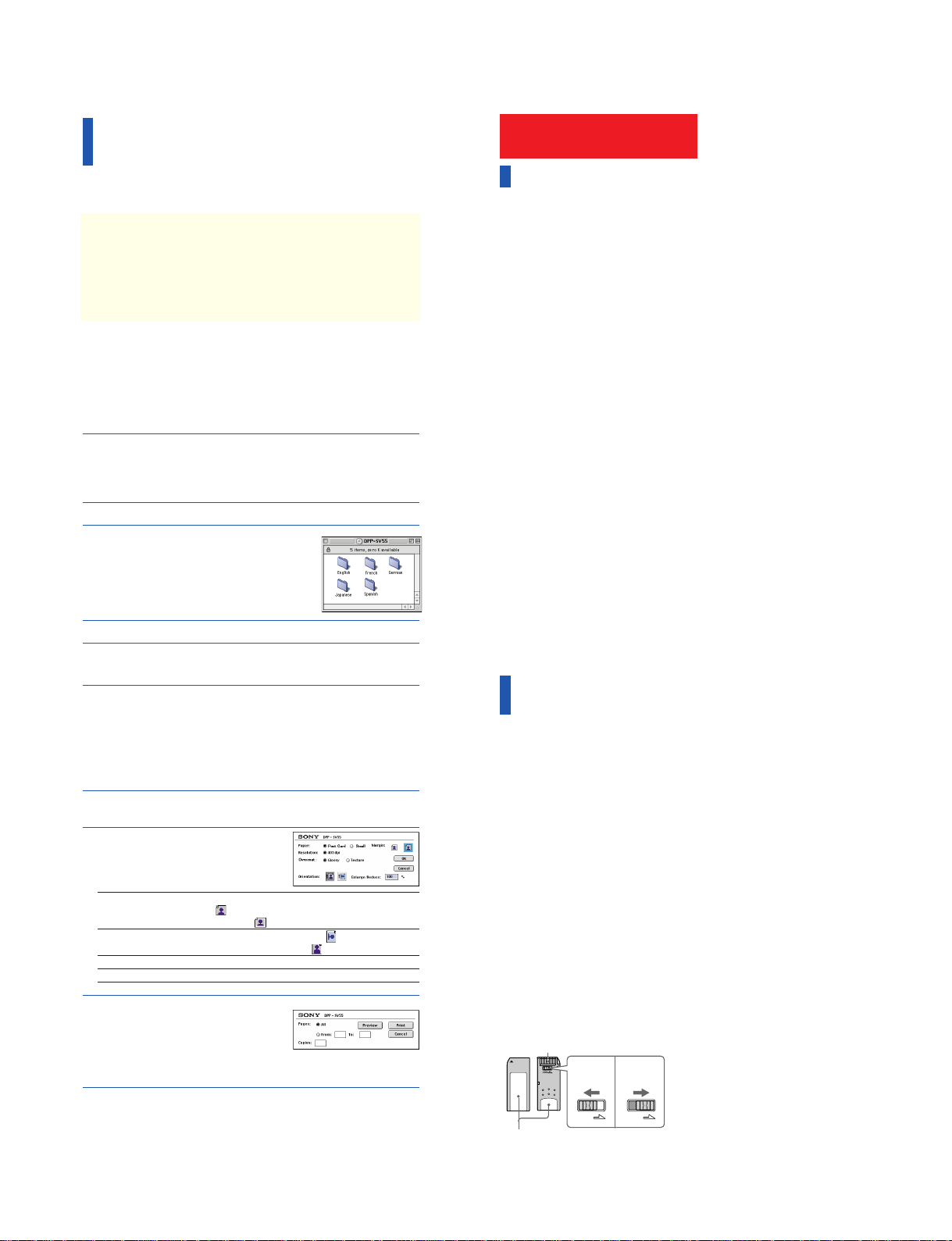
Printing from an application software
You can use an application software to print your computer’s hard disk images with the DPP-
SV55 Digital Photo Printer.
1
Select“Chooser”from the Apple menu and click“Sony DPP-
SV55”in the“Chooser.”
2
Closethe“Chooser”andselect
“Print Setup”from the “File”
menu and set printing in
detail.
Paper/Margin To make Post Card Size borderless print, click “Post Card” and no
margin icon . To make border Post Card Size print, click “Post
Card” and margin icon . To make Small Size print, click “Small.”
Orientation To print a wide image, click landscape icon .
To print a tall image, click portrait icon .
Overcoat Select the overcoat type (“Glossy”/“Texture”).
Enlarge/Reduce Select the enlarged or reduced size to be printed.
3
Click “OK” to close the dialog box
and select“Print” from the“File”
menu to start printing.
Specify the printing range and copies. Then click
“Preview” to display the print preview or “Print”
to start printing.
Notes
•We cannot guarantee the printer operations when a
hub is used or when two or more USB devices are
connected to your computer.
•When two or more DPP-SV55 printers are
connected to your computer, you cannot operate
the printer.
• You cannot operate the printer from another USB
device being used simultaneously.
Using the printer with Macintosh
The supplied software enables you to print an image from your Macintosh with the Digital
Photo Printer DPP-SV55. To print an image from the computer, you need a commercially
available printing application software.
System requirements
To use the supplied software, you need a Macintosh computer that must meet the
following system requirements.
OS: Mac OS 8.5.1/8.6/9.0 should be pre-installed.
Port: USB port should be installed as standard.
RAM: 32 MB or more (64 MB or more is recommended.)
Harddiskspace: 50 MB or more (It depends on the number of copies you print.)
Drive: CD-ROM drive (for software installation)
Note
To make a print as expected, we suggest you use the
application software that allows you to check the print
preview. Otherwise, make the image size to 1664
(dots) x 2466 (dots) and the resolution to 403 dpi.
LOCK LOCK
Place the label here
Connector
Write enable
position Write
protect
position
Additional Information
Precautions
On safety
•Operate the printer on 120 V AC, 60 Hz (for
the US model) or 220 to 240 V AC, 50/60 Hz
(for the models for other areas) only.
•Be careful not to set or drop any heavy
objects on the power cord, or to damage the
power cord in any way. Never operate this
printer with a damaged power cord.
•Should any solid object or liquid fall into
the cabinet, unplug the printer and have it
checked by qualified personnel before
operating it any further.
•Never disassemble the printer.
• To disconnect the power cord, pull it out by
the plug. Never pull the power cord itself.
•When the printer is not going to be used for
an extended period of time, disconnect the
power cord from the wall outlet.
•Do not handle the printer roughly.
• To reduce the risk of electrical shock,
always unplug the printer from the
electrical outlet before cleaning and
servicing the printer.
On installation
• Avoid placing the printer in a location
subject to:
–vibration
–high humidity
–excessive dust
–direct sunlight
–extremely high or low temperatures
•Do not use electrical equipment near the
printer. The printer will not work properly
in electromagnetic fields.
•The printer is designed to operate
horizontally. Never attempt to operate the
printer in a tilted position.
•Do not place heavy objects on the printer.
•Leave enough room around the printer so
that the ventilation holes are not blocked.
Blocking these holes may cause internal
heat build-up.
On moisture condensation
If the printer is brought directly from a cold
location to warm location or placed in an
extremely warm or humid room, moisture
may condense inside the unit. In such cases
the printer will probably not work properly
and may even develop a fault if you persist in
using it. If moisture condensation occurs, turn
off the power and do not use the printer for at
least one hour.
On transport
When you transport the printer, remove the
print cartridge, paper tray, the “Memory
Stick” or PC card from the printer and put the
printer and its peripherals in the original box
with the protective packaging.
If you no longer have the original box and
packing parts, use similar packing material so
that the printer will not be damaged while
transporting.
On cleaning
Clean the cabinet, panel and controls with a
soft dry cloth, or a soft cloth lightly moistened
with a mild detergent solution. Do not use any
type of solvent, such as alcohol or benzine,
which may damage the finish.
On restrictions on duplication
If duplicating documents with the printer, pay
special attention to the following:
•Duplication of banknotes, coins, or
securities is against the law.
•Duplication of blank certificates, licenses,
passports, private securities, or unused
postal stamps is also against the law.
•TV program, films, video tapes, others’
portraits or other materials may be
copyrighted. Unauthorized video printing
of such materials may infringe the
provisions of the copyright law.
About“Memory Stick” and PC
card
The printer can read and write “Memory
Stick” and PC card (PCMCIAATA compatible
type II flash memory cards with a power
specification of 5V or 3.3/5V). By using a
commercially available PC card adaptor, you
can also use Smart Media and other types of
compact flash cards.
On “Memory Stick”
There are two types of “Memory Stick”:
general “Memory Stick” and “MagicGate
Memory Stick.” The “MagicGate Memory
Stick” is equipped with the MagicGate
copyright protection technology that uses
encryption technology. You can use both types
of “Memory Stick” with your printer.
However, because the printer does not support
the MagicGate standards, data recorded with
the printer is not subject to MagicGate
copyright protection.
To protect“Memory Stick”images
To prevent accidental erasure of important
image data, slide the write protect switch on
the “Memory Stick” to the write protect
position when you just view the images.
Only when you write, delete data, or format a
“Memory Stick,” slide it to the write enable
position.
Notes
•You cannot use the PC cards with the power
specification of 3V only.
•Do not insert other types of PC card into the
printer’s insertion slot. The printer may be
damaged.
•Do not drop, bent, or submit the “Memory Stick”
or PC card to external shock.
•Do not disassemble or modify the “Memory Stick”
or PC card.
•Avoid getting liquids on the “Memory Stick” or
PC card.
• Avoid using or storing the “Memory Stick” or PC
card in a location subject to:
–extremely high temperature such as the hot
inside of a car or the outdoors exposed to a
burning sun, or a place near a heater.
–direct sunlight
–high humidity
–corrosive substances
–excessive dust
–electrostatic or electronic noises
–magnetic fields
•Avoid touching the connector of the “Memory
Stick” or contacting it with a metal object.
•When attaching a label to the “Memory Stick” as
specified in the illustration, use the label supplied
for the “Memory Stick” only. Do not use any other
labels.
•When storing and carrying the “Memory Stick” or
PC card, keep it in its original case to ensure
protection of important data.
•Avoid removing the “Memory Stick” or PC card
from the insertion slot or turning off the power of
the printer while the printer is accessing the
“Memory Stick” or PC card. Otherwise, data may
be rendered unreadable.
• When using a compact flash card or Smart Media,
use a commercially available PC card adaptor that
is compatible with the card. Attach the card into
the adaptor and then insert it into the printer. For
how to install the card and adaptor, refer to the
operating instructions of the PC card adaptor.
•Avoid inserting or removing the compact flash
card or Smart Media into or out of the PC card
adaptor while the PC card adaptor is inserted in
the printer. The data may be rendered unreadable
or erased.