F7 EN Rev. D.doc 2007-10-29
_________________________________________________________________________________________
_________________________________________________________________________________________
Page 7
5. The New Enroll? message displays.
6. Press OK.
7. System will ask for the user ID. Enter user’s ID in the UserID field. It defaults
to the next available (unassigned) ID number in the system. Enter ID number
and press OK to confirm.
8. The New Enroll xxxxx-0 message appears, where xxxxx indicates the ID
entered before and 0is the number of fingerprints which have been stored in
the system for the specific ID so far.. After a while, the Place Finger... message
appears.
9. Ask the user for placing her(his) finger on the sensor. When the reader reads
it, the Remove Finger message appears, and then Second Press. Ask the user
for putting her(his) finger on the sensor again. If everything goes well also this
time, the Third Press message appears. If the system does not recognize the
fingerprint properly during the procedure, the Please Try Again...message
appears. The procedure lasts until the system properly identifies three
consecutive attempts of storing an fingerprint as belonging to the same finger.
10. The New Enroll message appears with the user’s ID below and the number of
the fingerprint being enrolled, e.g. 00002-1 and a question OK(Save)?. Press
OK in order to confirm the fingerprint of the new user.
11. The New Enroll Continue? message displays. In order to enroll the other
fingerprint for the same user, press C(then the system switches to the Backup
Enroll mode). Press OK to continue the process of enrolling other users.
6.2. User identification
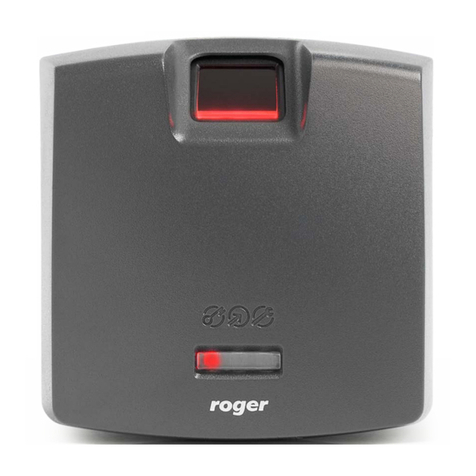
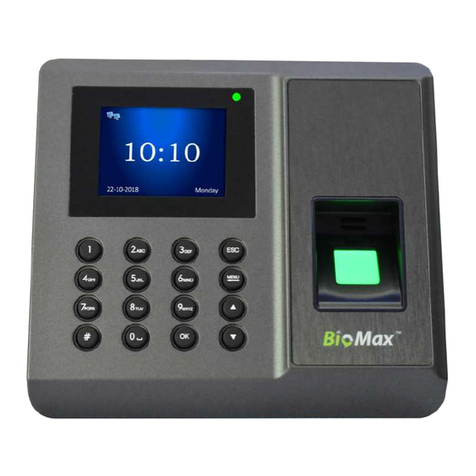
The main function of the F7 fingerprint reader is verifying users identity based on
her(his) fingerprint pattern. After scanning, the fingerprint is compared with
patterns stored in the reader’s memory, and when the verification is successful, the
user’s ID number is sent over Wiegand outputs (lines: D0 and D1) to the access
controller.
When F7 reader is idle for specific time (10 minutes by default) it enters standby
mode. In this state, the process of users identification can not be performed. The
reader switches to the active mode after the user presses any key on the keypad.
In the active mode there is the Welcome message and the current date and time
displayed on the LCD display. In order to check his identity, the user should follow
these steps:
1. Make sure that the device is in the active mode. If not, press any key on
the keypad. The reader switches into the active mode.
2. Place your finger on the sensor’s surface. The FP Verify. Remove Finger.
message displays. If the check is successful, the UserId xxxxx Verified!
message appears, where xxxxx is the ID number of the user in the
system.
3. If the identification of the user fails, the Please Try Again! message
appears Place your finger on the sensor’s surface again. If several
verification attempts fail, contact your system administrator and ask him
for enrolling your fingerprint again.