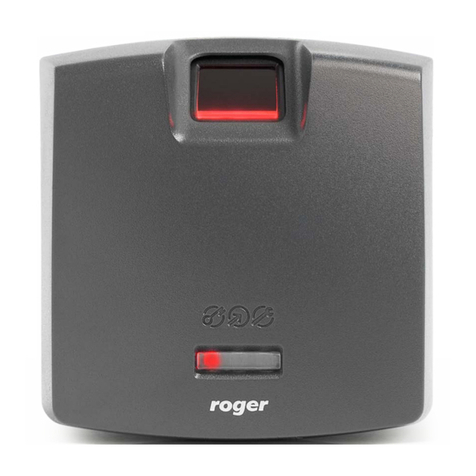
RFT1000 in RACS 4 User Manual
5. In case of 1:N recognition mode, enrolment of users including their fingerprint templates and
card numbers by means of PR Master software.
6. In case of 1:1 recognition mode, enrolment of users including their card numbers and then
formatting their MIFARE Classic cards and recording fingerprint templates by means of PR
Master software.
7. Sending the configuration to the reader by means of PR Master software.
4.1 Configuration by means of RogerVDM
RogerVDM software is used for initial configuration of RFT1000 reader. Further configuration
including enrolment of users is performed by means of PR Master software.
4.1.1 Connection and communication parameters
In order to connect and configure RFT1000 reader it is necessary to know its communication
parameters. Factory default settings are as follows:
IP address = 192.168.0.70
Subnet mask = 255.255.255.0
Port = 13544
Communication is encrypted with default (empty) password
It is assumed that mentioned above parameters will be changed in particular access control
installation, specifically IP address, port and communication password. These parameters can be
modified with RogerVDM software, which is available for download at www.roger.pl.
Note: In order to connect with reader in local area network (LAN), the computer with RogerVDM
software must be in the same subnet. In case of RFT1000 with default IP address, the IP address
of computer should be 192.168.0.xxx.
Procedure for establishing connection with factory new reader
1. Connect the reader to computer by means of Ethernet port.
2. Install and start RogerVDM software.
3. In the top menu of RogerVDM select Device and then New.
4. In the newly opened window (see fig.6) select RFT1000 v1.0 device, firmware version 1.2
and then Ethernet communication channel.
5. IP address and port of RFT1000 reader is automatically detected by RogerVDM software if the
reader and PC with RogerVDM are in the same subnet and communication between them is not
blocked. Default IP address of the reader is 192.168.0.70 and port is 13544, while
communication passwords is empty.
6. Select Connect button.
After establishing the connection it is possible to modify communication parameters both for
Ethernet and RS485 communication in the newly opened window, which can be accessed by
selecting the option Configuration in the top menu. In the area General settings (see fig. 7)
enter your settings and then upload the configuration to the reader by means of Send to device
button.