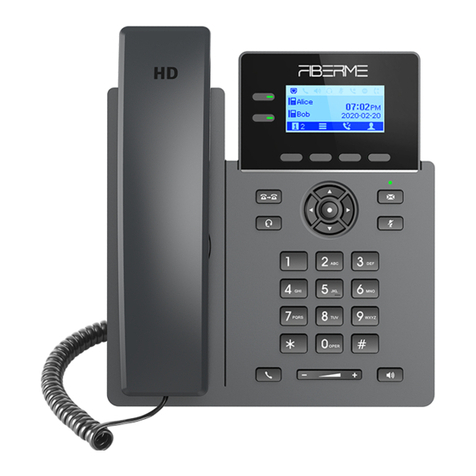
Yealink CP925 User manual
Other Yealink IP Phone manuals

Yealink
Yealink T33G User manual
Yealink
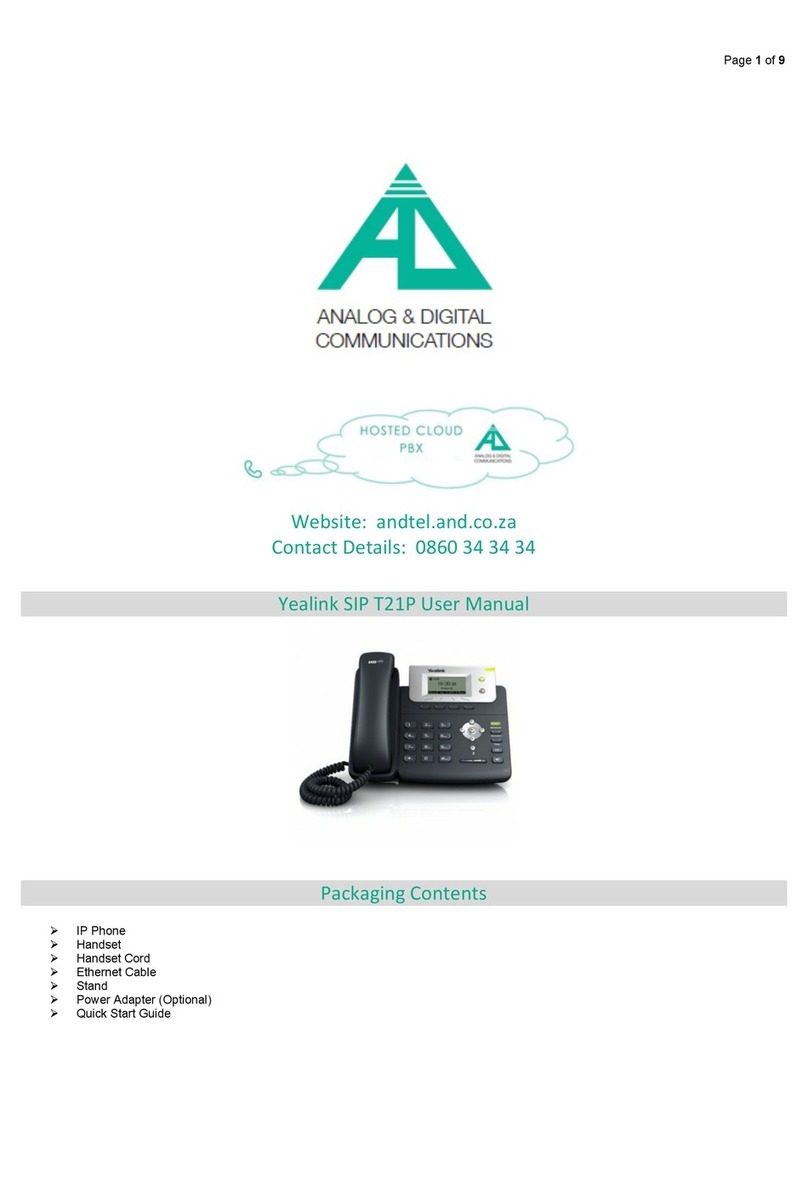
Yealink Yealink SIP-T21P User manual

Yealink
Yealink Enterprise User manual

Yealink
Yealink Yealink SIP-T28P User manual
Yealink
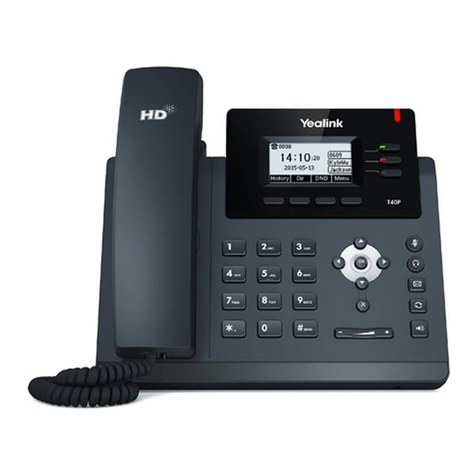
Yealink T40P User manual

Yealink
Yealink SIP-T2XP Service manual
Yealink
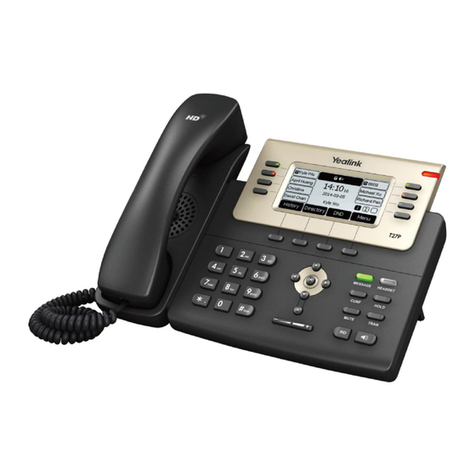
Yealink SIP-T27P User manual

Yealink
Yealink W76P User manual
Yealink
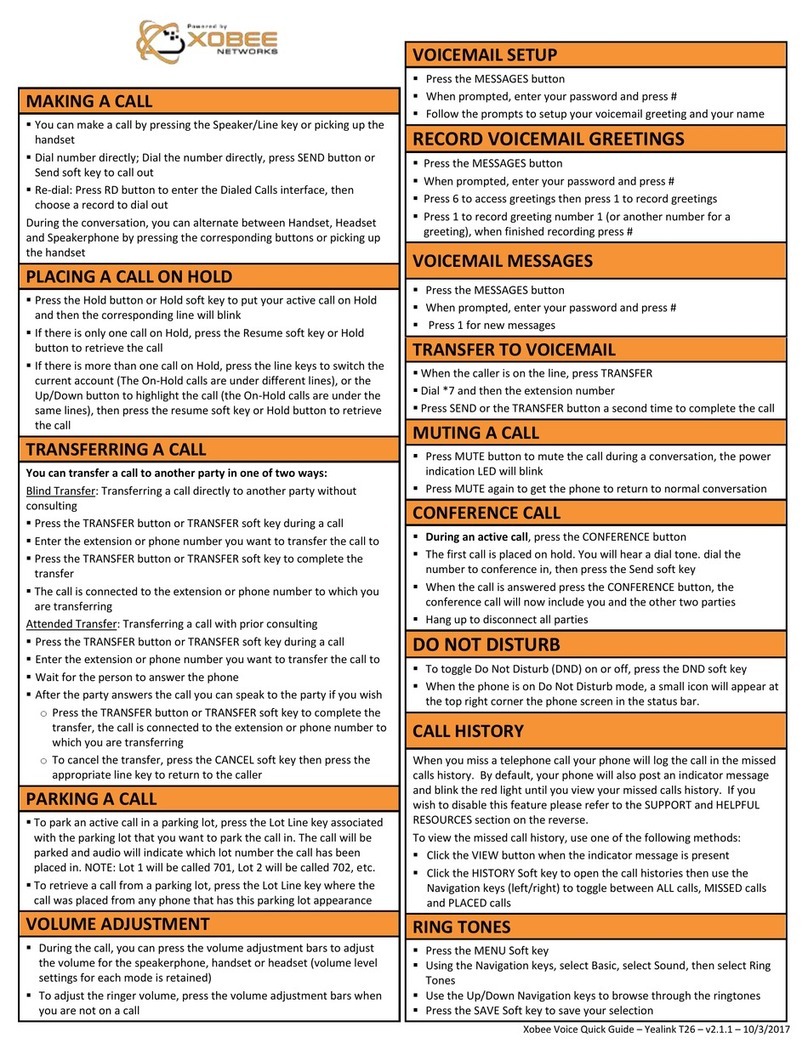
Yealink T26 User manual
Yealink
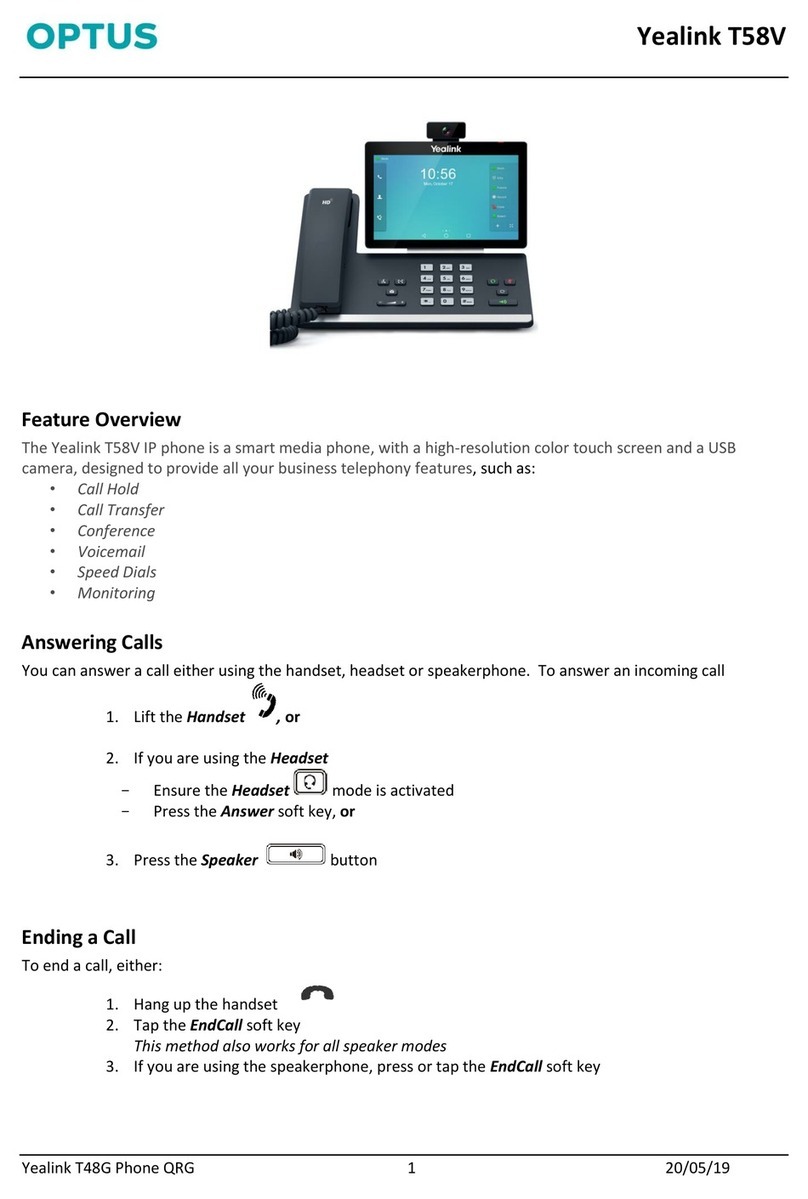
Yealink T58V User manual
Yealink
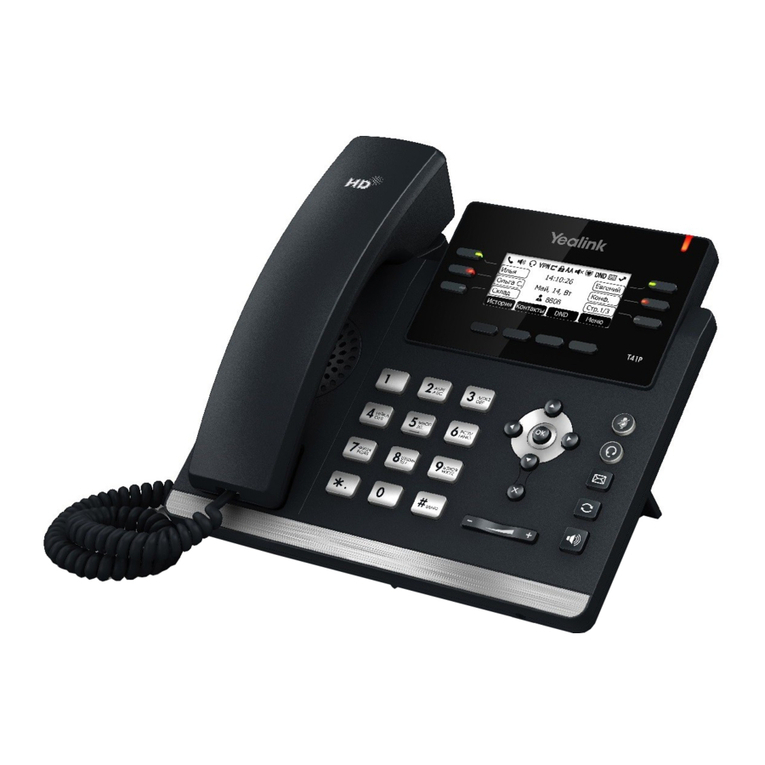
Yealink Yealink SIP-T41P User manual
Yealink
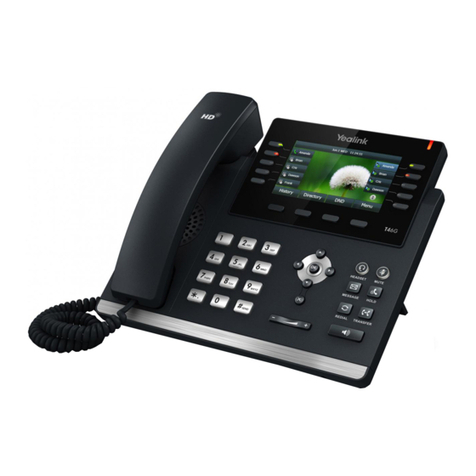
Yealink Yealink SIP-T46G User manual
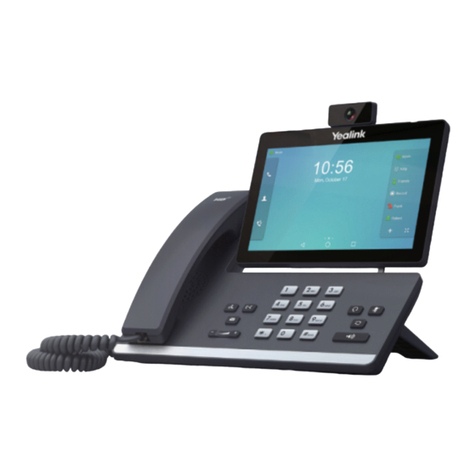
Yealink
Yealink T5 Series Service manual
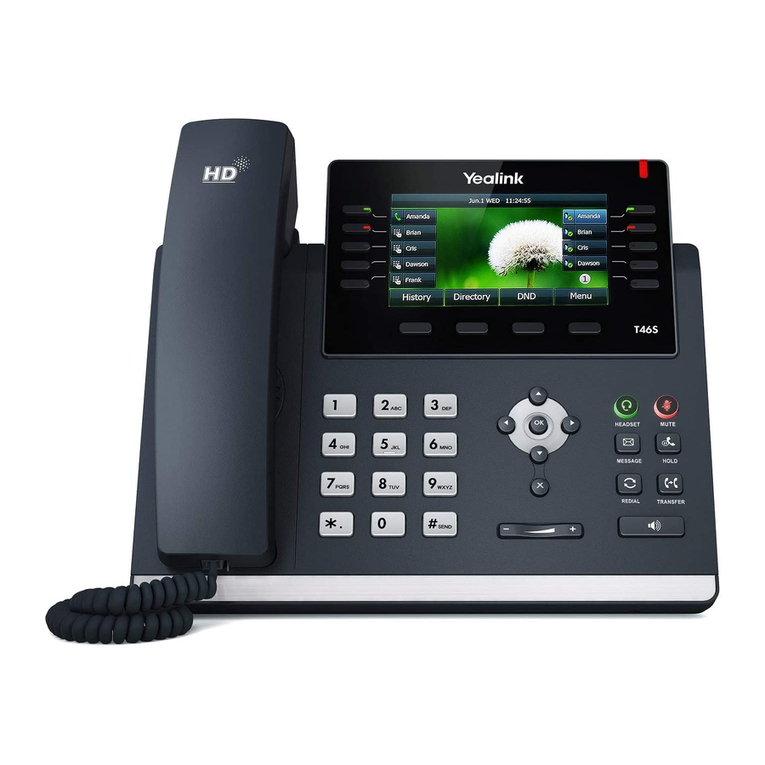
Yealink
Yealink T46S Skype for Business User manual
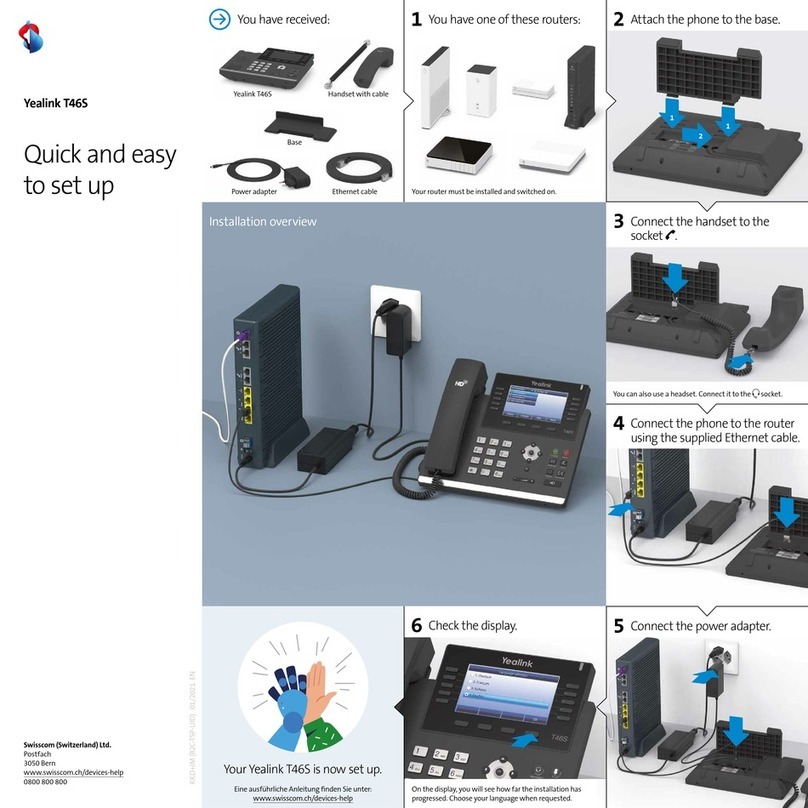
Yealink
Yealink T46S Skype for Business Product information sheet
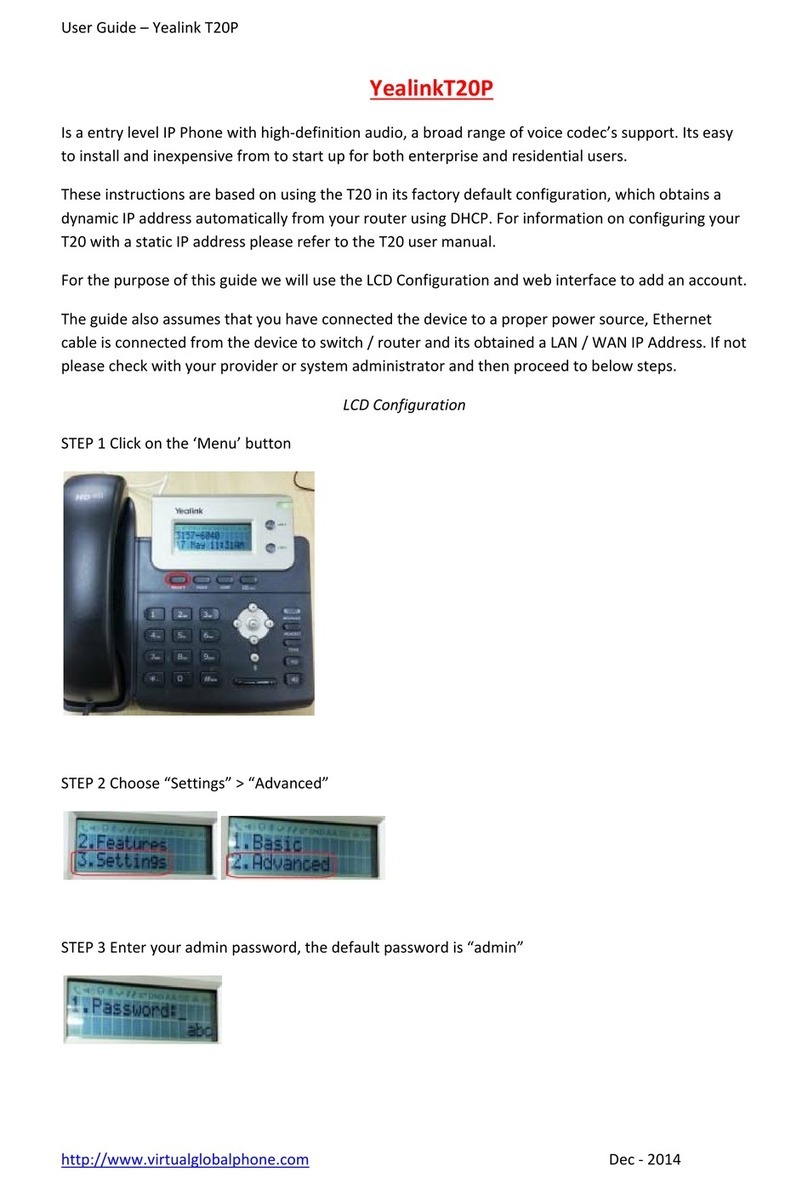
Yealink
Yealink T20P User manual

Yealink
Yealink T31 User manual
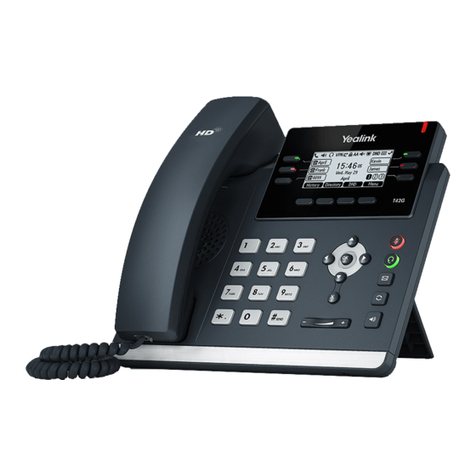
Yealink
Yealink Yealink SIP-T42G User manual
Yealink
Yealink Gigabit Color User manual

Yealink
Yealink VP530 Operating instructions