manuals.online logo
Brands
  1. Home
  2. •
  3. Brands
  4. •
  5. iPECS
  6. •
  7. IP Phone
  8. •
  9. iPECS 1040i Owner's manual

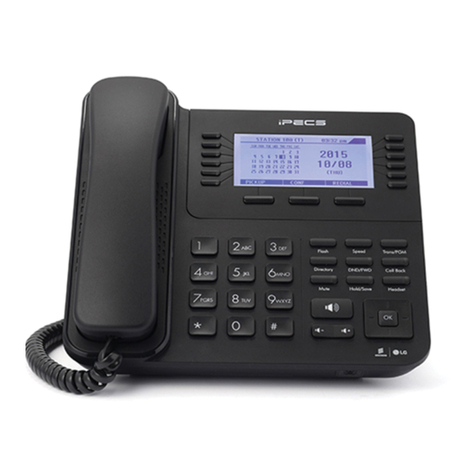
iPECS 1040i Owner's manual

Other manuals for 1040i

2

Other iPECS IP Phone manuals

iPECS 1000i Series User manual

iPECS

iPECS 1000i Series User manual

iPECS LIP-9000 Series User manual

iPECS

iPECS LIP-9000 Series User manual

iPECS eMG80 User manual

iPECS

iPECS eMG80 User manual

iPECS 1080i User manual

iPECS

iPECS 1080i User manual

iPECS LIP-8012D User manual

iPECS

iPECS LIP-8012D User manual

iPECS LDP-9240 User manual

iPECS

iPECS LDP-9240 User manual

iPECS 1040i Specification sheet

iPECS

iPECS 1040i Specification sheet

iPECS LIP-9008G User manual

iPECS

iPECS LIP-9008G User manual

iPECS LDP-9008D User manual

iPECS

iPECS LDP-9008D User manual

iPECS LIP-7024LD User manual

iPECS

iPECS LIP-7024LD User manual

iPECS LIP-9002 User manual

iPECS

iPECS LIP-9002 User manual

iPECS LIP-9040 User manual

iPECS

iPECS LIP-9040 User manual

iPECS LIP-8004D User manual

iPECS

iPECS LIP-8004D User manual

iPECS LIP-7008D User manual

iPECS

iPECS LIP-7008D User manual

iPECS LIP-8002E User manual

iPECS

iPECS LIP-8002E User manual

iPECS 1000i Series User manual

iPECS

iPECS 1000i Series User manual

iPECS LIP-9002 User manual

iPECS

iPECS LIP-9002 User manual

iPECS LIP-9070 User manual

iPECS

iPECS LIP-9070 User manual

iPECS LIP-9010 User manual

iPECS

iPECS LIP-9010 User manual

iPECS LDP-9008D User manual

iPECS

iPECS LDP-9008D User manual

iPECS LIP-8002E User manual

iPECS

iPECS LIP-8002E User manual

iPECS 9071 Setup guide

iPECS

iPECS 9071 Setup guide

iPECS LIP-8008D User manual

iPECS

iPECS LIP-8008D User manual

iPECS LIP-8040E User manual

iPECS

iPECS LIP-8040E User manual

Popular IP Phone manuals by other brands

Alcatel 4028 manual

Alcatel

Alcatel 4028 manual

Polycom Polycom VVX 600 quick reference

Polycom

Polycom Polycom VVX 600 quick reference

Polycom SoundPoint IP 450 datasheet

Polycom

Polycom SoundPoint IP 450 datasheet

Cisco SPA-500 Series user guide

Cisco

Cisco SPA-500 Series user guide

Polycom SoundPoint IP 650 user guide

Polycom

Polycom SoundPoint IP 650 user guide

Proximus Maestro 3016 IP quick start guide

Proximus

Proximus Maestro 3016 IP quick start guide

Fanvil X4 user manual

Fanvil

Fanvil X4 user manual

Cisco 7962 user guide

Cisco

Cisco 7962 user guide

Snom 320 quick start guide

Snom

Snom 320 quick start guide

Yealink Yealink SIP-T46G Guide

Yealink

Yealink Yealink SIP-T46G Guide

Avaya 4625SW user guide

Avaya

Avaya 4625SW user guide

Yealink SIP-T52S quick start guide

Yealink

Yealink SIP-T52S quick start guide

Nortel 1140E Getting started

Nortel

Nortel 1140E Getting started

Nexotek NT-P500 user manual

Nexotek

Nexotek NT-P500 user manual

Avaya Integral 5 R3.0 user guide

Avaya

Avaya Integral 5 R3.0 user guide

GE 28320EE2 - Dect 6.0 InfoLink 2 user guide

GE

GE 28320EE2 - Dect 6.0 InfoLink 2 user guide

Avaya 4600 Series Administrator's guide

Avaya

Avaya 4600 Series Administrator's guide

Mitel MIVOICE OFFICE 400 6940 SIP user guide

Mitel

Mitel MIVOICE OFFICE 400 6940 SIP user guide

manuals.online logo
manuals.online logoBrands
  • About & Mission
  • Contact us
  • Privacy Policy
  • Terms and Conditions

Copyright 2025 Manuals.Online. All Rights Reserved.

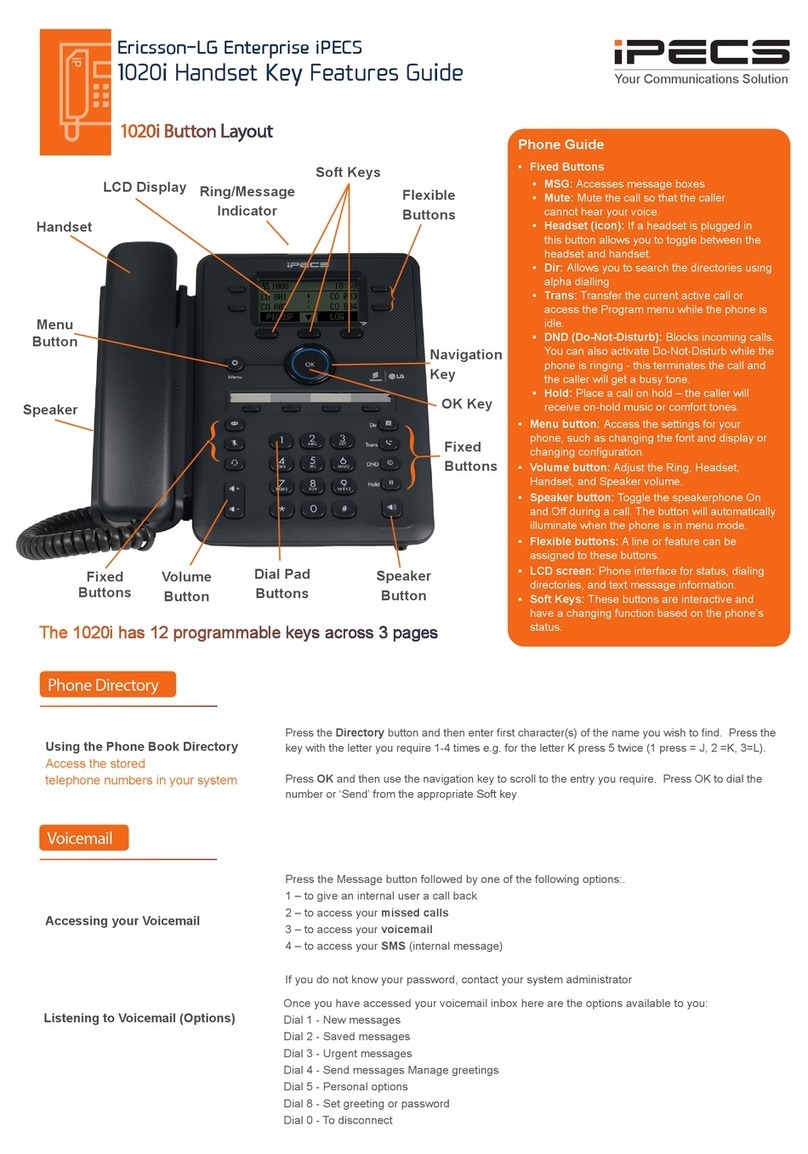
Using the Phone Book Directory
Access the stored
telephone numbers in your system
Press the Directory button followed by one of the following options:
1 - Station Speed
2 - Group Speed
3 - Station Name
Once selected you can then use the navigation keys toscroll through the list. To alpha dial, press
the button showing the letter you wish to dial – e.g. press 2for the letter B. Then, press the button
with the second letter. The system will show all matches. Then press OK to dial the number.
Accessing your Voicemail Press the Message button followed by one of the following options:.
1 – accesses messages to give an internal user a call back
2–to access your voicemail
3–tosort internal messages
If you do not know your pin, contact your system administrator
Listening to Voicemail (Options) Lift the handset
Press the Dir button
Select; (1)Station Speed--> (2)Group Speed--> (3)Station Name
For options 1& 2, follow the on-screen instructions.
For option 3, scroll through names or search using the key pad
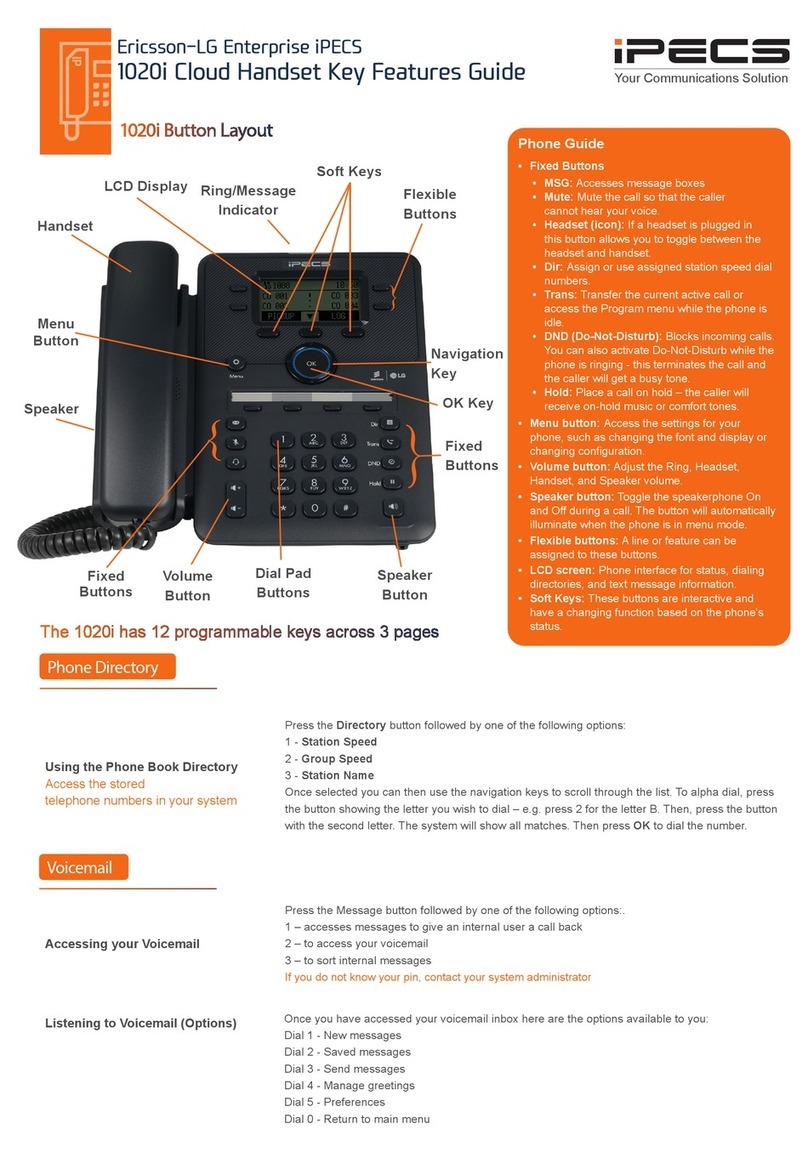
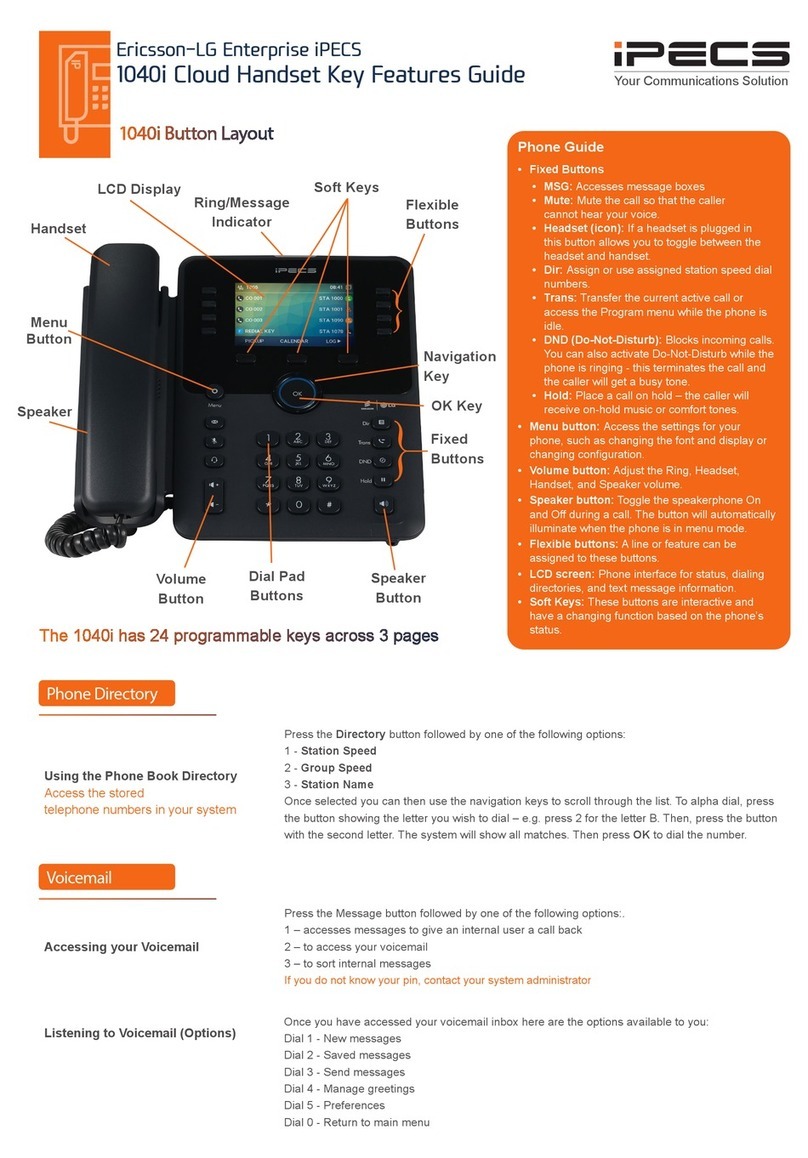
Fixed
Buttons
Navigation
Key
Flexible
Buttons
OK Key
LCD Display
Handset
Speaker
Dial Pad
Buttons
Speaker
Button
Volume
Button
Soft Keys
Ring/Message
Indicator
Menu
Button
•Fixed Buttons
•MSG: Accesses message boxes
•Mute: Mute the call so that the caller
cannot hear your voice.
•Headset (icon): If a headset is plugged in
this button allows you to toggle between the
headset and handset.
•Dir: Assign or use assigned station speed dial
numbers.
•Trans: Transfer the current active call or
access the Program menu while the phone is
idle.
•DND (Do-Not-Disturb): Blocks incoming calls.
You can also activate Do-Not-Disturb while the
phone is ringing - this terminates the call and
the caller will get a busy tone.
•Hold: Place a call on hold – the caller will
receive on-hold music or comfort tones.
•Menu button: Access the settings for your
phone, such as changing the font and display or
•Volume button: Adjust the Ring, Headset,
Handset, and Speaker volume.
•Speaker button: Toggle the speakerphone On
and Off during a call. The button will automatically
illuminate when the phone is in menu mode.
•Flexible buttons: A line or feature can be
assigned to these buttons.
•LCD screen: Phone interface for status, dialing
directories, and text message information.
•Soft Keys: These buttons are interactive and
have a changing function based on the phone’s
status.
Phone Guide
Ericsson-LG Enterprise iPECS
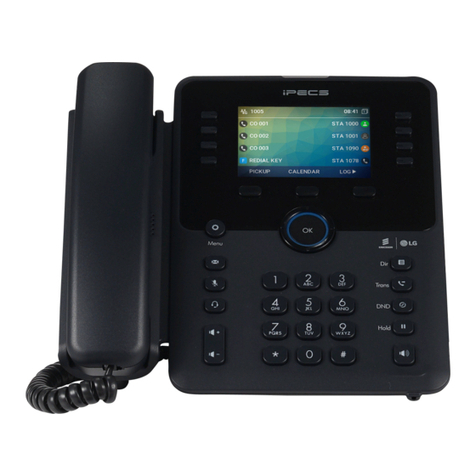
1040iHandset Key Features Guide
1040i Button Layout
ith calls
Phone directory
Voicemail

Do-Not-Disturb
Makes your extension unavailable
Press DNDkey to activate. Press DNDkey again to deactivate.
Please note that this is not available on the attendant handset.
Ad Hoc Conference Calls
3 way calling Once connected press the CONF soft key once
Call the second party (as above)
Once connected, press the CONF soft key twice to connect the calls.
Programming Call Forward
(Routes your calls to another
extension/group/speed dial)
All these features will override
your voicemail functions.

Dial 501 (or assigned feature code) then select one of the following options:
1 - Unconditional Forward (forwards all calls instantly)
2-Busy Call Forward (Only forward calls when you are on the phone)
3 - No Answer Call Forward (Only forwards calls if you don’t answer)
4-Busy / No Answer Call Forward (Mix of 2& 3)
Dial the extension number
To disable all call forwarding, dial 502 (or assigned feature code)
Transferring a Call During an active call, press either the Transferbutton or the TRANSsoft key. Dial the extension
announce the call, or simply hang up to complete the call transfer.
Returning to Caller from a Transfer
return tothe caller.
Parking a call To park an active external call, press Transfer, dial the park code (i.e. #512 for Park 1), and hang
up to return to idle. To retrieve a parked call from any handset, lift the handset and dial the park
code.
Camp On (Call Waiting) When dialling an extension that is engaged, the Camp Onfeature
itiate camp on.
Answering an Incoming Call Lift the handset or press the PICKUPsoft key. To answer a call on another extension that is
beforelifting the
Making an External Call or 9 dial to pick up an outside line.
Once you have an outside line, dial your number.
Making an Internal Call y assigned tothe contact.
Rejecting a Call Press the DNDbutton when a call comes in.
Placing a call on hold Press the Hold
Call Redial Press the Redial soft key.
Dealing with calls
Parking a call
Transferring a call
Redialling a number
Features
Redline Tele.com Ltd
13 Commercial Road,
Hereford HR1 2BB
Tel: 01432 367188
Email: [email protected]
Web: www.redlinetele.com