manuals.online logo
Brands
  1. Home
  2. •
  3. Brands
  4. •
  5. Mitel
  6. •
  7. IP Phone
  8. •
  9. Mitel 6863i User manual

Mitel 6863i User manual

Other manuals for 6863i

20

Other Mitel IP Phone manuals

Mitel Deskphone 6867 User manual

Mitel

Mitel Deskphone 6867 User manual

Mitel 6867i Premium User manual

Mitel

Mitel 6867i Premium User manual

Mitel 5224 User manual

Mitel

Mitel 5224 User manual

Mitel 480 User manual

Mitel

Mitel 480 User manual

Mitel MiVoice 5312 User manual

Mitel

Mitel MiVoice 5312 User manual

Mitel MiVoice 6900 Series Service manual

Mitel

Mitel MiVoice 6900 Series Service manual

Mitel MiVOICE 6930 User manual

Mitel

Mitel MiVOICE 6930 User manual

Mitel 5207 User manual

Mitel

Mitel 5207 User manual

Mitel 6863i User manual

Mitel

Mitel 6863i User manual

Mitel NETWORKS 5010 User manual

Mitel

Mitel NETWORKS 5010 User manual

Mitel NETWORKS 5010 User manual

Mitel

Mitel NETWORKS 5010 User manual

Mitel 6865i User manual

Mitel

Mitel 6865i User manual

Mitel 6863i User manual

Mitel

Mitel 6863i User manual

Mitel 6867i Premium User manual

Mitel

Mitel 6867i Premium User manual

Mitel OfficeConnect 5212 User manual

Mitel

Mitel OfficeConnect 5212 User manual

Mitel 6867i Premium User manual

Mitel

Mitel 6867i Premium User manual

Mitel 6800 Series User manual

Mitel

Mitel 6800 Series User manual

Mitel 50005070 User manual

Mitel

Mitel 50005070 User manual

Mitel MiVOICE 6930 User manual

Mitel

Mitel MiVOICE 6930 User manual

Mitel SUPERSET 420 User manual

Mitel

Mitel SUPERSET 420 User manual

Mitel MiVoice 5360 User manual

Mitel

Mitel MiVoice 5360 User manual

Mitel 6867i Premium User manual

Mitel

Mitel 6867i Premium User manual

Mitel 6768i User manual

Mitel

Mitel 6768i User manual

Mitel 112 User manual

Mitel

Mitel 112 User manual

Popular IP Phone manuals by other brands

Cortelco C62 VoIP Phone user guide

Cortelco

Cortelco C62 VoIP Phone user guide

VanillaIP Polycom IP300 user manual

VanillaIP

VanillaIP Polycom IP300 user manual

Yealink Yealink SIP-T22P Quick installation guide

Yealink

Yealink Yealink SIP-T22P Quick installation guide

Viking SR-IP product manual

Viking

Viking SR-IP product manual

Yealink VP59 Teams user guide

Yealink

Yealink VP59 Teams user guide

Panasonic KX-UT133-B Administrator's guide

Panasonic

Panasonic KX-UT133-B Administrator's guide

Avaya one-X 9600 Series overview

Avaya

Avaya one-X 9600 Series overview

AVA Enterprises B179 Installation and administration guide

AVA Enterprises

AVA Enterprises B179 Installation and administration guide

Cisco Unified 7900 Series System guide

Cisco

Cisco Unified 7900 Series System guide

Polycom SoundPoint IP 450 datasheet

Polycom

Polycom SoundPoint IP 450 datasheet

Cisco SPA-500 Series user guide

Cisco

Cisco SPA-500 Series user guide

IPitomy IP290 user manual

IPitomy

IPitomy IP290 user manual

Polycom SoundPoint IP 650 user guide

Polycom

Polycom SoundPoint IP 650 user guide

Proximus Maestro 3016 IP quick start guide

Proximus

Proximus Maestro 3016 IP quick start guide

Polycom IP 450 user guide

Polycom

Polycom IP 450 user guide

Fanvil X4 user manual

Fanvil

Fanvil X4 user manual

Snom 320 quick start guide

Snom

Snom 320 quick start guide

Avaya Integral 5 R3.0 user guide

Avaya

Avaya Integral 5 R3.0 user guide

manuals.online logo
manuals.online logoBrands
  • About & Mission
  • Contact us
  • Privacy Policy
  • Terms and Conditions

Copyright 2025 Manuals.Online. All Rights Reserved.

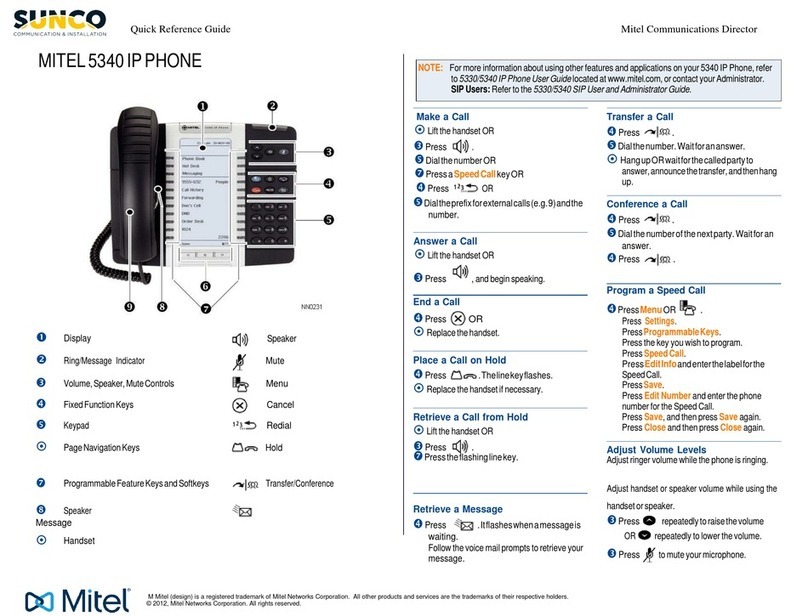
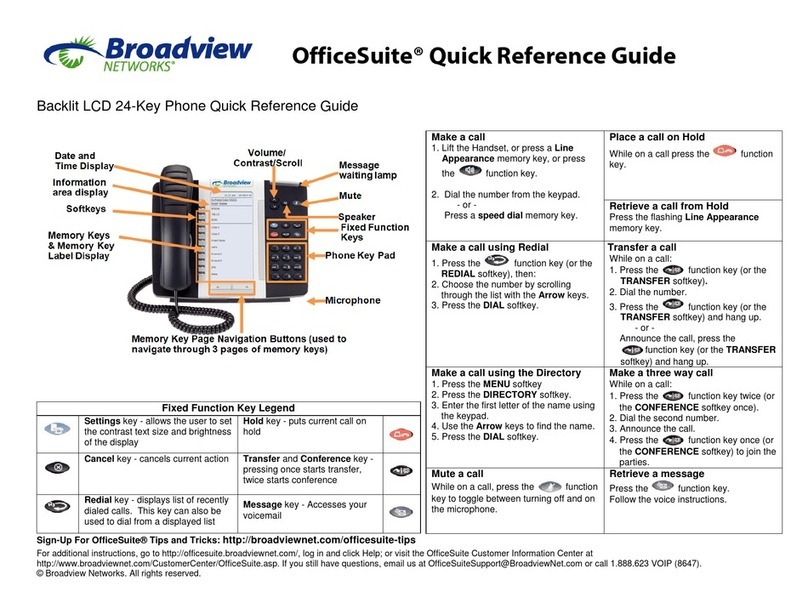
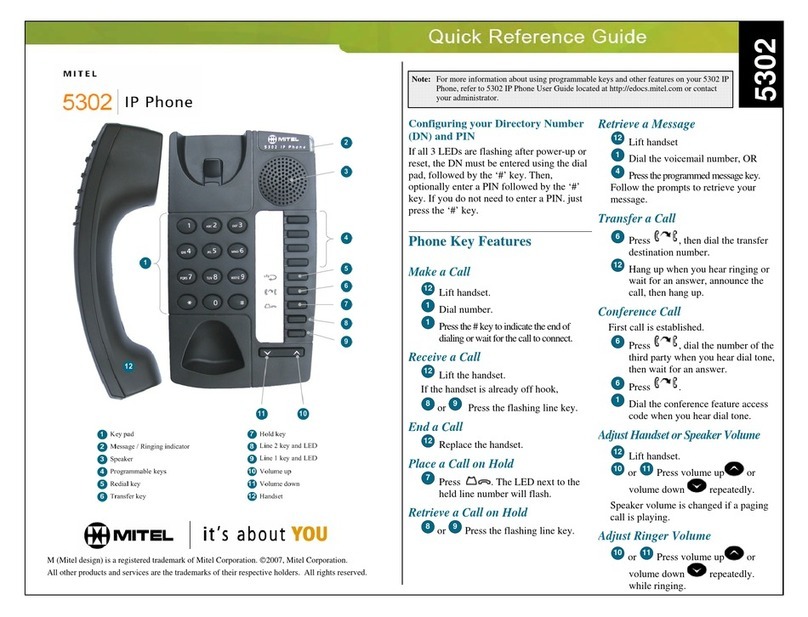
Basic Call Handling
Placing a Call
1. Lift the handset, press a Line key, or press the
key.
2. Dial the number from the keypad and press the
4Dial key.
Ending a Call
Place the handset on its cradle or press the key.
Answering a Call
Lift the handset for handset operation or press the Line key or key for handsfree
operation.

Ignoring a Call
Press the key when the phone is ringing to ignore the incoming call and
(if congured) send the incoming call directly to voicemail.
Redialing
Press the key once to access a list of recently dialed numbers. Use the 5and 2
navigation keys to scroll through the entries and press the key to redial the selected
number. Press the key twice to call the last dialed number.
Muting
Press the key to mute the handset, headset, or speakerphone.
Holding and Resuming
1. To place a call on hold, press the key when connected to the call.
2. To resume the call, press the key again or press the Line key corresponding to
the line where the call is being held.
Getting Started
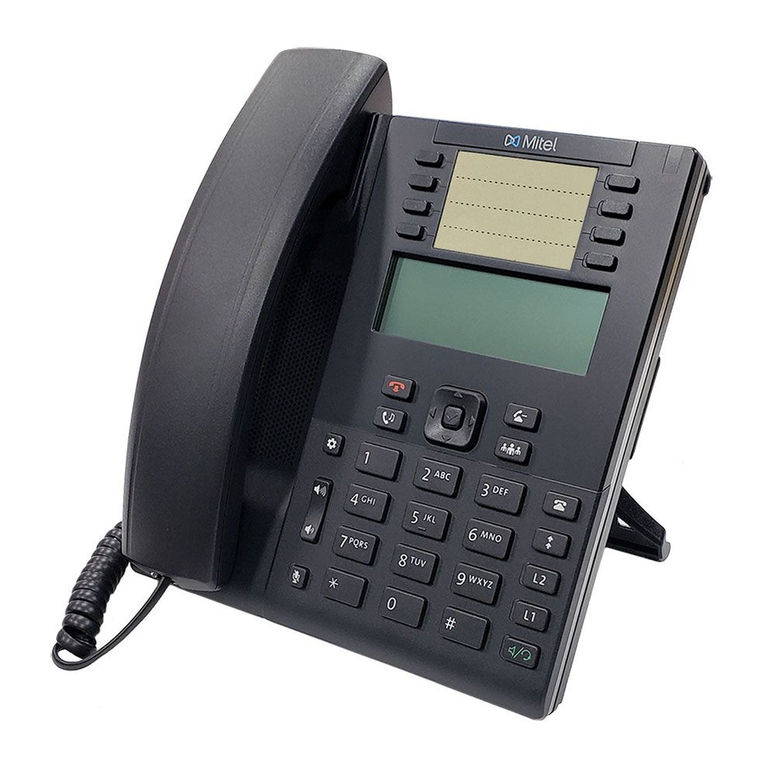
For more information please refer to the 6863i IP Phone User Guide.
Options:
Accesses services and
options to customize
your phone.
Goodbye
Hold
Volume
Navigation/Select:
Use 25 to scroll through menus or messages on the screen.
Use 34to view dierent line/call appearances or, when in the Options List, enter or exit menus.
When editing entries, pressing the 3key erases the character on the left and pressing the 4key
sets the option. Alternatively, pressing the center key sets the option as well on specic screens.
Mute
Line/Call
Appearance:
Line presentation for
incoming and outgoing
calls.
Speaker/Headset:
Toggles the phone’s
audio between speaker
and headset. Refer to the
6863i Installation Guide
for more details.
Programmable Keys:
3 programmable keys
pre-congured with
Callers, Redial, and Transfer
functionality respectively.
Transfer
Callers:
Accesses a list of
received/missed
incoming calls.
Redial
41-001575-00 REV01
Mitel Model 6863i IP Phone
Quick Reference Guide
Phone: 344-5000 or Toll Free: 877-559-4692 www.drn.coop | www.readitech.com PO Box Ellendale, ND 58436
Advanced Call Handling
The 6863i IP phone provides simple and convenient methods for transferring calls and
establishing conference calls.
Call Transferring
1. Ensure you are on active call with the party you wish to transfer.
2. Press the key. This places the current call on hold.
3. Dial the number of the party to whom you want to transfer the call.
4. Press the key before the receiving party answers to perform a blind transfer.
OR
Wait until the party has answered and then press the key to complete the
transfer.
3-Way Conferencing
1. Ensure you are on active call with one of the parties with whom you wish to create a
conference.
2. Press the key and select Services > Conference.
3. Dial the number of the other party or, if applicable, press the Line key where the other
party is being held.
4. When the other party answers, press the key and select Services > Conference
again.
Note: Users can congure a programmable key with Conference functionality if so
desired.

For more information on conguring programmable keys please refer to the 6863i
IP Phone User Guide.
Customization
Adjusting the Volume
Press the keys during a call to adjust the volume of the audio device
(i.e. handset, headset, or speakerphone). Pressing these keys when the phone is idle
adjusts the ringer volume.
Selecting a Ring Tone
1. Press the key and select Preferences > Tones > Ring Tone.
2. Scroll through the ring tone list by pressing the 5and 2navigation keys.
3. Press the key or the 4Enter key to set the desired ring tone.
Note:
To switch to another contact, simply press the desired BLF or Speed Dial softkey.
Changing the Screen Language (if applicable)
1. Press the key and select Preferences > Language > Screen Language.
2. Scroll through the list of available languages by pressing the 5and 2navigation keys.
3. Press the key or the 4Enter key to set the desired screen language.
Other Features
Using the Callers List
1. Press the key to access the Callers List.
2. Scroll through the list by pressing the 5and 2navigation keys.
3. Press the key to place a call to the respective entry.
Locking/Unlocking the Phone
The 6863i IP phone can be locked to prevent unauthorized use (i.e. only numbers dened
under the Emergency Dial Plan can be dialed when the phone is locked).
To lock the phone:
1. Press the key and select Phone Lock. A “Lock the phone?” prompt displays on
screen.
2. Press the 4Yes key to lock the phone. A “Phone is locked” message displays on screen.
To unlock the phone:
1. Press the key.
2. Enter your user password (by default the user password is blank) and press the
4Enter key to unlock the phone.
Changing Your User Password
1. Press the key and select Password.
2. Enter your current password and press 2Done (by default the user password is blank).
3. Enter the new password and press 2Done.
4. Conrm the new password by entering it again and press 2Done. A “Password
Changed” message displays on screen.
Viewing Your Phone’s IP Address
To view your phone’s IP address, press the key and select Phone Status > IP&Mac
Addresses.
Many other features are available for your phone.
Refer to the 6863i IP Phone User Guide
or
contact your Administrator for feature availability and usage information.