1111
1111
11
1010
1010
10
TROUBLESHOOTINGVCR COMMANDER II (UX23A) OPTIONS
VCR Commander II has three features that aren’t available in the standard
VCR Commander (UX21A).
Programming Multiple Motion Sensors
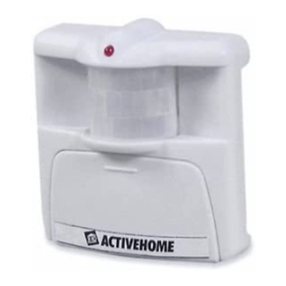
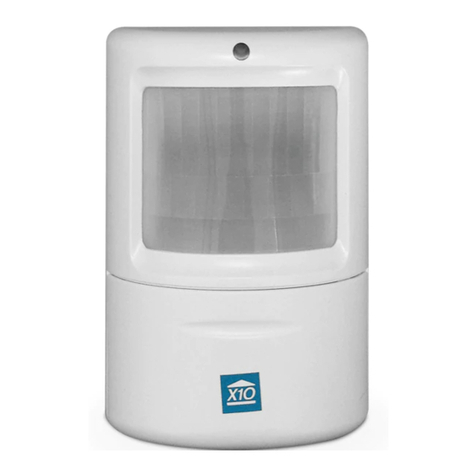
The VCR Commander II works with up to four X10 wireless motion
sensors. To setup additional sensors, put batteries in them. Start by
programming the first motion sensor:
1. Press and hold the UNIT button on the front of the sensor (inside the
battery compartment) until the light on the motion sensor comes on solid.
2. Release the UNIT button. Then press it once and release it quickly.
3. Press UNIT again and hold it down. The light will go out after a second,
and then flash twice after 2 seconds.
This motion sensor is now set up as Unit 2. Repeat these steps for each
additional motion sensor you have, adding an additional press and release of
the UNIT button each time, in step 2. You are now ready to program these
motion sensors into the VCR Commander II:
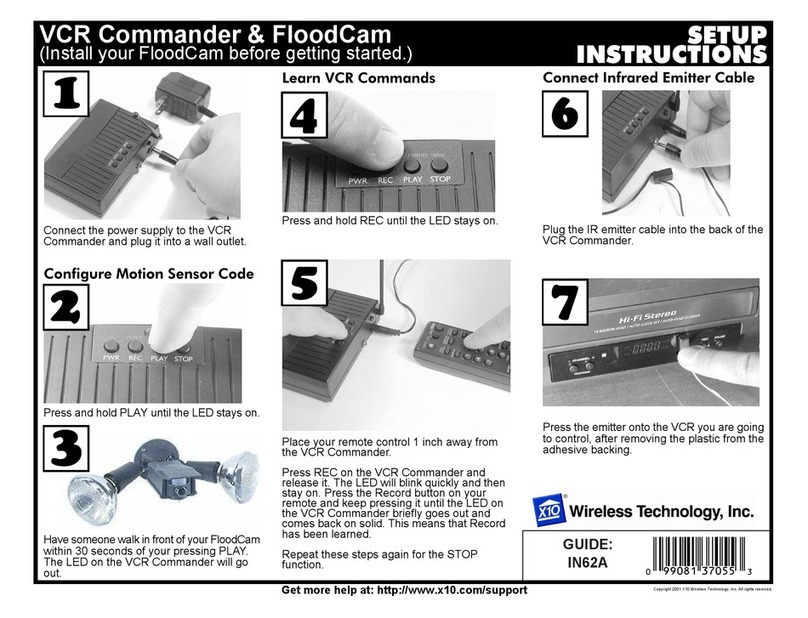
1. Press and hold PLAY on the VCR Commander II until the red light
stays on.
2. Press the HOUSE button on the motion sensor. The red light on the
VCR Commander will go out. This motion sensor will now start your
VCR Commander. Point the motion sensor away so it can’t see motion.
Repeat this process for all the motion sensors you are going to use.
Using Home and Away Modes
The default mode for the VCR Commander II is the Away Mode. In Away
Mode, your VCR Commander II performs normally — recording on your
VCR automatically when motion is detected and stopping after five minutes
ofinactivity.
The Home Mode of your VCR Commander II is designed so that the
activity in your home or business won’t be recorded. In Home Mode, the
VCR Commander II does not tell your VCR to record when there’s
motion.
To put your VCR Commander II in Home Mode, press and hold the STOP
button. When you press the button initially, the VCR Commander II will
beep briefly. After you’ve held the button for about three seconds, the
VCR Commander II will make a long beep. It is now in Home Mode. To
restore the VCR Commander II to Away Mode, repeat the same steps.
VCR Commander Won’t Learn VCR Commands
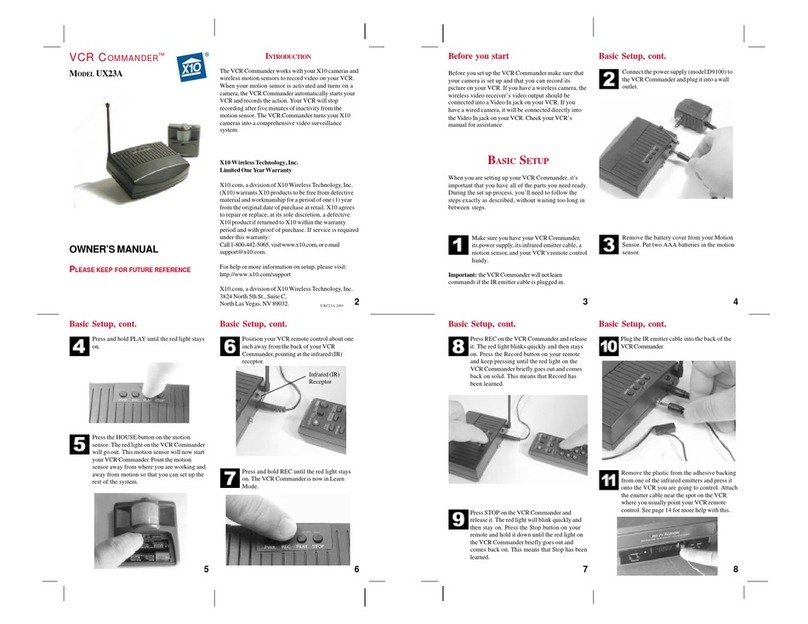
If you have trouble getting your VCR Commander to learn VCR commands,
first make sure that the IR emitter is not connected while you are trying to
learn. Put new batteries in your VCR remote control. You can also try changing
the position of the VCR remote when learning. You may need to change the
angle that you are pointing the remote, move it closer to the VCR Commander,
or move it farther away.
After you’ve made some adjustments, follow the setup steps again. Timing is
important, so don’t wait too long between steps. If you wait too long between
stepswhenprogramming,theVCRCommander will “time out” and you will
need to start over.
If an error occurs while programming, the VCR Commander’s light will flash
(VCR Commander II will also beep). Repeat the setup procedure.
VCR Commander Won’t Operate Your VCR
If your VCR Commander still won’t start recording, you may need to change
the IR Emitter’s position on your VCR.
First, try to figure out where your VCR’s IR receptor is. Usually it’s under a
translucent piece of plastic on the front of your VCR, so you might be able to
see it through the front of the case. You can also block different parts of the
front of the VCR with a book to see if the VCR remote works when that part
is blocked. If the remote doesn’t work when you block a particular part of the
VCR, then it’s likely that the IR receptor is there. Move the VCR
Commander’s IR emitter and attach it in that area.
My VCR Turns Off When Motion Is Detected
Do not program the VCR Commander to send the VCR’s On/Off (Power)
command. Most VCRs turn on or off every time they receive this command. If
you teach the VCR Commander the Power command, you can end up turning
your VCR off instead of recording. Instead, make sure you leave your VCR
turned on when you want to use the VCR Commander.
VCR Commander Won't Learn Record
Some VCR remotes use a combination of buttons to send the Record
command. For example, you may need to press Record twice to record. When
learning, press the button(s) on your remote that you normally use to record.