manuals.online logo
Brands
  1. Home
  2. •
  3. Brands
  4. •
  5. Pitney Bowes
  6. •
  7. Postal Equipment
  8. •
  9. Pitney Bowes Small Office Series Manual

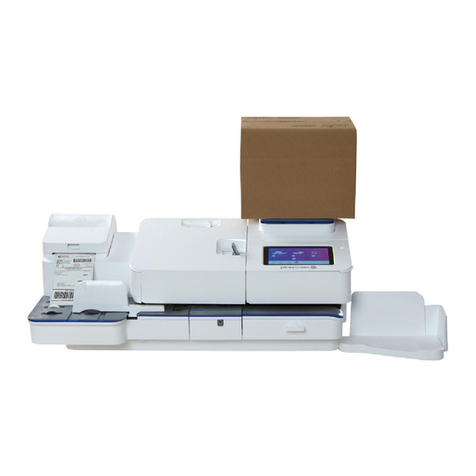
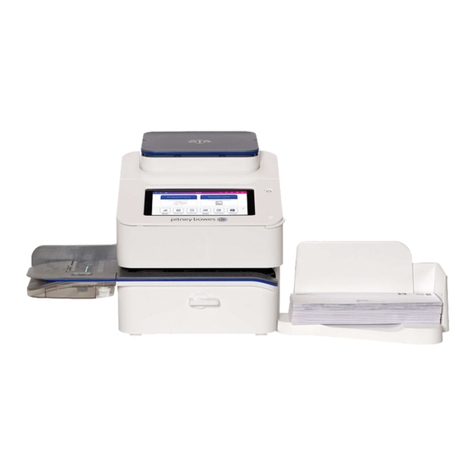
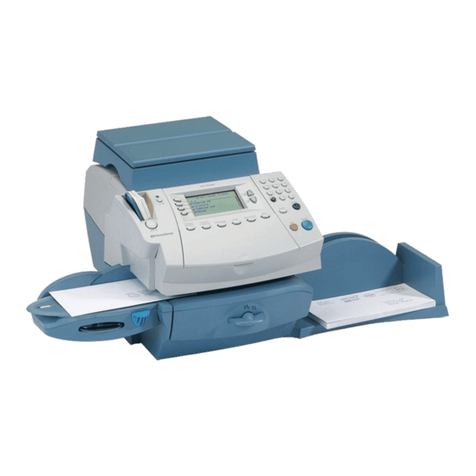
Pitney Bowes Small Office Series Manual

Other manuals for Small Office Series

1

This manual suits for next models

1

Other Pitney Bowes Postal Equipment manuals

Pitney Bowes PostPerfect B700 User manual

Pitney Bowes

Pitney Bowes PostPerfect B700 User manual

Pitney Bowes F612 User manual

Pitney Bowes

Pitney Bowes F612 User manual

Pitney Bowes MAILSTATION 2 User manual

Pitney Bowes

Pitney Bowes MAILSTATION 2 User manual

Pitney Bowes PersonalPost User manual

Pitney Bowes

Pitney Bowes PersonalPost User manual

Pitney Bowes SendPro C User manual

Pitney Bowes

Pitney Bowes SendPro C User manual

Pitney Bowes SendPro Series User manual

Pitney Bowes

Pitney Bowes SendPro Series User manual

Pitney Bowes DM300c series Technical manual

Pitney Bowes

Pitney Bowes DM300c series Technical manual

Pitney Bowes SendPro P Series User manual

Pitney Bowes

Pitney Bowes SendPro P Series User manual

Pitney Bowes PitneyShip Cube AX00 User manual

Pitney Bowes

Pitney Bowes PitneyShip Cube AX00 User manual

Pitney Bowes SendPro C Lite Manual

Pitney Bowes

Pitney Bowes SendPro C Lite Manual

Pitney Bowes PostPerfect B700 User manual

Pitney Bowes

Pitney Bowes PostPerfect B700 User manual

Pitney Bowes Horizontal Belt Stacker Manual

Pitney Bowes

Pitney Bowes Horizontal Belt Stacker Manual

Pitney Bowes DI900 User manual

Pitney Bowes

Pitney Bowes DI900 User manual

Pitney Bowes 1215 User manual

Pitney Bowes

Pitney Bowes 1215 User manual

Pitney Bowes mailstation User manual

Pitney Bowes

Pitney Bowes mailstation User manual

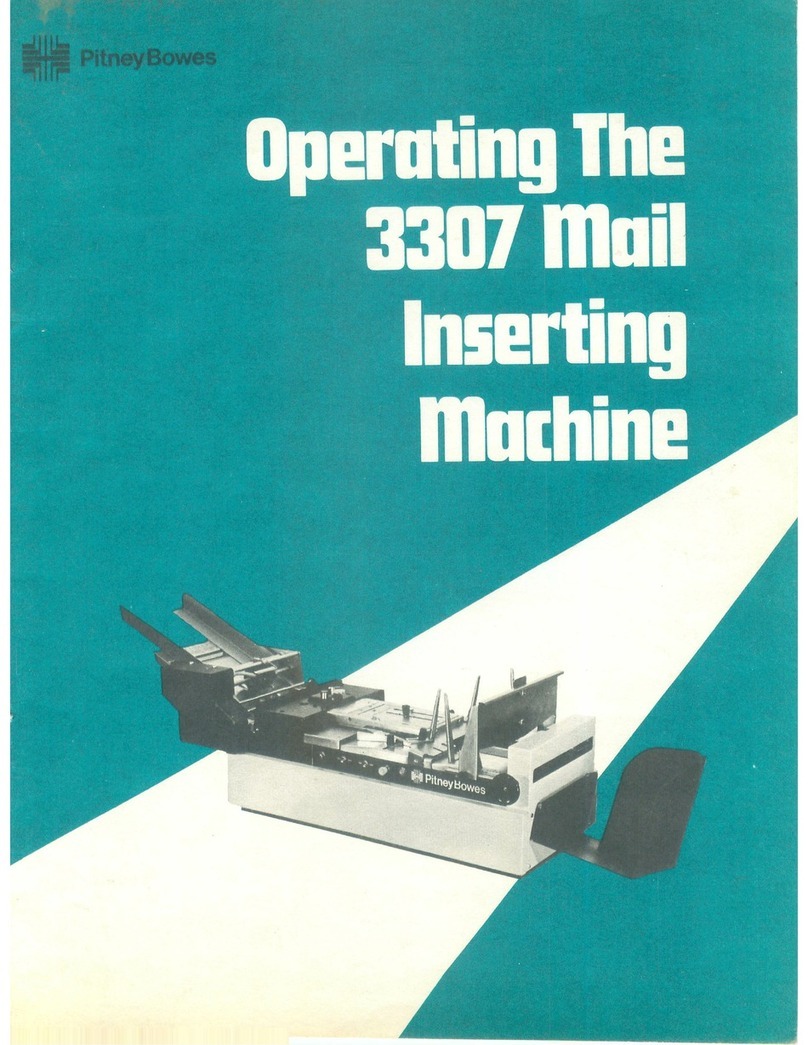
Pitney Bowes 3307 User manual

Pitney Bowes

Pitney Bowes 3307 User manual

Pitney Bowes DM125 Mounting instructions

Pitney Bowes

Pitney Bowes DM125 Mounting instructions

Pitney Bowes DM100 Series User manual

Pitney Bowes

Pitney Bowes DM100 Series User manual

Pitney Bowes dm300m series Technical manual

Pitney Bowes

Pitney Bowes dm300m series Technical manual

Pitney Bowes DM300 User manual

Pitney Bowes

Pitney Bowes DM300 User manual

Pitney Bowes DM50 Series User manual

Pitney Bowes

Pitney Bowes DM50 Series User manual

Pitney Bowes SendPro C series Manual

Pitney Bowes

Pitney Bowes SendPro C series Manual

Pitney Bowes PCN 9H00 Manual

Pitney Bowes

Pitney Bowes PCN 9H00 Manual

Pitney Bowes DM Series User manual

Pitney Bowes

Pitney Bowes DM Series User manual

Popular Postal Equipment manuals by other brands

Radius LETTERMAN II manual

Radius

Radius LETTERMAN II manual

Florence Package Protector PORT installation guide

Florence

Florence Package Protector PORT installation guide

FP centormail Quick reference guide

FP

FP centormail Quick reference guide

SSS Siedle BG/SR 611 Series Product information

SSS Siedle

SSS Siedle BG/SR 611 Series Product information

Radius LETTERMAN III manual

Radius

Radius LETTERMAN III manual

Labelmate UCATS MINI user manual

Labelmate

Labelmate UCATS MINI user manual

OMUARK Uark user manual

OMUARK

OMUARK Uark user manual

Neopost IS-350 Quick installation guide

Neopost

Neopost IS-350 Quick installation guide

FP Postbase Mini Operator's manual

FP

FP Postbase Mini Operator's manual

Frabox OLEVA Mounting instructions

Frabox

Frabox OLEVA Mounting instructions

quadient IN-700 user guide

quadient

quadient IN-700 user guide

Neopost IJ-60 user guide

Neopost

Neopost IJ-60 user guide

MSL JET PLUS 500 manual

MSL

MSL JET PLUS 500 manual

quadient IS-420 Quick installation guide

quadient

quadient IS-420 Quick installation guide

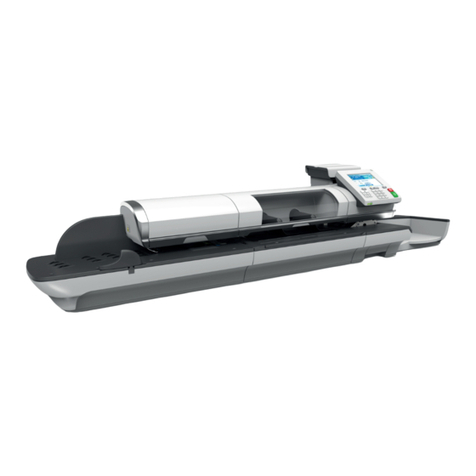
Neopost IN-700 user guide

Neopost

Neopost IN-700 user guide

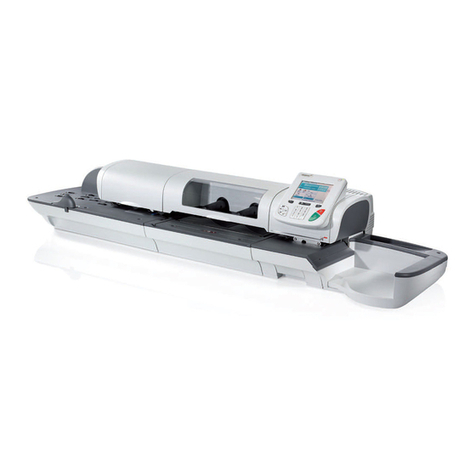
Neopost IS-480 user guide

Neopost

Neopost IS-480 user guide

FP optimail Quick reference guide

FP

FP optimail Quick reference guide

quadient IN-360 Series user guide

quadient

quadient IN-360 Series user guide

manuals.online logo
manuals.online logoBrands
  • About & Mission
  • Contact us
  • Privacy Policy
  • Terms and Conditions

Copyright 2025 Manuals.Online. All Rights Reserved.

©2010 Pitney Bowes Inc.
All Rights Reserved
Operator Guide
US English Version
1 Elmcroft Road
Stamford, Connecticut 06926-0700
www.pitneybowes.com
PB Form SV61983 Rev. G 10/10
*sv61983revG*
Digital Postage Meter
SV61983 Rev. G
©2010 Pitney Bowes Inc. All rights reserved. This book may not be
reproduced in whole or in part in any fashion or stored in a retrieval system
of any type or transmitted by any means, electronically or mechanically,
without the express, written permission of Pitney Bowes.
We have made every reasonable effort to ensure the accuracy and
usefulness of this manual; however, we cannot assume responsibility
for errors or omissions or liability for the misuse or misapplication of our
products.
Due to our continuing program of product improvement, equipment and
material specifications as well as performance features are subject to
change without notice. Your digital mailing system may not have some of the
features described in this book. Available features vary, depending on the
model of your mailing system, installed options, system software level, how
your system is set up and the country it is designed to operate in.
PC Meter Connect, E-Z Seal, Postage By Phone, and Purchase Power are
trademarks or registered trademarks of Pitney Bowes Inc. USPS and Shipping
Assistant are registered trademarks of the United States Postal Service.
Windows is a trademark or registered trademark of Microsoft Corp.
Declaration of Conformity According to FCC Rules Part 2 ,
Paragraph 2.1077
This device complies with Part 15 of the FCC Rules. Operation is subject to the
following two conditions: (1) this device may not cause harmful interference, and
(2) this device must accept any interference received, including interference that
may cause undesired operation. Responsible party: Pitney Bowes, 1 Elmcroft
Rd., Stamford, CT 06926-0700.
Note: This equipment has been tested and found to comply with the limits for
a Class B digital device, pursuant to part 15 of the FCC rules. These limits are
designed to provide reasonable protection against interference in a residential
installation. This equipment generates, uses, and can radiate radio frequency en-
ergy and, if not installed and used in accordance with the instruction manual, may
cause interference to radio communications. However, there is no guarantee that
interference will not occur in a particular installation. If this equipment does cause
interference to radio or television reception, which can be determined by turning
the equipment off and on, the user is encouraged to try to correct the interference
by one or more of the following measures:
• Reorient or relocate the receiving antenna.
• Increase the separation between the equipment and receiver.
• Connect the equipment into an outlet on a circuit different from that to which
the receiver is connected.
• Consult the dealer or an experienced radio/TV technician for help.
CAUTION: Changes or modifications to this equipment not
expressly approved by the party responsible for compliance
could void the user’s authority to operate the equipment.
Shielded I/O and USB cables must be used with this equipment to ensure
compliance with the limits. Use of unshielded cables is prohibited.
Servicing
This equipment is not intended to be serviceable. Please refer to the war-
ranty information if problems occur. Failed units will be returned to the Pitney
Bowes U.S. Service Center. For reference purposes, the Pitney Bowes
U.S. Service Center contact address is: Pitney Bowes Inc., 1 Elmcroft
Road, Stamford, CT, 06926-0700. All inquiries can be done by calling
1-800-468-8454 and following the telephone prompts. Customer Service
Representatives are available Monday through Friday, 8:00 AM - 8:00 PM ET.
FCC Part 68 Compliance of the Modem
This equipment complies with Part 68 of the FCC rules and the require-
ments adopted by the ACTA. On the bottom of this equipment is a label
that contains, among other information, a product identifier in the format
US:AAAEQ##TXXXX. If requested, this number must be provided to the
telephone company.
This equipment is designed to be connected to a Facility Interface Code
02LS2 network with RJ11C network interface.
A plug and jack used to connect this equipment to the premises wiring and
telephone network must comply with the applicable FCC Part 68 rules and
requirements adopted by the ACTA. A compliant telephone cord and modular
plug is provided with this product. It is designed to be connected to a compatible
modular jack that is also compliant. See installation instructions for details.
The ringer equivalence number (REN) is used to determine the number
of devices that may be connected to a telephone line. Excessive RENs
on a telephone line may result in the devices not ringing in response to an
incoming call. In most but not all areas, the sum of RENs should not exceed
five (5.0). To be certain of the number of devices that may be connected to a
line, as determined by the total RENs, contact the local telephone company.
The REN for this product is part of the product identifier that has the format
US:AAAEQ##TXXXX. The digits represented by ## are the REN without a
decimal point (for example, this model is 03 which is a REN of 0.3).
If this equipment causes harm to the telephone network, the telephone company
will notify you in advance that temporary discontinuance of service may be
required. But if advance notice isn’t practical, the telephone company will notify
you as soon as possible. Also, you will be advised of your right to file a complaint
with the FCC if you believe it is necessary.
The telephone company may make changes in its facilities, equipment,
operations, or procedures that could affect the operation of the equipment. If
this happens the telephone company will provide advance notice in order for
you to make necessary modifications to maintain uninterrupted service.
If trouble is experienced with this equipment, please contact Pitney Bowes,
1 Elmcroft Rd., Stamford, CT 06926-0700, for repair or warranty information
(also see Servicing section above). If the equipment is causing harm to the
telephone network, the telephone company may request that you disconnect
the equipment until the problem is resolved. This equipment is not intended
to be repaired by the customer (user).
Connection to party-line service is subject to state tariffs. Contact the
state public utility commission, public service commission, or corporation
commission for information.
If the installation site has specially wired alarm equipment connected to
the telephone line, ensure the installation of this mailing machine does not
disable the alarm equipment. If you have questions about what will disable
alarm equipment, consult your telephone company or a qualified installer.

Industry Canada
This product meets the applicable Industry Canada technical specifications.
The Ringer Equivalence Number (REN) is an indication of the maximum
number of devices allowed to be connected to a telephone interface. The
Ringer Equivalence Number (REN) of this terminal equipment is 1.0 (with the
exception of the K7M0, which is 0.3). The termination on an interface may
consist of any combination of devices subject only to the requirement that
the sum of the RENs of all devices does not exceed five.
The abbreviation, IC, before the registration number signifies that registration
was performed based on a Declaration of Conformity indicating that Industry
Canada technical specifications were met. It does not imply that Industry
Canada approved the equipment.
This page was put in as a placeholder so you can print this entire guide in
a duplex (double-sided) mode while keeping the proper page positions.
v
SV61983 Rev. G
Machine Identification
Product Name: mailstation 2™ digital postage meter
Model Number: K700 (Product Code K7M0)
Resources
To obtain product help through tutorials, troubleshooting pages,
downloads, chat, and forums, go to:
http://www.support.pb.com/K7M0
To order Pitney Bowes supplies and accessories, go to:
http://www.pb.com and click on Supplies.
or call 1-800-243-7824 and follow the telephone prompts.
For technical assistance, or for other inquiries, call 1-800-522-0020
and follow the telephone prompts.
NOTE: Customer Service Representatives are available Monday
through Friday, 8:00 AM - 8:00 PM ET.
To view a list of your equipment, pay invoices online, or you have
questions about your Postage-by-Phone account go to:
http://www.pb.com and click on My Account
To contact the United Stated Postal Service® (USPS), visit:
http://www.usps.com
Pitney Bowes Contact List
vi
Pitney Bowes Contact List
SV61983 Rev. G
This page was put in as a placeholder so you can print this entire guide in
a duplex (double-sided) mode while keeping the proper page positions.
vii
SV61983 Rev. G
1 • Introduction
What's In this Guide ..........................................................1-1
About the Pitney Bowes Small Office Series™..................1-2
About Your Machine ..........................................................1-2
Sections of the Meter Stamp .............................................1-3
What is Intellink™? ............................................................1-3
Postal Requirements .........................................................1-4
About PC Meter Connect™........................................ 1-5
Other Sources of Information ............................................1-5
Specifications ....................................................................1-6
Equipment.................................................................. 1-6
Material ..................................................................... 1-7
Important Safety Notes......................................................1-8
Important Telephone Safety Instructions .........................1-10
2 • Getting to Know Your System
Parts of the Machine..........................................................2-1
Control Panel.....................................................................2-2
Connections on Back of Machine......................................2-3
3 • Running Mail
Home Screen.....................................................................3-1
Checking the Funds (Postage) in Your Machine..................3-1
At a PC Using PC Meter Connect™Desktop App. . 3-1
At Mailing Machine..................................................... 3-1
Determining the Amount of Postage to Use ......................3-2
Optional Add-On USPS®Services ............................ 3-2
Applying Postage...............................................................3-3
Keying In the Postage Directly................................... 3-3
Using the Optional Scale with Opt. Internal Rating.... 3-4
Entering Weight Manually with Opt. Internal Rating... 3-5
Weight Hold Mode...................................................... 3-6
Checking and Clearing the Batch Count ...........................3-6
Viewing (Checking) the Batch Count ......................... 3-6
Printing the Batch Count ............................................ 3-7
Clearing the Batch Count........................................... 3-8
Table of Contents
viii
Table of Contents
SV61983 Rev. G
4 • Printing Options
Printing Options.................................................................4-1
Sections of the Meter Stamp .............................................4-1
Printing a $0.00 Meter Stamp............................................4-2
Auto-Advance of Printed Date for the Meter Stamp ..........4-2
Manually Changing Printed Date for the Meter Stamp......4-2
At a PC Using PC Meter Connect™Desktop App. . 4-3
At Mailing Machine..................................................... 4-4
Turning On or Off Date Printing for the Meter Stamp ........4-4
Adding/Removing an Envelope Ad to the Meter Stamp ....4-5
At a PC Using PC Meter Connect™Desktop App. . 4-5
At Mailing Machine..................................................... 4-6
Adding/Removing Postal Inscription to the Meter Stamp ..4-7
At a PC Using PC Meter Connect™Desktop App. . 4-7
At Mailing Machine..................................................... 4-8
Printing the Date and Time Only (no meter stamp) ...........4-8
Printing Envelope Ad Only (no meter stamp) ....................4-9
5 • Adding Postage/Connecting to Data Center
Postage and Your Machine................................................5-1
Establishing Communications Between Your Machine and
the Data Center .................................................................5-1
Downloads from the Data Center to Your Machine ................5-2
Using PC Meter Connect™Desktop Application to
Establish Communications (Preferred Method)...........5-5
Using an Analog Phone Line to Establish Communications
(Alternate Method)..........................................................5-6
Checking the Funds (Postage) in Your Machine ...............5-7
At a PC Using PC Meter Connect™Desktop App. . 5-7
Using an Analog Phone Line (at Back of Meter) ........ 5-7
Printing a Funds (Postage) Report....................................5-7
Checking Your Account Balance in the Postage By Phone®
System..............................................................................5-8
At a PC Using PC Meter Connect™Desktop App. . 5-8
Using an Analog Phone Line (at Back of Meter) ........ 5-8