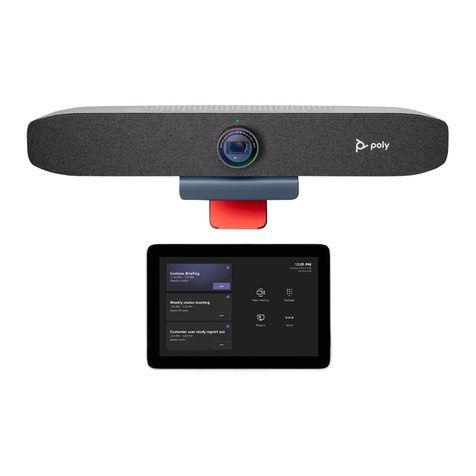
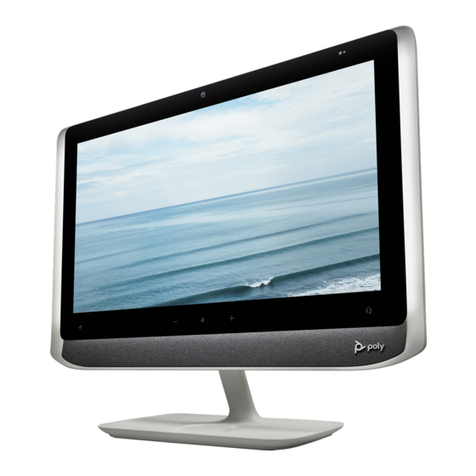
Poly Studio P21 User manual

USER GUIDE 1.1162.68.2061 | July 2021 |3725-87328-002A
Poly Studio P21
Getting Help
For more information about installing, configuring, and
administering Poly/Polycom products or services, go to
Polycom Support.
Plantronics, Inc. (Poly — formerly Plantronics and Polycom)
345 Encinal Street
Santa Cruz, California
95060
© 2021 Plantronics, Inc. All rights reserved. Poly, the propeller
design, and the Poly logo are trademarks of Plantronics, Inc.
All other trademarks are the property of their respective
owners.

Contents
Before You Begin................................................................................................3
Audience, Purpose, and Required Skills.............................................................................3
Related Poly and Partner Resources..................................................................................3
Privacy Policy........................................................................................................... 3
Getting Started................................................................................................... 4
Computer and Cable Requirements....................................................................................4
Poly Studio P21 Hardware Overview.................................................................................. 4
Download and Install the Poly Lens Desktop App.............................................................. 7
Complete Initial System Setup on macOS.......................................................................... 7
Complete Initial System Setup on Windows....................................................................... 8
Use the Poly Studio P21 Personal Meeting Display Privacy Shutter.................................. 8
LED Status Indicators......................................................................................................... 9
Basic Tips for Great Video Conferences............................................................................. 9
Advanced Tips for Great Video Conferences....................................................................10
Accessibility Features........................................................................................................11
Users Who Are Deaf or Hard of Hearing ............................................................... 11
Users Who Are Blind, Have Low Vision, or Have Limited Vision............................11
Users with Limited Mobility ....................................................................................12
Using Your Poly Studio P21 Personal Meeting Display................................13
Default Poly Studio P21 Features..................................................................................... 13
Set Poly Studio P21 as the Default Audio and Video Device............................................13
Adjust the Volume............................................................................................................. 14
Mute or Unmute Microphone.............................................................................................14
Change Your Audio Device with the Headset Button........................................................14
Adjust Vanity Lighting Brightness......................................................................................15
Charge a Device with the Built-In Wireless Charger ........................................................ 15
Turn LED Status Indicators On or Off............................................................................... 15
Restart Your Device.......................................................................................................... 15
Updating Firmware............................................................................................................16
Zoom Rooms Button Behavior.......................................................................................... 16
Microsoft Teams Button Behavior..................................................................................... 16
Troubleshooting............................................................................................... 17
Device Displaying a Black Screen after DisplayLink Firmware Update............................ 17
Screen Stays Blank After Connecting USB Cord..............................................................17
1

Before You Begin
Topics:
▪Audience, Purpose, and Required Skills
▪Related Poly and Partner Resources
This guide contains overview information, procedures, and references you can use to perform tasks with
your Poly Studio P21 personal meeting display.
Audience, Purpose, and Required Skills
This guide is intended for beginning users, as well as intermediate and advanced users, who want to
learn more about the features available with their Studio P21 personal meeting display.
You can use the features in this guide without having Lens Desktop installed on your connected
computer.
Related Poly and Partner Resources
See the following sites for information related to this product.
▪ The Poly Online Support Center is the entry point to online product, service, and solution support
information including Video Tutorials, Documents & Software, Knowledge Base, Community
Discussions, Poly University, and additional services.
▪ The Poly Document Library provides support documentation for active products, services, and
solutions. The documentation displays in responsive HTML5 format so that you can easily access
and view installation, configuration, or administration content from any online device.
▪ The Poly Community provides access to the latest developer and support information. Create an
account to access Poly support personnel and participate in developer and support forums. You can
find the latest information on hardware, software, and partner solutions topics, share ideas, and
solve problems with your colleagues.
▪ The Poly Partner Network is a program where resellers, distributors, solutions providers, and unified
communications providers deliver high-value business solutions that meet critical customer needs,
making it easy for you to communicate face-to-face using the applications and devices you use
every day.
▪ The Poly Services help your business succeed and get the most out of your investment through the
benefits of collaboration.
Privacy Policy
Poly products and services process customer data in a manner consistent with the Poly Privacy Policy.
Please direct comments or questions to privacy@poly.com
3

Getting Started
Topics:
▪Computer and Cable Requirements
▪Poly Studio P21 Hardware Overview
▪Download and Install the Poly Lens Desktop App
▪Complete Initial System Setup on macOS
▪Complete Initial System Setup on Windows
▪Use the Poly Studio P21 Personal Meeting Display Privacy Shutter
▪LED Status Indicators
▪Basic Tips for Great Video Conferences
▪Advanced Tips for Great Video Conferences
▪Accessibility Features
Before you use your device, familiarize yourself with its features.
Computer and Cable Requirements
Make sure that your computer and USB connections meet the following requirements to use a Poly
Studio P21 personal meeting display.
Your computer or laptop must have one of the following operating systems and the required DisplayLink
drivers:
▪ Windows 8.1 and Windows 10 version 1803 or later
▪ macOS version 10.15.0 or later
Note the following limitations with USB connections:
▪ The cable that came with your device is directional. The side with the USB-A to USB-C adapter
must connect to a USB-A or USB-C port on your computer.
▪ Using a third-party USB-C to USB-C cable may affect device performance or may not work at all.
▪ Using a third-party USB-A to USB-C adapter may affect video quality.
▪ Connect your device to a USB 3.0 port. Connecting your personal meeting display to a USB 2.1 or
2.0 port may prevent you from receiving full 1080p video from your device.
▪ Poly recommends plugging the USB cable directly into your computer. Connecting through a
docking station or hub may affect video quality.
Poly Studio P21 Hardware Overview
The following figures display the hardware features on the Poly Studio P21 personal meeting display. The
table lists each feature numbered in the figures.
4

Front View
Poly Studio P21 Feature Descriptions
Ref. Number Feature Feature Description
1 Camera Camera with a privacy shutter that

you can manually open or close
2 Ambient light sensor Detects the ambient light level and
automatically adjusts vanity lighting
brightness
3 Rocket button The default action is to play or
pause media. You can configure the
button to initiate different actions
using the Poly Lens Desktop app.
4 App button Shows the default partner
conferencing application. If there’s
no default application, the button
doesn’t display anything. Change
the app button display using the
Poly Lens Desktop app.
Getting Started
5

Ref. Number Feature Feature Description
5 Volume buttons Adjusts the volume of the built-in
speakers or attached headset
6 Mute button Mute or unmute the microphone
during an active call
7 Headset button Toggle between the built-in
speakers and microphone and an
attached 3.5 mm headset. This
button doesn’t illuminate if you don’t
connect a 3.5 mm headset.
8 Vanity lighting Adjustable vanity lights for
improving lighting conditions during
a meeting
9 Speakers Audio output
10 LED indicators Indicates the personal meeting
display’s status
11 Wireless charger Charge compatible phones and
headsets by placing them on the
wireless charging area
System Ports and Vanity Lighting Control
Poly Studio P21 Port Descriptions
Ref. Number Description
1 3.5 mm headset port
Getting Started
6

Ref. Number Description
2 Power cord port
3 USB-A ports that support 5 watts or 1 amp per port.
USB devices that require more power may not work
properly when connected to your device. If the
connected computer enters sleep mode, the USB-A
ports don’t provide power
4 USB-C port (you must use the USB-C end of the
supplied cable to connect to your device)
5 Security lock
6 Vanity lighting control
Related Links
Screen Stays Blank After Connecting USB Cord on page 17
Download and Install the Poly Lens Desktop App
Download the Poly Lens Desktop App to access configuration settings and features for your Poly Studio
P Series devices.
See the Poly Lens Desktop App User Guide for information on using your device with Poly Lens Desktop.
Procedure
1. Go to the Poly Lens App product page.
2. Select the applicable download for your operating system.
3. Follow the onscreen installation instructions.
Complete Initial System Setup on macOS
Your Studio P21 device doesn’t display your computer’s output until you download and install the
DisplayLink driver. Complete initial system setup so that your device properly displays the attached
computer’s output.
Note: You must download and install the DisplayLink software for your device to work.
If you want to use your Studio P21 personal meeting display as your only monitor, you must complete the
initial setup with a different monitor connected to your computer. After completing the initial setup, you can
then use your Studio P21 device in a single-monitor setup.
If the driver firmware in your Studio P21 device doesn’t match what’s on your computer, you may see a
blank screen with an hourglass while your device updates to the latest driver firmware.
Note: Your Studio P21 supports macOS version 10.15.0 or later. If you update your macOS, you must
restart the DisplayLink Manager app.
Getting Started
7

Procedure
1. In a web browser, go to the Poly Studio P21 landing page and complete the setup steps.
2. Go to Applications and start DisplayLink Manager.
3. Select DisplayLink Manager from the menu bar.
4. If requested, allow Screen Recording.
5. Select the Automatic startup check box.
If you don’t select the Automatic startup check box, you must restart the DisplayLink Manager
app every time you restart or turn on your computer.
6. From inside the DisplayLink Manager app, download and install the Login screen extension
status tool.
Important: If you don’t install the Login screen extension status tool, your Studio P21 device
may not work properly after you restart your computer.
Related Links
Device Displaying a Black Screen after DisplayLink Firmware Update on page 17
Screen Stays Blank After Connecting USB Cord on page 17
Complete Initial System Setup on Windows
Your Studio P21 device doesn’t display your computer’s output until you download and install the
DisplayLink driver. Complete initial system setup so that your device properly displays the attached
computer’s output.
If you want to use your Studio P21 personal meeting display as your only monitor, you must complete the
initial setup with a different monitor connected to your computer. After completing the initial setup, you can
then use your Studio P21 device in a single-monitor setup.
If the driver firmware in your Studio P21 device doesn’t match what’s on your computer, you may see a
blank screen with an hourglass while your device updates to the latest driver firmware.
Procedure
»In a web browser, go to the Poly Studio P21 landing page and complete the setup steps.
Related Links
Device Displaying a Black Screen after DisplayLink Firmware Update on page 17
Screen Stays Blank After Connecting USB Cord on page 17
Use the Poly Studio P21 Personal Meeting Display
Privacy Shutter
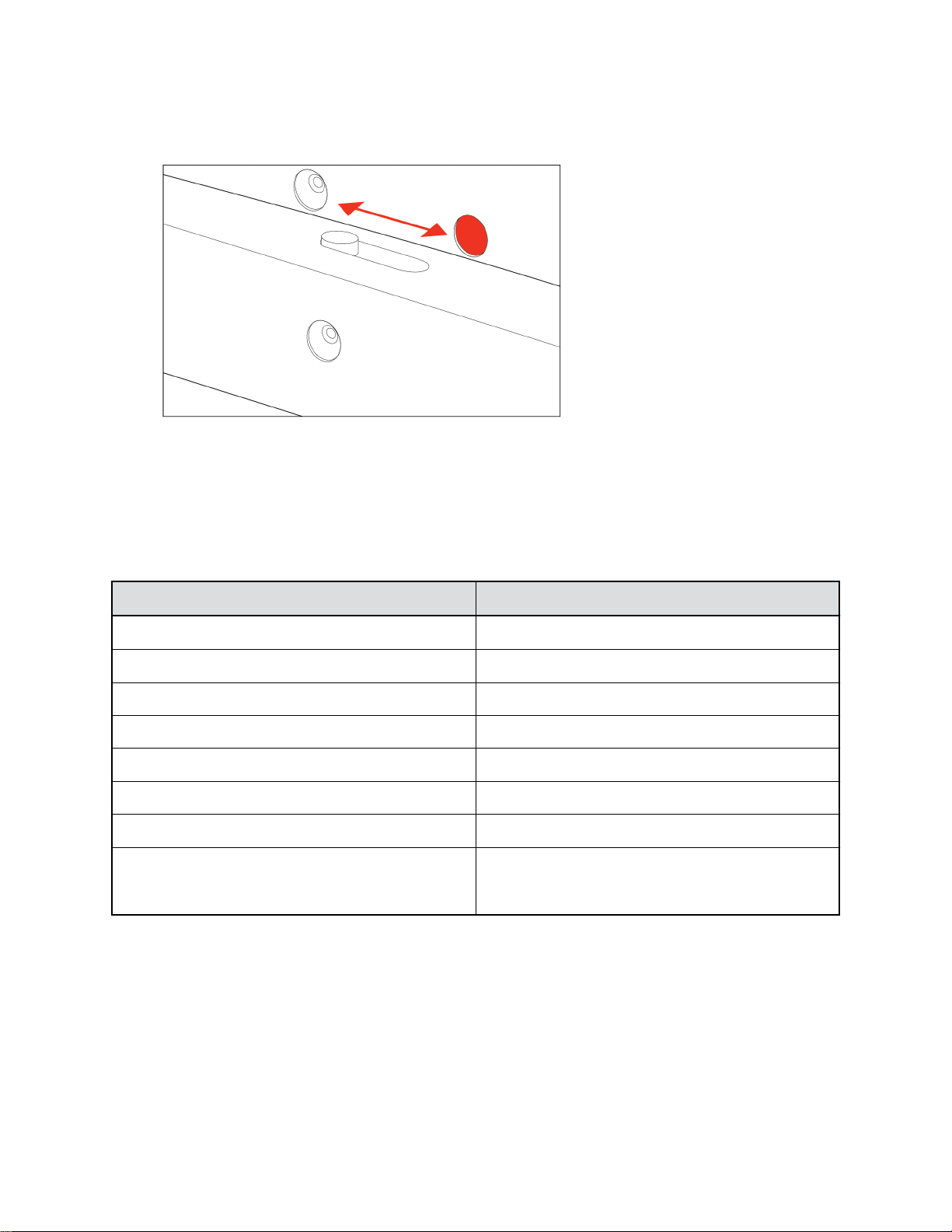
The Poly Studio P21 personal meeting display provides a built-in physical cover that blocks the camera
lens to protect your privacy.
Closing the shutter mutes your video.
Procedure
»Do one of the following on the top of your device:
Getting Started
8

▪ Move the slider to the right to close the shutter.
▪ Move the slider to the left to open the shutter.
LED Status Indicators
The device provides an LED light bar below the monitor to help you understand its behaviors. The
following table lists each LED color and pattern with its associated status.
Basic Poly Studio P21 LED Bar Colors and Patterns
Colors and Patterns Status
Solid white USB is connected; device is powered on and idle
Blinking blue starting at and expanding from the middle Wireless charger is charging device
Pulsing amber Firmware update in progress
Fluttering or solid green Incoming call
Solid green Device is in a call
Pulsing red A call is on hold
Solid red Audio is muted
Solid sea foam Light increases and decreases as you adjust the
volume; blinks twice when you reach minimum or
maximum volume
Basic Tips for Great Video Conferences
Use the following basic tips and guidelines to enhance or improve your experiences during video
conferences.
▪ Position yourself so that your eyes are level with the top third of your screen and your face appears
in the middle area of the video steam.
Getting Started
9
Other manuals for Studio P21
1
This manual suits for next models
1
Table of contents
Other Poly Conference System manuals

Poly
Poly G7500 Operating instructions

Poly
Poly G7500 Service manual

Poly
Poly G7500 User manual

Poly
Poly G7500 User manual

Poly
Poly Focus Room Kit Manual

Poly
Poly Studio X Series User manual

Poly
Poly Studio R30 User manual

Poly
Poly TC10 Assembly instructions

Poly
Poly Large Room Kit Manual

Poly
Poly G200 User manual
Popular Conference System manuals by other brands

Kramer
Kramer VIA GO quick start guide

AVT
AVT MAGIC AC1 Go Configuration guide

ProSoft Technology
ProSoft Technology AN-X4-AB-DHRIO user manual

Sony
Sony PCS-I150 Operation guide

Middle Atlantic Products
Middle Atlantic Products VTC Series instruction sheet

Prentke Romich Company
Prentke Romich Company Vanguard Plus Setting up and using