manuals.online logo
Brands
  1. Home
  2. •
  3. Brands
  4. •
  5. Mitel
  6. •
  7. IP Phone
  8. •
  9. Mitel 5320 User manual

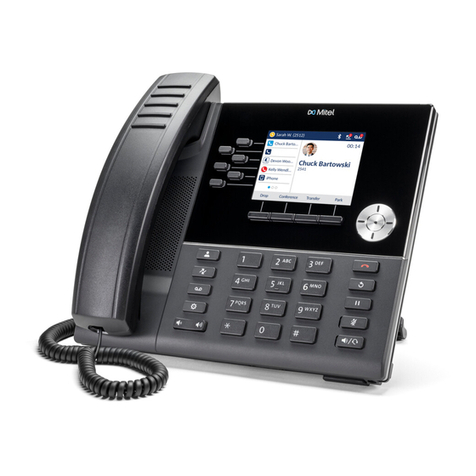
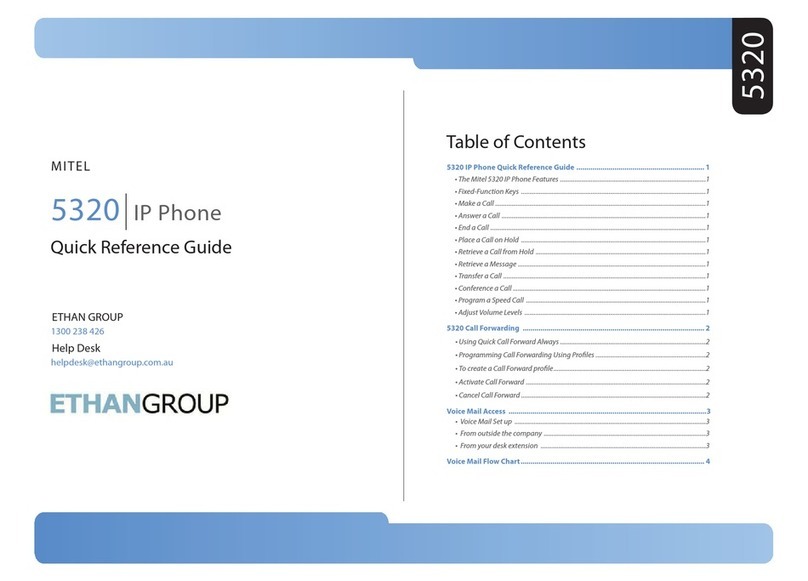
Mitel 5320 User manual

Other manuals for 5320

25

Other Mitel IP Phone manuals

Mitel OfficeConnect 5340 User manual

Mitel

Mitel OfficeConnect 5340 User manual

Mitel 5020 User manual

Mitel

Mitel 5020 User manual

Mitel Mitel 5330 User manual

Mitel

Mitel Mitel 5330 User manual

Mitel 5201 User manual

Mitel

Mitel 5201 User manual

Mitel MiVOICE 6930 User manual

Mitel

Mitel MiVOICE 6930 User manual

Mitel 6867i Premium User manual

Mitel

Mitel 6867i Premium User manual

Mitel 5235 IP Phone Service manual

Mitel

Mitel 5235 IP Phone Service manual

Mitel MiVoice 5330 User manual

Mitel

Mitel MiVoice 5330 User manual

Mitel 5224 User manual

Mitel

Mitel 5224 User manual

Mitel MiVoice 5360 User manual

Mitel

Mitel MiVoice 5360 User manual

Mitel 480 Instruction manual

Mitel

Mitel 480 Instruction manual

Mitel 485G User manual

Mitel

Mitel 485G User manual

Mitel 5205 IP Phone User manual

Mitel

Mitel 5205 IP Phone User manual

Mitel 5320 User manual

Mitel

Mitel 5320 User manual

Mitel MiVoice 5312 User manual

Mitel

Mitel MiVoice 5312 User manual

Mitel 8660 User manual

Mitel

Mitel 8660 User manual

Mitel Mitel 5330 User manual

Mitel

Mitel Mitel 5330 User manual

Mitel 6768i User manual

Mitel

Mitel 6768i User manual

Mitel SUPERSET 401 User manual

Mitel

Mitel SUPERSET 401 User manual

Mitel MIVOICE 6905 User manual

Mitel

Mitel MIVOICE 6905 User manual

Mitel 6869i User manual

Mitel

Mitel 6869i User manual

Mitel NETWORKS 5010 User manual

Mitel

Mitel NETWORKS 5010 User manual

Mitel 5230 User manual

Mitel

Mitel 5230 User manual

Mitel MiVoice 6940 User manual

Mitel

Mitel MiVoice 6940 User manual

Popular IP Phone manuals by other brands

Cortelco C62 VoIP Phone user guide

Cortelco

Cortelco C62 VoIP Phone user guide

VanillaIP Polycom IP300 user manual

VanillaIP

VanillaIP Polycom IP300 user manual

Yealink Yealink SIP-T22P Quick installation guide

Yealink

Yealink Yealink SIP-T22P Quick installation guide

Viking SR-IP product manual

Viking

Viking SR-IP product manual

Yealink VP59 Teams user guide

Yealink

Yealink VP59 Teams user guide

Panasonic KX-UT133-B Administrator's guide

Panasonic

Panasonic KX-UT133-B Administrator's guide

Avaya one-X 9600 Series overview

Avaya

Avaya one-X 9600 Series overview

AVA Enterprises B179 Installation and administration guide

AVA Enterprises

AVA Enterprises B179 Installation and administration guide

Cisco Unified 7900 Series System guide

Cisco

Cisco Unified 7900 Series System guide

Polycom SoundPoint IP 450 datasheet

Polycom

Polycom SoundPoint IP 450 datasheet

Cisco SPA-500 Series user guide

Cisco

Cisco SPA-500 Series user guide

IPitomy IP290 user manual

IPitomy

IPitomy IP290 user manual

Polycom SoundPoint IP 650 user guide

Polycom

Polycom SoundPoint IP 650 user guide

Proximus Maestro 3016 IP quick start guide

Proximus

Proximus Maestro 3016 IP quick start guide

Polycom IP 450 user guide

Polycom

Polycom IP 450 user guide

Fanvil X4 user manual

Fanvil

Fanvil X4 user manual

Snom 320 quick start guide

Snom

Snom 320 quick start guide

Avaya Integral 5 R3.0 user guide

Avaya

Avaya Integral 5 R3.0 user guide

manuals.online logo
manuals.online logoBrands
  • About & Mission
  • Contact us
  • Privacy Policy
  • Terms and Conditions

Copyright 2025 Manuals.Online. All Rights Reserved.

NOTICE
The information contained in this document is not warranted by Mitel Networks Corporation or any of its
affiliates or subsidiaries ("Mitel") and is subject to change without notice. Mitel assumes no liability for any
errors or omissions. This document may be reproduced, either wholly or in part, solely for distribution to
authorized users of Mitel's products. In reproducing this document, content may be removed or reorder,
provided the meaning is not altered. No other amendment to the document is permitted without written
permission from Mitel.
TRADEMARKS
Mitel and Speak@Ease are trademarks of Mitel Networks Corporation.
Windows and Microsoft are trademarks of Microsoft Corporation.
Other product names mentioned in this document may be trademarks of their respective companies and
are hereby acknowledged.
Mitel 5320 IP Phone - User Guide
October 2009
®,™ Trademark of Mitel Networks Corporation
© Copyright 2009, Mitel Networks Corporation
All rights reserved
IMPORTANT! This telephone is NOT suitable for direct connection to the public-switched
telephone network. Connect the telephone to a Mitel Networks system only.
Due to your Custom Programming, some items may differ from the general guidelines.
Please contact U.S. Voice & Data if you are unable to resolve your issue.
5320 IP Phone – User Guide
ABOUT YOUR PHONE ............................................................................................. 1
Elements of Your Phone...................................................................................................... 2
Ring/Message Indicators ..................................................................................................... 3
For Users on Resilient 3300 ICP Systems .......................................................................... 3
TIPS FOR YOUR COMFORT AND SAFETY ............................................................ 4
Don't Cradle the Handset!.................................................................................................... 4
Protect your Hearing............................................................................................................ 4
Adjust the Viewing Angle ..................................................................................................... 4
USING YOUR DEFAULT PHONE WINDOW AND KEYS......................................... 5
Getting Started with Your Phone ......................................................................................... 5
5320 IP Phone Default Window and Keys........................................................................... 6
ABOUT YOUR PHONE APPLICATIONS ................................................................. 7
Using the Settings Application ............................................................................................. 7
Using the Call History Application........................................................................................ 8
View Call Log Details ...................................................................................................................... 8
Review Call Log Icons..................................................................................................................... 9
Delete Logs ..................................................................................................................................... 9
Getting Help....................................................................................................................... 10
Tips for Setting up Your Phone.......................................................................................... 10
CUSTOMIZING YOUR PHONE............................................................................... 11
Using the Dial Pad to Enter Information ............................................................................ 11
Using the On-Screen Keyboard to Enter Information ........................................................ 12
Specify Language .............................................................................................................. 12
Specify Display Contrast.................................................................................................... 13
Specify Audio Feedback Options....................................................................................... 14
Specify Text Size ............................................................................................................... 14
Specify Call Notification Behavior...................................................................................... 15
Adjust the Ringer ............................................................................................................... 15
Enable a Screen Saver...................................................................................................... 16
- iii -
5320 IP Phone – User Guide
Enable PC Connectivity ..................................................................................................... 16
PROGRAMING FEATURES ON YOUR KEYS ................................................................. 17
Tips on Programming Features ......................................................................................... 17
Features available for programming on programmable keys........................................................ 17
Applications available for programming on programmable keys .................................................. 18
Program Feature Keys Using the Settings Application...................................................... 19
Clear Programming from a Key ......................................................................................... 20
MAKING AND ANSWERING CALLS ..................................................................... 21
Phone Book ....................................................................................................................... 21
Answer a Call..................................................................................................................... 22
End a Call .......................................................................................................................... 22
Redial................................................................................................................................. 22
Redial - Saved Number ..................................................................................................... 22
Handsfree Operation ......................................................................................................... 22
Auto-Answer ...................................................................................................................... 23
CALL HANDLING ................................................................................................... 24
Hold ................................................................................................................................... 24
Mute................................................................................................................................... 24
Transfer ............................................................................................................................. 25
Conference ........................................................................................................................ 25
Conference Split ................................................................................................................ 25
Add Held ............................................................................................................................ 26
Swap.................................................................................................................................. 26
Call Forwarding.................................................................................................................. 26
USING QUICK CALL FORWARD ALWAYS................................................................................. 27
PROGRAMMING CALL FORWARDING USING PROFILES....................................................... 27
ACTIVATE CALL FORWARD ....................................................................................................... 28
CANCEL CALL FORWARD .......................................................................................................... 29
USING OTHER FEATURES.................................................................................... 30
Account Codes .................................................................................................................. 30
ACD ................................................................................................................................... 30
- iv -
5320 IP Phone – User Guide
Attendant Call Hold - Remote Retrieve.............................................................................. 31
Callback ............................................................................................................................. 31
Call Forward - Remote (I'm Here)...................................................................................... 31
Call Forward - End Chaining.............................................................................................. 32
Call Forward - Forced ........................................................................................................ 32
Call Forward - Override ..................................................................................................... 32
Call Park ............................................................................................................................ 33
Call Pickup......................................................................................................................... 33
Campon ............................................................................................................................. 34
Direct Paging .....................................................................................................................34
Direct Paging - Handsfree Answerback Enabled.......................................................................... 34
Direct Paging - Handsfree Answerback Disabled ......................................................................... 35
Direct Voice Call ................................................................................................................ 36
Do Not Disturb ...................................................................................................................37
Emergency Calls................................................................................................................ 37
Group Listen ......................................................................................................................38
Group Paging / Meet Me Answer....................................................................................... 38
Group Presence................................................................................................................. 39
Handoff - Personal Ring Groups........................................................................................ 41
Headset Operation............................................................................................................. 41
Hot Desking .......................................................................................................................42
Hot Desk Remote Logout .................................................................................................. 42
Hot Desk - PIN Change ..................................................................................................... 43
Make Busy ......................................................................................................................... 43
Message Waiting Indicator ................................................................................................ 43
Messaging - Advisory ........................................................................................................ 44
Messaging - Callback ........................................................................................................ 44
Messaging - Cancel Callback ............................................................................................ 45
Messaging - Cancel All Callbacks ..................................................................................... 46
Music ................................................................................................................................. 46
Night Answer ..................................................................................................................... 46
- v -

5320 IP Phone – User Guide
- vi -
Override (Intrude) .............................................................................................................. 46
Paging................................................................................................................................ 47
Phone Lock........................................................................................................................ 47
User PIN ............................................................................................................................48
Record-a-Call..................................................................................................................... 49
Speak@Ease..................................................................................................................... 49
Speed Call .........................................................................................................................50
Tag Call ............................................................................................................................. 50
Timed Reminder ................................................................................................................ 51
Trunk Flash........................................................................................................................ 51
5320 IP Phone – User Guide
ABOUT YOUR PHONE
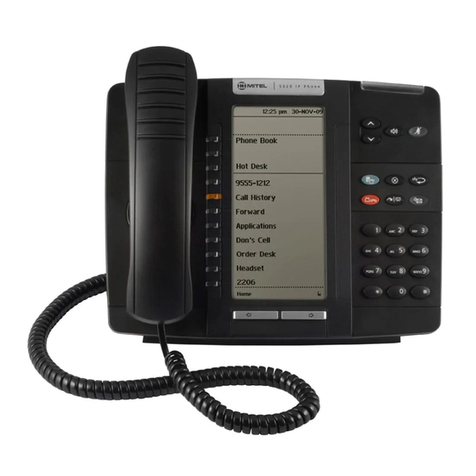
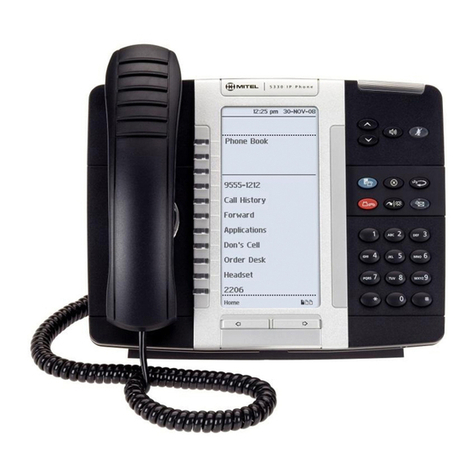
The Mitel® 5320 IP Phone is full-feature, dual port, dual mode enterprise-class telephone that
provides voice communication over an IP network. It features a large graphics display
(160 x 320) and self-labeling keys. The 5320 IP Phone offers seven programmable
multi-function keys for one-touch feature access. It provides ten fixed feature keys for
convenient access to features such as Conferencing, Redial, and many customizable user
settings as well as navigational keys to access various screens and application layers. The
5320 also features a Mitel Unified Communicator® (UC) Express application, which is a PC-
based desktop programming tool that allows you to easily configure your phone from your
Personal Computer (PC).
The 5320 IP Phone supports Mitel Call Control (MiNet) protocol and session initiated
protocols (SIP). It also supports Hot Desking and Clustered Hot Desking as well as
Resiliency. The 5320 phone is ideal for executives and managers, and can be used as an
ACD Agent or Supervisor Phone, as well as a Teleworker Phone.
The 5320 IP Phone
- 1 -
5320 IP Phone – User Guide
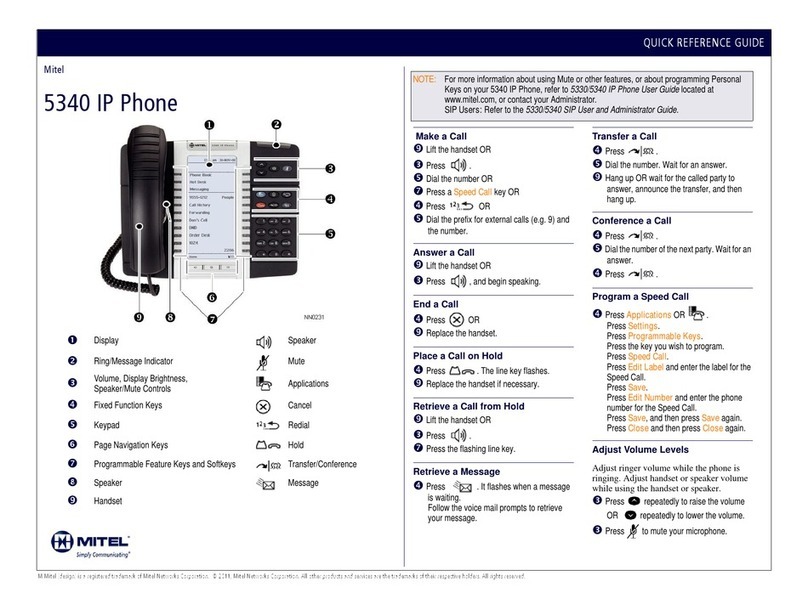
Elements of Your Phone
Feature Function
1) Display Provides a large, high-resolution viewing area that assists you in selecting and
using phone features.
2) Ring/Message Indicator Flashes to signal an incoming call and to indicate a message waiting in your
voice mailbox.
3) Volume, Speaker
and Mute Controls
Provides the following audio control capability:
(UP) and (DOWN) provide volume control for the ringer,
handset, and handsfree speakers.
(SPEAKER) enables and disables Handsfree mode.
(MUTE) enables Mute, which allows you to temporarily turn your
phone's handset, headset or handsfree microphone off during a call.
4) Fixed Function Keys Gives you access to the following phone functions:
(MENU): provides access to menus for your phone's applications
and settings.
(CANCEL): ends a call when pressed during the call, and, when you
are programming the phone, eliminates any input and returns to the
previous menu level.
(REDIAL): calls the last number dialed.
(HOLD): places the current call on hold.
(TRANS/CONF): initiates a call transfer or establishes a three-
party conference call.
(MESSAGE): provides access to your voice mailbox and flashes to
notify you of messages waiting in your voice mailbox. Note: The
Ring/Message indicator also flashes when messages are waiting.
5) Keypad Use to dial.
6) Navigation Page
Keys
Use to display additional pages of information for certain applications. The
5320 has two page navigation keys: Back and Next.
7) Programmable
Feature Keys and Softkeys.
Provides 7 self-labeling keys that can be programmed as speed call keys,
fixed function keys, hard keys, applications, or line appearance keys,
according to your communication needs. On your home page, the bottom left
feature key is always your Prime Line key. The top three keys are softkeys.
8) Handsfree Speaker Provides sound for Handsfree calls and background music.
9) Handset Use for handset calls. If you are in headset or handsfree mode, you do not
need to use the handset.
- 2 -
5320 IP Phone – User Guide
Ring/Message Indicators
When indicator is it means that
Flashing rapidly Your phone is ringing
Flashing slowly A message or callback message is waiting at your phone
On Your phone is ringing another phone
Off Your phone is idle, or you are on a call
For Users on Resilient 3300 ICP Systems
If during a call, you hear a beep repeated every 20 seconds it means that your phone is
switching to a secondary 3300 ICP system. The call continues and there is a change in the
operation of some keys and features on your phone. Normal operation resumes when your
phone switches back to the primary system. If your phone is idle and switched to the
secondary system, you'll see a flashing rectangle on the display. The rectangle remains until
the switch to the primary system is complete.
If the phone fails over to the secondary ICP, you have access to your mailbox on the
secondary ICP only if your Administrator has programmed a mailbox for you.
Notes:
The mailbox on the secondary ICP will not contain the same messages as the mailboxes
on the primary ICP. Any preferences that are voice mail related are not carried from the
primary ICP to the secondary ICP. These preferences must be set on both ICPs.
The Settings application does not support resiliency. Your logs, contact information and
any Settings on the primary ICP will not be carried from the primary ICP to the secondary
ICP.
- 3 -
5320 IP Phone – User Guide
TIPS FOR YOUR COMFORT AND SAFETY
Don't Cradle the Handset!
Prolonged use of the handset can lead to neck, shoulder, or back discomfort, especially if you
cradle the handset between your ear and shoulder. If you use your phone a lot, you may find
it more comfortable to use a headset. See the section on headset usage elsewhere in this
guide for more information.
Protect your Hearing
Your phone has a control for adjusting the volume of the handset receiver or headset.
Because continuous exposure to loud sounds can contribute to hearing loss, keep the
volume at a moderate level.
Adjust the Viewing Angle
The stand built into your phone tilts to give you a better view of the keys.
To tilt your telephone for better viewing:
1. Turn the phone so that the front faces away from you.
2. Hold the base unit firmly and press the release tabs on the sides of the stand to detach
the base unit.
3. Hinge the hooks of the base unit into the notches on the back of the phone and snap into
place as follows:
a. For a high-angle mount, hinge the
two lower hooks into the bottom
set of notches and snap the two
upper hooks into the middle set of
notches.
b. For a low-angle mount, hinge the
two lower hooks into the middle
set of notches and snap the two
upper hooks into the top set of
notches.
- 4 -