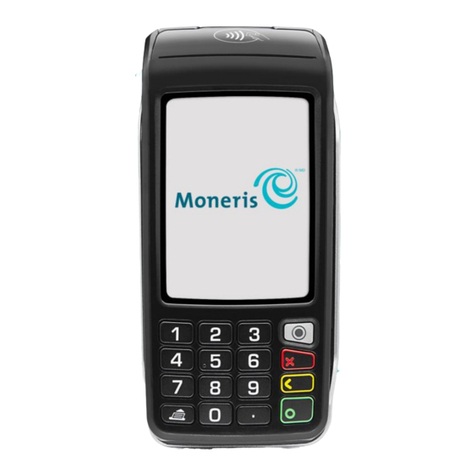
Moneris Core® V400c Terminal: Setting up your software 6
Edit your settings using the Quick Setup menu
The Quick Setup menu appears when you tap 1 Edit your Settings on the “Congratulations” screen. (After
completing your initial setup, you can also access the Quick Setup menu from the Main menu of the terminal.)
1. Tap Next to review the settings and change them if needed.
Tip: To enable tip and set the tip options, refer to Tip settings below.
Multi-terminal: To enable support for multiple terminals, refer to Multi-
terminal settings on page 7.
Clerk: To enable and manage clerk IDs, refer to Clerk settings on page 8.
Receipt: To set options for receipts, refer to Receipt settings on page 9.
Tip Support: Enable this setting to prompt customers to leave a tip. Once you
enable Tip Support the tip options will appear.
Tip by Dollar: Enable this setting to allow customers to enter a tip as a dollar
amount.
Tip by Percent: Enable this setting to allow customers to enter a tip as a
percentage of the total amount.
Tip on Subtotal: Enable this setting to allow customers to leave a tip based on
the pre-tax amount. This setting will be applied only when the terminal is in
restaurant integration mode or semi-integrated mode.
Tip Preset 1: Enable this setting to allow customers to enter a tip as a pre-set
percentage. Tap the Preset Value field and enter a percentage (for example,
15), then tap OK.
Tip Preset 2: Enable this setting to allow customers to enter a tip as a pre-set
percentage. Tap the Preset Value field and enter the percentage; for example,
20. It must be higher than Tip Preset 1. Tap OK.
Tip Preset 3: Enable this setting to allow customers to enter a tip as a pre-set
percentage. Tap the Preset Value field and enter the percentage; for example,
25. It must be higher than Tip Preset 2. Tap OK.
Tip Warning: Enable this setting to display a notification on screen when
customers enter a tip that is higher than a specific percentage. It protects
customers from data entry errors. Tap the Preset Value field and enter the
percentage; for example, 25. It must be equal to or higher than Tip Preset 3.
Tap OK.
3. When you are finished setting all of the tip options, tap Save.