manuals.online logo
Brands
  1. Home
  2. •
  3. Brands
  4. •
  5. Alcatel-Lucent
  6. •
  7. IP Phone
  8. •
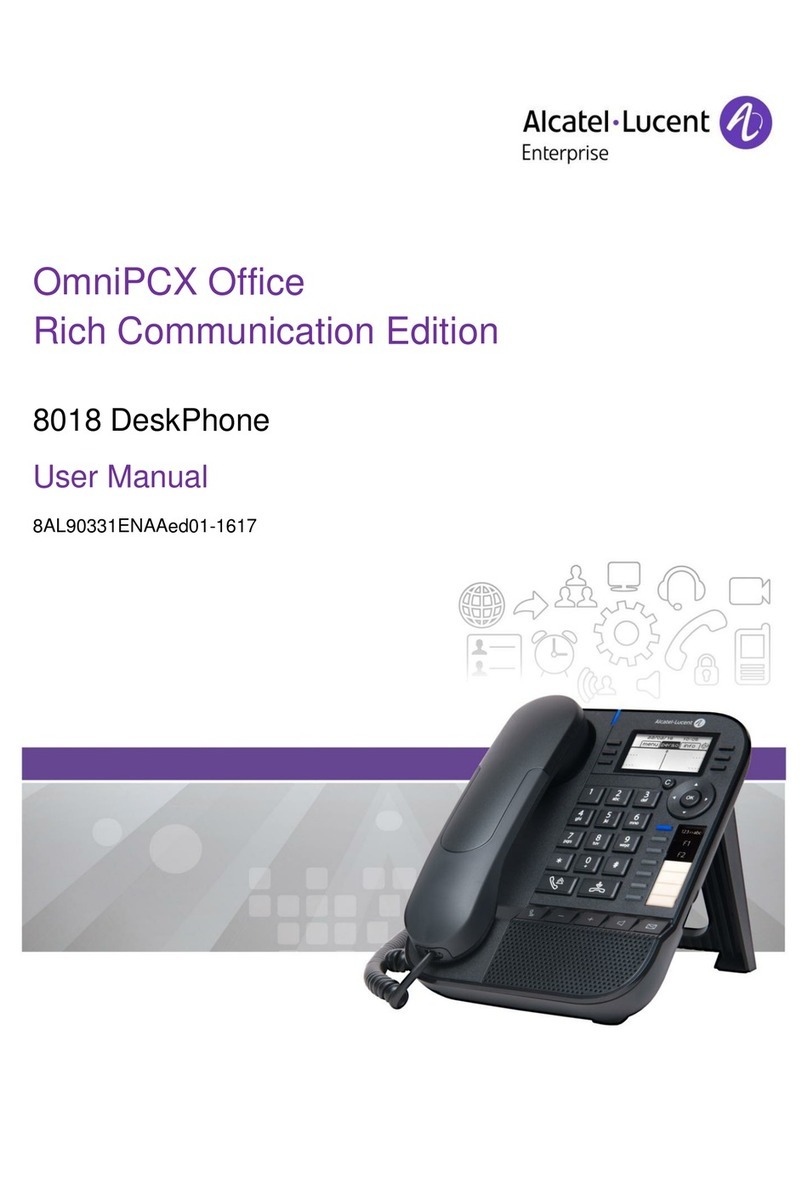
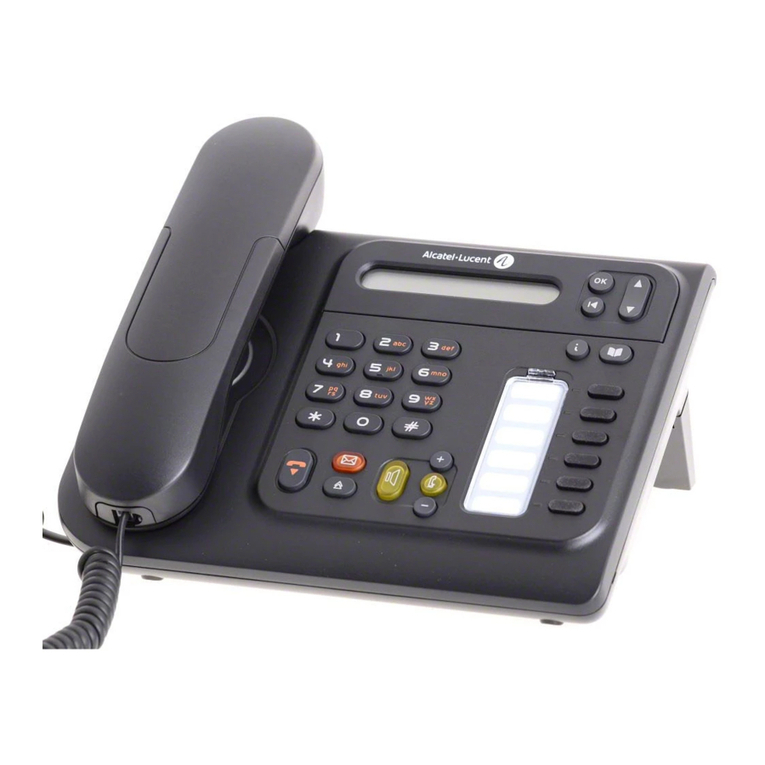
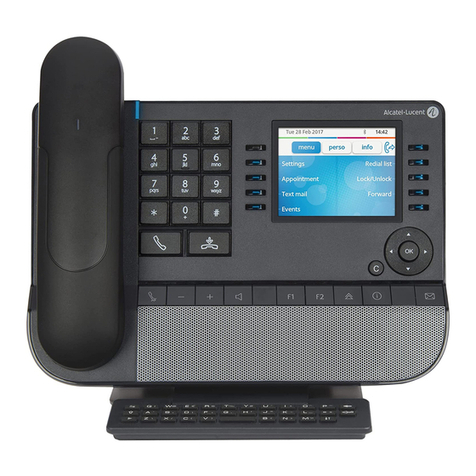
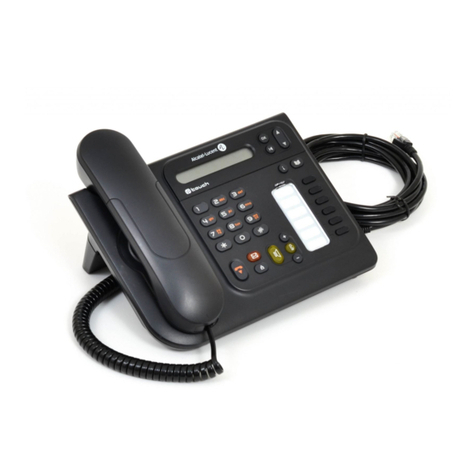
  9. Alcatel-Lucent 4039 User manual

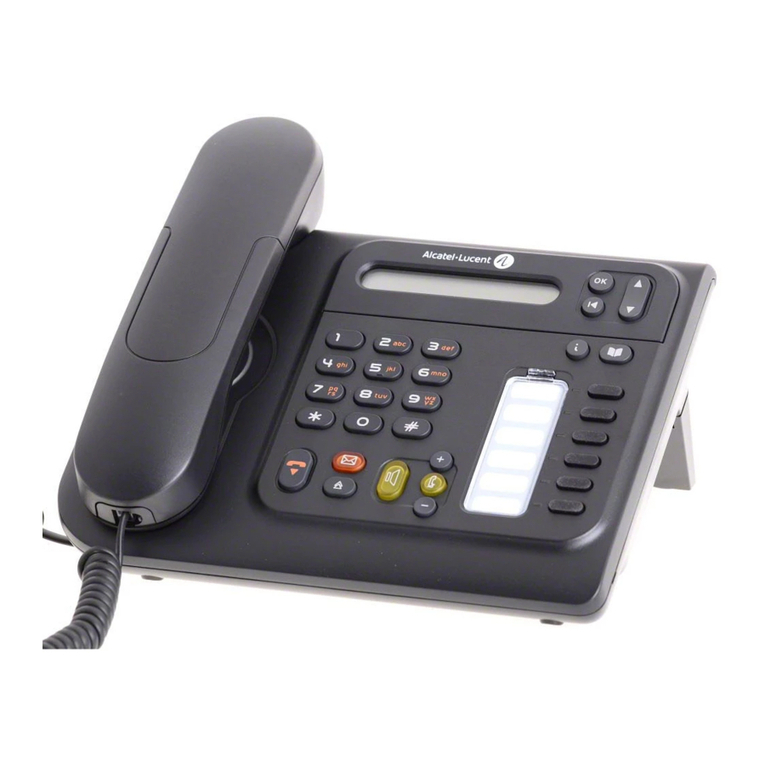
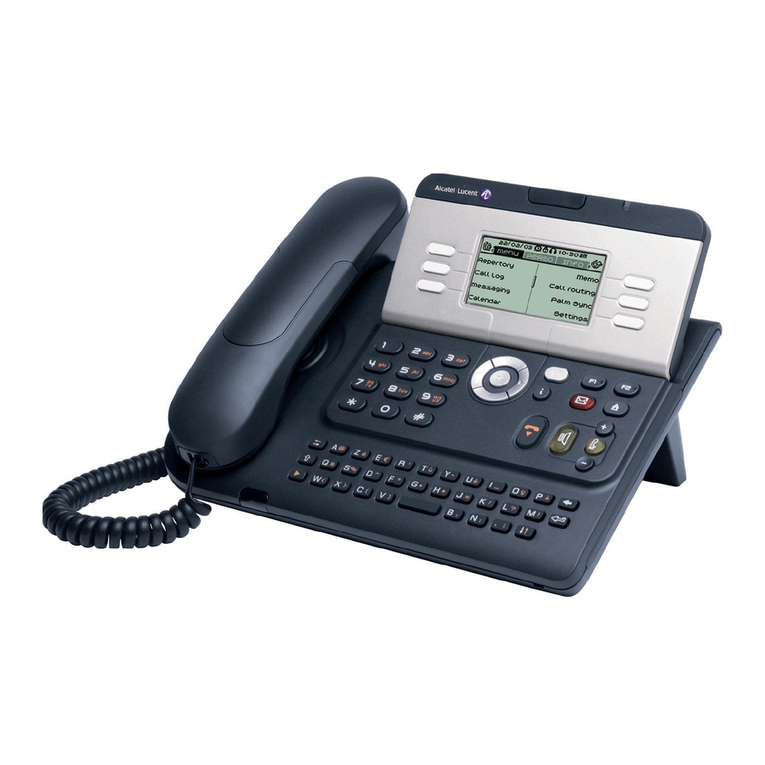
Alcatel-Lucent 4039 User manual

Other manuals for 4039

2

This manual suits for next models

1

Other Alcatel-Lucent IP Phone manuals

Alcatel-Lucent OMNISTACK 8008 User manual

Alcatel-Lucent

Alcatel-Lucent OMNISTACK 8008 User manual

Alcatel-Lucent 8028s Premium User manual

Alcatel-Lucent

Alcatel-Lucent 8028s Premium User manual

Alcatel-Lucent DeskPhone 8001 User manual

Alcatel-Lucent

Alcatel-Lucent DeskPhone 8001 User manual

Alcatel-Lucent OmniTouch 4135 IP Instruction Manual

Alcatel-Lucent

Alcatel-Lucent OmniTouch 4135 IP Instruction Manual

Alcatel-Lucent OmniTouch 8082 User manual

Alcatel-Lucent

Alcatel-Lucent OmniTouch 8082 User manual

Alcatel-Lucent OmniTouch 8082 User manual

Alcatel-Lucent

Alcatel-Lucent OmniTouch 8082 User manual

Alcatel-Lucent Premium DeskPhone 8029s User manual

Alcatel-Lucent

Alcatel-Lucent Premium DeskPhone 8029s User manual

Alcatel-Lucent IPTOUCH 300 User manual

Alcatel-Lucent

Alcatel-Lucent IPTOUCH 300 User manual

Alcatel-Lucent OmniTouch 8082 User manual

Alcatel-Lucent

Alcatel-Lucent OmniTouch 8082 User manual

Alcatel-Lucent IP Touch 4068 User manual

Alcatel-Lucent

Alcatel-Lucent IP Touch 4068 User manual

Alcatel-Lucent 4028 User manual

Alcatel-Lucent

Alcatel-Lucent 4028 User manual

Alcatel-Lucent 8068 User manual

Alcatel-Lucent

Alcatel-Lucent 8068 User manual

Alcatel-Lucent IP Touch 4088 EE User manual

Alcatel-Lucent

Alcatel-Lucent IP Touch 4088 EE User manual

Alcatel-Lucent OmniTouch 8012 User manual

Alcatel-Lucent

Alcatel-Lucent OmniTouch 8012 User manual

Alcatel-Lucent IP Touch 310 User manual

Alcatel-Lucent

Alcatel-Lucent IP Touch 310 User manual

Alcatel-Lucent ENTERPRISE 4018 User manual

Alcatel-Lucent

Alcatel-Lucent ENTERPRISE 4018 User manual

Alcatel-Lucent OmniGenesys User manual

Alcatel-Lucent

Alcatel-Lucent OmniGenesys User manual

Alcatel-Lucent 8068 User manual

Alcatel-Lucent

Alcatel-Lucent 8068 User manual

Alcatel-Lucent OPENTOUCH ALE-500 User manual

Alcatel-Lucent

Alcatel-Lucent OPENTOUCH ALE-500 User manual

Alcatel-Lucent 8068 User manual

Alcatel-Lucent

Alcatel-Lucent 8068 User manual

Alcatel-Lucent OmniPCX Enterprise User manual

Alcatel-Lucent

Alcatel-Lucent OmniPCX Enterprise User manual

Alcatel-Lucent OpenTouch User manual

Alcatel-Lucent

Alcatel-Lucent OpenTouch User manual

Alcatel-Lucent 4028 User manual

Alcatel-Lucent

Alcatel-Lucent 4028 User manual

Alcatel-Lucent OpenTouch User manual

Alcatel-Lucent

Alcatel-Lucent OpenTouch User manual

Popular IP Phone manuals by other brands

Alcatel 4028 manual

Alcatel

Alcatel 4028 manual

Polycom Polycom VVX 600 quick reference

Polycom

Polycom Polycom VVX 600 quick reference

Polycom SoundPoint IP 450 datasheet

Polycom

Polycom SoundPoint IP 450 datasheet

Cisco SPA-500 Series user guide

Cisco

Cisco SPA-500 Series user guide

Polycom SoundPoint IP 650 user guide

Polycom

Polycom SoundPoint IP 650 user guide

Proximus Maestro 3016 IP quick start guide

Proximus

Proximus Maestro 3016 IP quick start guide

Fanvil X4 user manual

Fanvil

Fanvil X4 user manual

Cisco 7962 user guide

Cisco

Cisco 7962 user guide

Snom 320 quick start guide

Snom

Snom 320 quick start guide

Yealink Yealink SIP-T46G Guide

Yealink

Yealink Yealink SIP-T46G Guide

Avaya 4625SW user guide

Avaya

Avaya 4625SW user guide

Yealink SIP-T52S quick start guide

Yealink

Yealink SIP-T52S quick start guide

Nortel 1140E Getting started

Nortel

Nortel 1140E Getting started

Nexotek NT-P500 user manual

Nexotek

Nexotek NT-P500 user manual

Avaya Integral 5 R3.0 user guide

Avaya

Avaya Integral 5 R3.0 user guide

GE 28320EE2 - Dect 6.0 InfoLink 2 user guide

GE

GE 28320EE2 - Dect 6.0 InfoLink 2 user guide

Avaya 4600 Series Administrator's guide

Avaya

Avaya 4600 Series Administrator's guide

Mitel MIVOICE OFFICE 400 6940 SIP user guide

Mitel

Mitel MIVOICE OFFICE 400 6940 SIP user guide

manuals.online logo
manuals.online logoBrands
  • About & Mission
  • Contact us
  • Privacy Policy
  • Terms and Conditions

Copyright 2025 Manuals.Online. All Rights Reserved.

1300 133 996 www.evotec.com.au
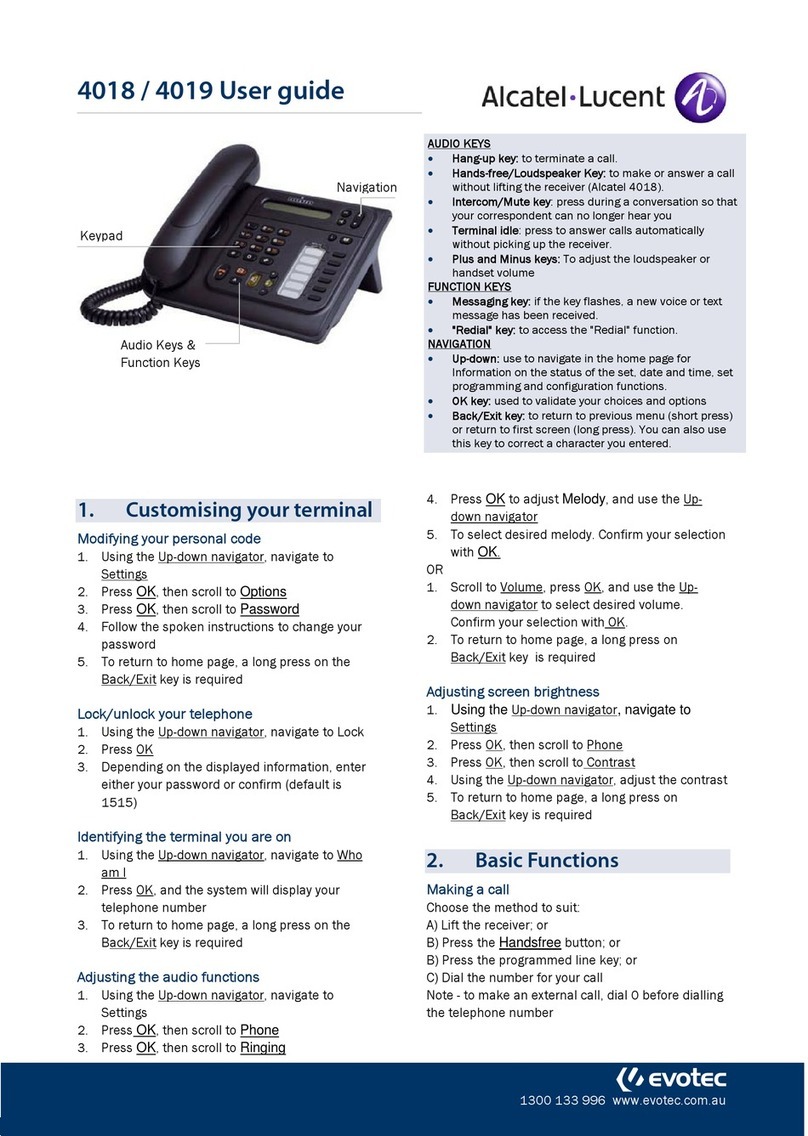
4038 / 4039 User guide
1. Customising your terminal
Modifying your personal code
1. Using the left-right navigator, navigate to the Menu
screen
2. Press Button adjacent to Settings
3. Press Button adjacent to Options
4. Press Button adjacent to Password
5. Follow the onscreen information
Lock/unlock your telephone
1. Use the left-right navigator, navigate to the Menu
screen
2. Press Button adjacent to Lock
3. Depending on the displayed information, enter
either your password or confirm (default is 1515)
4. Your telephone is locked/unlocked
Identifying the terminal you are on
Using the left-right navigator, navigate to the Info
screen. Your terminal information will be displayed
Adjusting the audio functions
1. Use the Left-right navigator to navigate to the
Menu screen
2. Press the button adjacent to Settings
3. Press the button adjacent to Phone
4. Press the button adjacent to Ringing
5. Press OK to adjust Melody, and use the Up-down
navigator to select desired melody. Confirm your
selection with OK.
6. OR
7. Scroll to Volume, press OK, and use the Left-right
navigator to select desired volume. Confirm your
selection with OK.
Adjusting screen brightness
1. Use the Left-right navigator to navigate to the
Menu screen
2. Press the button adjacent to Settings
3. Press the button adjacent to Phone
4. Press the button adjacent to Contrast
5. Increase or decrease the contrast
AUDIO KEYS
Hang-up key: to terminate a call.
Hands-free/Loudspeaker Key: to make or
answer a call without lifting the receiver.
Intercom/Mute key: press during a conversation
so that your correspondent can no longer hear
you
Terminal idle: press to answer calls
automatically without picking up the receiver.
Plus and Minus keys: To adjust the loudspeaker
or handset volume
FUNCTION KEYS
Guide key: To obtain information on functions of
the menu page and to program key of the
“perso” page
Messaging key: if the key flashes, a new voice or
text message has been received.
"Redial" key: to access the "Redial" function.
Programmable key (F1 & F2): lit when the
function associated with the key is activated
NAVIGATION
Up-down: to scroll through the content of a page
Left-right: to move from one page to another
OK key: used to validate your choices and
options
Back/Exit key: to return to previous menu (short
press) or return to first screen (long press) ;
during a conversation, provides access to
welcome screens (Menu, Info, ...) and to return
to the conversation icon screens.
DISPLAY AND DISPLAY KEYS
Transfer icon: allows to program or change
the transfer function
Headset connected
Silent mode activated
Appointment programmed
Telephone Locked
Keypad
Function
Keys
Navigation
Audio Ke
y
s
Al
p
habetic ke
yp
ad
Display &
display
keys
Indicator light
EXTENSION UNIT
An extension unit can be fitted to your telephone. This provides
additional keys which can be configured as feature keys, line keys,
call keys etc.
T o affix labels: push the holding strip of the unit backwards to you
and lift it. Install the label under the keypad, in the housing
designed for, and place the keypad back into position.
1300 133 996 www.evotec.com.au
2. Basic Functions
Making a call
Choose the method to suit:
A) Lift the receiver; or
B) Press the Handsfree button; or
C) Press the programmed line key; or
D) Dial the number for your call
Note - to make an external call, dial 0 before dialling
the telephone number
Receiving a call
Choose the method to suit:
A) Lift the receiver; or
B) Press the Handsfree button; or
C) Press the key adjacent to the programmed incoming
call icon
Transferring a call
1. Caller rings in, and is answered
2. Dial the extension number or 0 followed by the
external number
3. Then select the button adjacent to Transfer
4. Either announce the call, or simply transfer and the
call will ring through on the transferred number
Redialling
1. Press the Redial button
OR
2. Press the Handsfree button. Select the button
adjacent to Redial Lst on the display. Scroll
through the recently dialled numbers list using the
Up-down navigator key. Press OK to confirm the
number you wish to redial.
Group Pickup
Dial * 6 to pickup another call from within the group
Direct Call Pickup
Dial # 6 followed by the extension number
3. Voicemail & Feature Keys
Checking voicemail
If the Voicemail key flashes orange, a new voice
message or new text message has been received
Press the F1 Voicemail key
Programming a feature key with a telephone number
1. Use the Left-right navigator to navigate to the
Menu screen
2. Press the button adjacent to Settings
3. Use the Left-right navigator to scroll to Keys
4. Press the key you wish to programme
5. Press the button adjacent to Name
6. Using the phone keypad, enter the person’s name
7. Press OK
8. Press the button adjacent to Number
9. Using the dial pad, enter the internal or external
number
10. Press OK
Note - for external numbers, enter 0 prior to the
number
4. Diverting your calls
Diverting your calls to another number
1. Press the button adjacent to the Forward icon
2. Use the Up-down navigator to scroll to the desired
type of diversion e.g. Immediate, On busy,
DoNotDisturb
3. Press the button adjacent to desired type of
diversion
4. Dial the destination number
5. Press the OK key if the programming is not
automatically recorded
Diverting calls to your voicemail
1. Press the button adjacent to the Forward icon
2. Use the Up-down navigator to scroll to Immed-->VM
3. Press the button adjacent to Immed-->VM
4. Press the OK key if the programming is not
automatically recorded
Cancel all diversions
1. Press the button adjacent to the Forward icon
2. Use the Up-down navigator to scroll to Canc fwd
3. Press the button adjacent to Canc fwd
4. Press the OK key if the programming is not
automatically recorded
5. During a conversation
Calling a second person during a conversation
1. While on a call, dial the number of the second
party. The first caller is automatically placed on
hold.
2. Return to the first caller by pressing the button
adjacent to the programmed incoming call icon
Three-way conference
While the first party is on the line:
1. Dial the number for the second person
2. Use the Up-down navigator key to navigate to
Conference and press the button adjacent to it
3. To cancel the conference and return to the first
caller, press the button with a hand next to it
4. OR To hang up on all correspondents, press the
Release key
6. Directory
Using call by name
1. Enter the first letter of the name

2. Select the name from the displayed list, using the

Left-right navigator key
3. Make the call by pressing OK
Make calls via your programmed keys
1. Use the Left-right navigator to navigate to the
Person screen
2. Use the Up-down navigator to scroll to the person
you want to call
3. Call the chosen person using the button adjacent
to the name